Author Archives: krcmic.com

Most famous AI plugins for ChatGPT-4 directly from OpenAI

These AI plugins offer a variety of services, from travel planning and grocery ordering to language learning and restaurant booking. The plugins are designed to enhance user experience and offer new possibilities, but it is important to note that they also come with new risks.

ChatGPT plugins are directly from OpenAI’s.

You can join the waitlist. Several external plugins are available for use right now. Thanks to them, you can plan a trip, order food, calculate anything, book a table at a restaurant, or learn to pronounce words in any language. However, don’t forget that the AI plugins bring new risks along with new opportunities.

New AI plugins can bring new risks to users, such as privacy concerns, security vulnerabilities, and the potential for unintended consequences. For example, a plugin that collects personal information for travel booking purposes could also potentially expose that information to hackers or be misused by the company for targeted advertising. Similarly, a language learning plugin that uses voice recognition could unintentionally collect sensitive information from users, such as their voice patterns or speech patterns, without their knowledge or consent. Therefore, it is important for users to be aware of the potential risks associated with new AI plugins and to exercise caution when using them.

Expedia

AI plugin for traveling / travelers.

One of the most popular AI plugins is Expedia, which helps bring your travel plans to life. Whether you need to find flights, hotels, or activities, Expedia has got you covered. You can easily browse and book everything you need for your next trip.

It helps users to plan and organize their trips, find accommodations, and explore things to do at their destination. With Expedia, users can easily search and book flights, hotels, rental cars, and vacation packages. It also provides users with reviews and recommendations for restaurants and attractions at their destination. Overall, Expedia is a comprehensive travel tool that leverages AI to enhance the travel planning experience.

KAYAK

AI plugin for searching for flights, accommodation, and rental cars.

KAYAK is another plugin that has proven to be incredibly useful. With KAYAK, you can search for flights, hotels, and rental cars all in one place. You can also get recommendations for all the places you can go within your budget.

It provides recommendations on where to go based on the user’s budget and preferences. The plugin enables users to search for the best deals and discounts across different travel websites and compare prices. It also allows users to set up price alerts and track changes in flight and hotel prices. KAYAK aims to simplify the travel planning process and save users time and money.

Travel brands Expedia and Kayak have become the first to create plugins for ChatGPT, the conversational AI language model developed by OpenAI.

FiscalNote

AI plugin for the latest news from political and regulatory information.

Another popular plugin is FiscalNote, which provides access to real-time data sets for legal, political, and regulatory information.

It is used to track policy and regulatory changes that may affect businesses and organizations and to monitor compliance requirements. FiscalNote analyzes and aggregates data from various sources, such as government websites and news outlets, to provide users with insights and alerts on policy changes and trends. It helps businesses and organizations stay up-to-date with the latest legal and regulatory developments and make informed decisions based on the insights provided by the plugin.

This plugin is a must-have for anyone who needs to stay up to date on the latest news and information in their field.

Instacart

AI plugin for ordering from favorite local grocery stores.

Instacart is another plugin that has become increasingly popular in recent years. With Instacart, you can order groceries from your favorite local stores and have them delivered right to your doorstep. This plugin has been a game-changer for busy individuals and families who don’t have time to go to the store.

Instacart plugin that allows users to order groceries and other household items from local stores for delivery or pickup. The plugin enables users to browse a wide range of products, compare prices, and place orders directly through the app. Using AI technology, Instacart can recommend personalized products and promotions based on a user’s shopping history and preferences. With Instacart, users can save time and hassle by avoiding trips to the grocery store and having their items delivered right to their doorstep.

Klarna Shopping

Price comparator / AI plugin for finding the best offer from thousands of online shops.

Klarna or Klarna Shopping is another plugin that has gained popularity in recent years. With Klarna Shopping, you can search and compare prices from thousands of online shops. This plugin is perfect for anyone who loves to shop online and wants to find the best deals.

It helps users to find the best deals on their desired products from various online stores, making online shopping a convenient and cost-effective experience. Klarna Shopping also provides a range of payment options, allowing users to buy products on credit or make interest-free payments over time. Overall, the plugin helps users to save money, simplify their shopping experience, and access a wider range of products from multiple online stores.

Milo Family AI

AI plugin based on artificial intelligence generates creative ideas for fun activities for your kids.

Milo or Milo Family AI is a plugin that is perfect for parents who need a little help. With Milo Family AI, parents can get superpowers to turn the manic into magic in just 20 minutes each day. You can ask Milo, “What’s magic today?” and get ideas for fun activities to do with your kids.

Milo Family AI-powered plugin is used to assist parents in managing their daily routines and tasks. It provides them with personalized recommendations and suggestions based on their preferences, schedules, and interests. Milo helps parents to manage their time, organize their tasks, and engage in meaningful activities with their children, turning everyday moments into memorable experiences. It also provides age-appropriate games and educational resources to help children learn and grow. Overall, Milo Family AI aims to make family life more efficient, enjoyable, and enriching for both parents and children.

OpenTable

AI plugin helps you to find restaurants, restaurant recommendations, and bookings.

OpenTable is another plugin that is incredibly useful. With OpenTable, you can find restaurant recommendations and book a table right from the plugin. This plugin has made it easier than ever to discover new restaurants and book reservations.

It allows users to search for restaurants based on various criteria such as cuisine, location, price range, and availability. The plugin provides users with a direct link to book a table at the restaurant of their choice. Additionally, OpenTable allows users to read reviews from other diners and earn reward points for making reservations through the platform.

Shop (from Shopify)

AI plugin for faster search of clothes, electronics, or anything in between.

Shop is a plugin that lets you search for millions of products from the world’s greatest brands. Whether you’re looking for clothes, electronics, or anything in between, Shop has got you covered. It is designed to help users find and purchase products from a wide range of online retailers in one place, without the need to navigate to multiple websites. With Shop, users can search for products by keyword, browse by category, and view detailed product information and reviews. The plugin uses AI to provide personalized product recommendations based on user behavior and preferences, making it easier for users to discover new products and brands. The shop also offers price comparisons and alerts for deals and discounts, helping users save money on their purchases.

Speak

AI plugin for learning a new language

Speak is a plugin that can help you learn a new language. With Speak, your AI-powered language tutor, you can learn how to say anything in another language. This plugin is perfect for anyone who wants to learn a new language but doesn’t have the time or resources for traditional language classes.

It acts as a language tutor and provides users with the pronunciation of words or phrases in a specific language. With Speak, users can improve their language skills and communicate more effectively with people from different parts of the world. The plugin uses advanced speech recognition technology and machine learning algorithms to accurately transcribe and pronounce words and phrases, making it an effective tool for language learning.

Wolfram / Alpha Wolfram

AI plugin for ChatGPT for calculations, analyzing data, and creating visualizations

Wolfram/Alpha is an AI-powered plugin that provides access to computation, math, curated knowledge, and real-time data through the Wolfram Language and Wolfram|Alpha. It allows users to solve complex mathematical problems, access curated data sets, and perform computations in real time. The plugin is used in a wide range of fields, including science, technology, engineering, and mathematics (STEM), and is often used by researchers, students, and professionals to perform calculations, analyze data, and create visualizations. The Wolfram/Alpha plugin can be integrated into various platforms, including websites, mobile applications, and desktop software.

In conclusion, AI plugins are becoming increasingly popular, and for good reason. These plugins offer a variety of services that can make your life easier and more convenient. Whether you need to plan a trip, order groceries, learn a new language, or access real-time data sets, there’s an AI plugin out there for you.

CookieBot settings, deployment/implementation via GTM (Google Tag Manager) and settings GA4 tracking

If your website uses Google Tag Manager (GTM), deploying Cookiebot can be done easily by following these step-by-step instructions. This guide will walk you through how to implement the cookie consent banner, control cookie-setting tags, and display the cookie declaration on a subpage.

Before following the instructions, make sure that you have already created a GTM account, set up a website container in GTM, and added the GTM container snippet to your website as required. For more information, visit: https://support.google.com/tagmanager/answer/6103696

Implementing the cookie consent banner in GTM

First, obtain the Cookiebot CMP tag template from the Template Gallery. The easiest way to do this is by clicking the Get Started button on the Consent Overview

You can find the Consent Overview by clicking on the icon  on the Tags section.

If you don’t see this icon, you can enable this function on the Admin tab, under Container Settings.

Check the “Enable consent overview” box under Additonal Settings and save your changes:

When you click the Get Started button, a pane will slide in from the right where the Cookiebot CMP template should be one of the featured CMP templates.

Alternatively, add a new tag and click the “Discover more tag types in the Community Template Gallery” item

Enter “Cookiebot” in the search field to find the Cookiebot CMPtag template

Select the “Cookiebot CMP” item and click the “Add to workspace” button.

Confirm by clicking “Add”

Next, create a new tag by clicking “New” ❯ “Tag Configuration” and select “Cookiebot CMP” from the list of standard tag types.

In the “Cookiebot ID” field, copy in the ID from the ‘Your Scripts’ tab under your account on https://manage.cookiebot.com/en/manage (in Your scripts) or you can copy Domain Group ID.

Choose “Consent initialization – All pages” as trigger and apply a name to your tag at the top of the configuration page, e.g. “Cookiebot”. Click “Save” to create the tag.

This is what your tag configuration should look like (except for the value of the Cookiebot ID):

Make sure that you have registered and saved the domain name(s) of your website(s) in Cookiebot.

Enabling URL passthrough in Google Tag Manager (GTM) allows Cookiebot to scan your website’s subpages for cookies and scripts that need to be blocked or audited. By default, Cookiebot scans only the homepage of your website, but enabling URL passthrough extends its scanning capabilities to other pages on your website.

When URL passthrough is enabled in GTM, Cookiebot can check each page on your website for cookies and scripts that need to be blocked, and it can also display the cookie declaration on each subpage. This ensures that your website is fully compliant with relevant privacy regulations, such as the General Data Protection Regulation (GDPR) in the European Union.

Enabling URL passthrough in GTM is a straightforward process that involves creating a new trigger in GTM and configuring it to pass URLs to Cookiebot. By following the step-by-step instructions provided by Cookiebot, you can easily enable URL passthrough in GTM and ensure that your website is fully compliant with privacy regulations.

Defining the Google Consent Mode default consent state

The Default Consent State for the Cookiebot Gallery Template in GTM refers to the initial state of the cookie consent banner when a user visits a website. This setting allows website owners to control the default consent state of their visitors, either giving or denying consent to the use of cookies.

The Cookiebot Gallery Template is a pre-designed cookie consent banner that can be installed on a website through Google Tag Manager (GTM). The default consent state setting in GTM allows website owners to choose whether the cookie consent banner will appear in an “Accepted” or “Declined” state when a user first visits the website.

This setting can be useful for website owners who want to give their visitors more control over their cookie preferences, or who want to ensure that visitors are aware of their website’s use of cookies before giving their consent. By setting the default consent state, website owners can also ensure compliance with data protection regulations, such as GDPR and CCPA.

GTM by default supports 5 different consent types that are automatically mapped by Cookiebot to the 4 categories used in Cookiebot CMP:

GTM Consent Type Mapped Cookiebot Type Description
ad_storage marketing Enables storage (such as cookies) related to advertising
analytics_storage statistics Enables storage (such as cookies) related to analytics e.g. visit duration
functionality_storage preferences Enables storage that supports the functionality of the website or app e.g. language settings
personalization_storage preferences Enables storage related to personalization e.g. video recommendations
security_storage necessary Enables storage related to security such as authentication functionality, fraud prevention, and other user protection. Users will be informed about the specific storage purposes in the cookie declaration, but this type does not require consent from the end user.

Note! The three new consent types are only for non-Google tags. Google tags (e.g. Analytics, Ads, and Floodlight) are only sensitive to ad_storage and analytics_storage.

It’s somewhat odd seeing functionality_storage and security_storage here, as at least in the European Union they are typically deemed to be strictly necessary storage and thus wouldn’t require consent at all. On the other hand, having more configuration options is rarely a bad thing.

You can actually add any consent types you like into the respective API calls and tag settings. The three new consent types are Google’s recommendations, but they’re not an exhaustive list.

Defining the Google Consent Mode in CookieBot template from GTM gallery

GTM by default supports 5 different consent types that are automatically mapped by Cookiebot to the 4 categories used in Cookiebot CMP:

GTM Consent type Cookiebot type Description
ad_storage marketing Enables browser storage (such as cookies) related to advertising
analytics_storage statistics Enables browser storage (such as cookies) related to analytics e.g. visit duration
functionality_storage preferences Enables browser storage that supports the functionality of the website or app e.g. language settings
personalization_storage preferences Enables browser storage related to personalization e.g. video recommendations
security_storage necessary Enables browser storage related to security such as authentication functionality, fraud prevention, and other user protection. Users will be informed about the specific storage purposes in the cookie declaration, but this type does not require consent from the end user.

The category ‘necessary’ (mapped to consent type security_storage) is by default set to ‘Allow’ and is not configurable, as it does not require consent.

A default consent state of ‘denied’ will apply until the user has submitted consent. You can change this default behavior and add different default consent states for users in different geographical regions by clicking “Add region” under the “Default Consent State” section.

In the example above, a global (blank region value) default consent state of ‘denied’ is defined for all users along with a specific ‘granted’-state for users from California (US-CA).

Please use ISO-3166-1 alpha-2 country codes for region values. For the United States, it is also possible to use state-specific regions, e.g. “US-CA” for California. If a specific default consent state applies to multiple regions, you can add a comma-separated string of regions to the Region field.

Controlling cookies

Google Tag Manager includes several features that work together with Cookiebot to help you manage how tags behave in response to the end user’s consent choices.

Specific tags (such as Google Ads, Analytics, Floodlight, and Conversion Linker) have built-in consent checks. This means that these tags include logic that automatically changes the tag’s behavior based on the user’s consent state. No consent configuration is needed for this type of tag*.

Tags that do not have built-in consent checks, which do utilize tracking, must be configured with additional consent checks. Opposed to tags with built-in consent checks, which load regardless of consent, tags configured with additional consent checks will not fire unless consent has been given for the corresponding storage category.

In the next section, we will provide instructions to configure additional consent checks.

It is important to note that because tags with built-in load regardless of consent, data will be transmitted to Google without explicit permission from the visitor. If this is of concern to you, it is recommended to configure tags with built-in consent with additional consent as well. That way the tag will not load prior consent.

CookieBot banner settings in the admin interface

For EU use Explicit Consent in the tab Banner.

Explicit consent and implicit consent refer to the two different methods of obtaining user consent for the use of cookies on a website, as required by data protection regulations such as GDPR.

Explicit consent means that the user is presented with a clear and specific request for their consent before any cookies are stored on their device. The user must actively indicate their consent by clicking an “accept” button or similar. This method ensures that the user is fully aware of what they are consenting to and gives them the opportunity to opt-out.

Implicit consent, on the other hand, is assumed consent based on the user’s behavior or settings. For example, if a user continues to use a website after being presented with a cookie banner that explains the use of cookies, it may be assumed that they have given their consent. Similarly, if a user’s browser settings allow cookies, it may be assumed that they have given their consent.

However, under GDPR and other data protection regulations, explicit consent is generally required for non-essential cookies. Implicit consent may be sufficient for essential cookies that are necessary for the functioning of the website. Cookiebot is a tool that can help website owners obtain and manage explicit consent for cookies.

Use position “Overlay” (banner displayed in the center and background is overlayed by filter) and uncheck “Show close icon ‘X’ in the top right corner of the banner” (as then each click outside the area = no cookie consent was given, so you maximize the number of cookies you collect).

Inline multilevel – Users can opt-in and out of separate cookie categories inside the details banner.

You can also include your logo and set if the cookie banner should be displayed to each visitor or to just EU visitors (where GDPR law is applicable).

You can also use your own design (which means coding the whole banner itself).

Setting up Additional Consent Checks

  1. In your GTM container, create the following trigger, to be used in your GTM configuration:
    Event Name: cookie_consent_update
    Event Type: Custom Event
    Fires On: All Custom EventsYour trigger should look similar to this:Cookie consent update trigger
  2. Edit the consent settings for all tags that need to be configured with additional consent.
    You can find these settings in the Tag Editor ❯ Advanced Settings ❯ Consent Settings.
    Add all storage categories which the tag requires (see the scan report from Cookiebot if you are in doubt).In this example the tag requires consent for ad_storage / marketing cookies:requires ad_storage
  3. In order to make sure that the tag is triggered once the consent choices have been established, whether from a previous visit or interaction with the banner, you will need to replace the “All Pages” trigger with the trigger created in the first step.Here’s an example using a Facebook Pixel tag, which will only fire if the visitor has opted in to the necessary consent type with this setup:

    Facebook Pixel tagFor a complete view of the consent settings across all the tags in your container, you can enable the Consent Overview from your container settings:Consent overviewThere are additional methods, besides using Consent Mode, to ensure tags cannot load prior consent. Please see Alternative methods for conditionally loading tags for instructions.

For that settings, I just recommend to setup variables for each consent and setting up the default value as false in GTM or making sure in CookieBot you uncheck the option. First setup in GTM will make sure that the default value for specific consent to false (for ad/marketing cookies for example).

That can be used as secondary option for situation that someone forgot to uncheck it in CookieBot.

Implementing the cookie declaration

To provide users with the ability to modify or revoke their consent, you can integrate Cookiebot’s “Cookie Declaration” on a preferred webpage by inserting the following script tag directly into the page’s source code and determining the location on the page where the cookie declaration will be shown (substitute “00000000-0000-0000-0000-000000000000” with your unique Cookiebot ID):

<script
  id="CookieDeclaration"
  src="https://consent.cookiebot.com/00000000-0000-0000-0000-000000000000/cd.js"
  type="text/javascript"
></script>

Make sure to link to the page that embeds the declaration from all pages on your website, e.g. in the website template footer.

Marking up your non-GTM website elements

Once your Google Tag Manager (GTM) setup is complete, the next step is to markup the non-GTM elements of your website. By implementing Cookiebot via GTM, you can use Cookiebot to manage tags that require consent but do not originate from GTM, such as scripts, images, and iframes that are directly inserted into your website template.

Such tags need to be marked up for ‘prior consent’ as described in our manual mark up guide. If you wish to combine the use of Google Tag Manager and automatic blocking, please see Google Tag Manager and Automatic cookie blocking.

This is used mainly for hard-coded implementations. This means for scripts outside the GTM.

You will use special part of the script (depending on how you want to make sure CookieBot will work with that consent).

data-cookieconsent=”marketing”

data-cookieconsent=”statistics”

data-cookieconsent=”preferences”

data-cookieconsent=”ignore”

“Ignore” only affects automatic blocking and is not relevant in this context. For more details, see this article.

“necessary” or “unclassified” are not valid values and should never be used. Instead necessary scripts should simply not be marked up.

In case you use for all scripts GTM only – you first need to add this piece of code in the GTM script to make sure the GTM is not waiting for any cookie consent and then in GTM there must be set all rules based on cookie consent from the actual user.

<script data-cookieconsent=”ignore”>(function(w,d,s,l,i){w[l]=w[l]||[];w[l].push({‘gtm.start’: new Date().getTime(),event:’gtm.js’});var f=d.getElementsByTagName(s)[0], j=d.createElement(s),dl=l!=’dataLayer’?’&l=’+l:”;j.async=true;j.src= ‘https://www.googletagmanager.com/gtm.js?id=’+i+dl;f.parentNode.insertBefore(j,f); })(window,document,’script’,’dataLayer’,’yourID‘);</script> <!– End Google Tag Manager –>

Settings GA UA (Google Universal Analytics) or GA4 (Google Analytics 4)

Create GA4 ID variable (Variables – Create New – Constant – insert GA4 ID)

GA4 tracking ID – you will find it in your GA4 property

Then you setup trigger all pages and just check you include there ad_storage

Internal filters in GA4

Under Configure tag settings you can also setup internal filters (max. 10 profiles with maximum 10 items in it – so you are quite limited).

You can use these options:

  • IP xxx.xxx.xxx.xxx = IP address equals
    You go to myip.com and just copy it
  • IP format: xx.xxx.xx.x/xx (range) = IP address is in range (CIDR notation)
    Like 10.222.333.10/20 will filter out all 10.222.333.10 up to 10.222.333.20 (also 10.222.333.11, 10.222.333.12 etc.)
  • IP format: xxx.xxx.xxx = IP address begins with (you can use that to have fewer filters)

Additional resources

For instructions on how to make the cookie banner change language depending on which (language) part of your website a visitor navigates, please see Multilingual support when using GTM.

Consent Mode is enabled by default. If you for any reason want to disable Consent Mode, please untick the checkbox “Enable Google Consent Mode”.

See also blog post: Google tag manager and GDPR

Google Analytics 4/GA4 attribution guide: The latest updates on the transition

Google Analytics 4 (GA4) is the latest version of Google’s analytics platform, which has been designed to offer more advanced tracking and analysis capabilities compared to its predecessor, Universal Analytics (UA). One of the key updates in GA4 is the introduction of a new attribution model that focuses on user behavior and engagement, rather than just the last touchpoint before a conversion.

The new GA4 attribution model is built around the concept of “events,” which are user interactions with a website or app, such as clicks, page views, and purchases. GA4 tracks these events and assigns them different values based on their importance to the user journey. The attribution model then uses these values to assign credit for conversions to different touchpoints along the user journey, rather than just the last one.

There are several benefits to the new GA4 attribution model. For example, it provides a more complete picture of the user journey and allows marketers to optimize their campaigns for more than just the last touchpoint. It also helps to identify the most effective marketing channels and campaigns, as well as the most valuable user segments.

However, the transition to GA4 attribution can be complex and requires careful planning and execution. This is because GA4 uses a different data model compared to UA, which means that data needs to be restructured and migrated to the new platform. Additionally, GA4 has a different user interface and reporting capabilities, which may require additional training for users.

To help with the transition to GA4 attribution, Google has released several updates and resources. One of the most significant updates is the introduction of new attribution reports in GA4, which provide more detailed insights into user behavior and conversion paths. Google has also provided a migration guide and a data mapping tool to help users transfer their data from UA to GA4.

Overall, the transition to GA4 attribution is an important step for marketers who want to stay ahead of the curve in terms of tracking and analyzing user behavior. While it can be complex, the benefits of the new attribution model make it a worthwhile investment for businesses that rely on digital marketing to drive growth and success.

List of all the latest information, notes, and updates for important GA4 topics you find below (we update it from time to time).

GA4 attribution: Starting point in Google Analytics 4 (the latest updates on the transition – update on March 16, 2023)

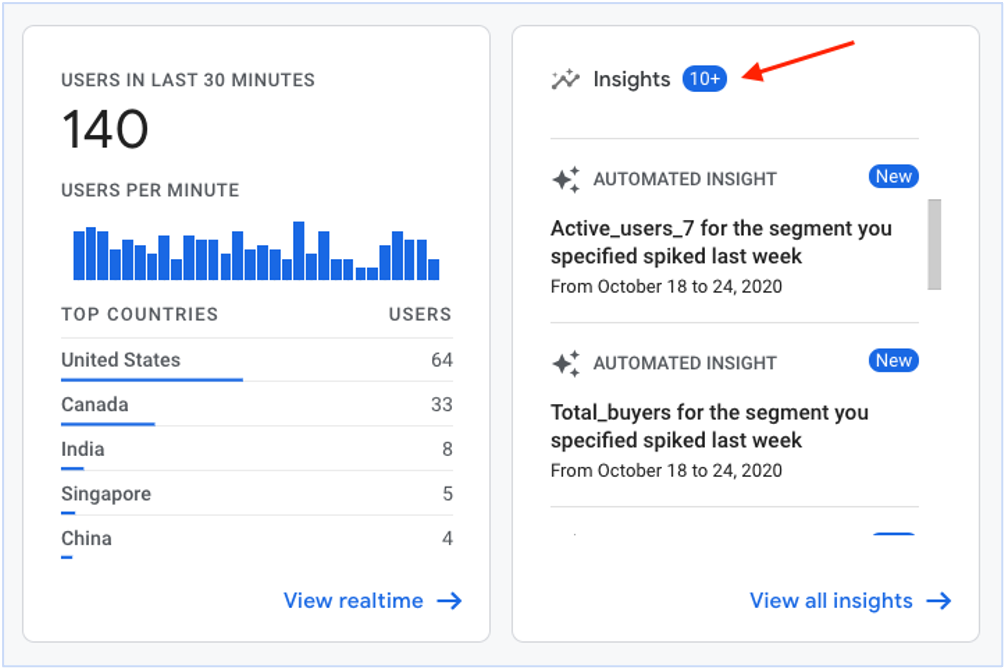
The most crucial starting point when opening up GA4 is to determine the questions you have and the data required to answer them effectively. A great starting point to get some ideas flowing is to try the Insights button.

Once you have a clear goal in mind, consider your tool options to decide what’s best. If you’re still unsure where to begin, start by checking for a pre-built report that meets your needs. If you don’t find one, try designing a custom report in the Report Library.

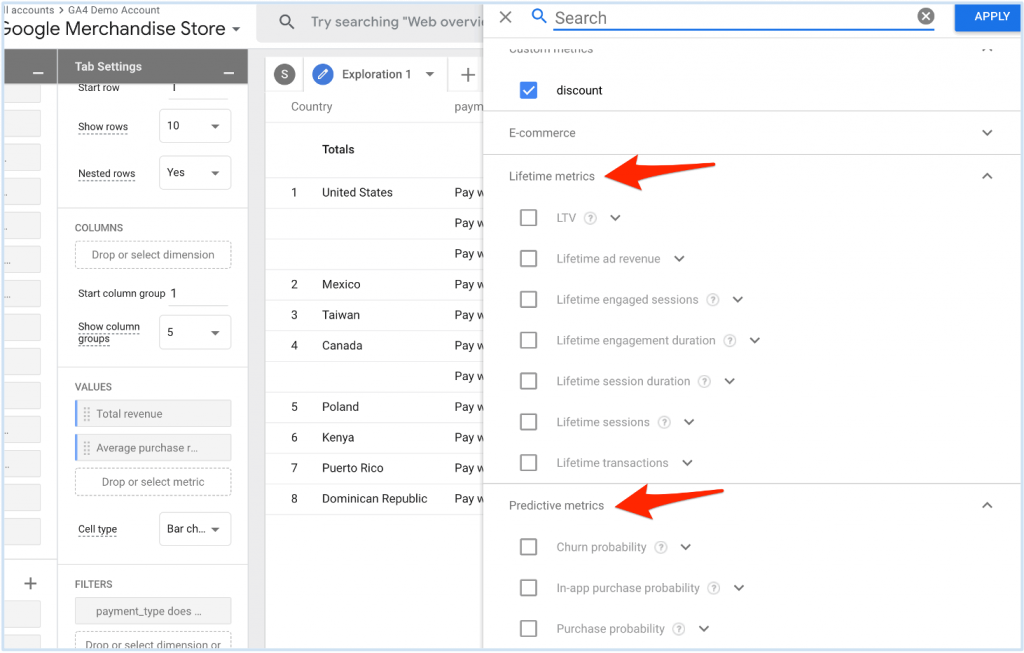
If at any point you encounter barriers with the functionality in the tab “Reports” or dimensions and metrics that aren’t available, try Explore.

Additionally, if you want to pick up where you left off in Reports or if you find yourself wanting to dig deeper into an existing detail report, there is a way to do this without starting over.

From a detailed report, click the icon to Edit comparisons in the top right corner of the report. At the bottom of the right navigation that appears, click “Explore” (try refreshing if it is missing). If Explore’s built-in capabilities aren’t enough, and you know you could get to where you need to be in a spreadsheet, export the report data to Excel (or try the Supermetrics add-on in Google Sheets) and work with it from there.

GA4 attribution: Google Optimize not offered with Google Analytics 4 (the latest updates on the transition – update on February 28, 2023)

On February 23, it was announced that Google Optimize will not be offered in GA4. If Google Optimize is an essential part of your marketing analytics strategy, it’s recommended to find a replacement solution before fall. Google has stated that after September 30, 2023, Google Optimize and Optimize 360 will be discontinued since the technologies won’t integrate with Google Analytics 4 (GA4).

According to Google, Optimize “does not have many of the features and services that our customers request and need for experimentation testing.” To address this, it’s recommended to export historical data before it disappears. In terms of being able to split test in GA4, Google will make their APIs publicly available for businesses to integrate their own A/B testing tools with GA4.

Alternatively, businesses can use a third-party tool with GA. Currently, Google is testing A/B testing integrations with AB Tasty, Optimizely, and VWO.

GA4 attribution: Google Analytics 4 data (the latest updates on the transition – update on February 15, 2023)

On February 9, a guide was released on how to choose the right tool to navigate GA4 data. GA4 offers various ways to analyze and report data through both its UI and external tools. The following is an overview of each tool’s specific value:

GA4 Reports: Reports are aggregated tables of data that consist of overview cards and detail reports designed to provide top-level insights into data. GA4 Reports are intended to serve as snapshots and simple tables of the most important data, and they are limited in their filtering, segmenting, and drill-down capabilities. The Report Library can be fully customized to fit unique needs and can be arranged into collections of topics to surface the most important data. They are also unsampled and can look back on all historical data, regardless of data retention settings.

GA4 Explorations: GA4’s Explore feature is a collection of advanced data analysis techniques that allow users to explore their data. Unlike Reports, Explorations give users the opportunity to:

  • Perform ad hoc queries quickly
  • Drill down and sort data
  • Add segments and filters
  • Export results to other products

Explorations are the best tool to dive deep into data to pull out actionable insights. However, Explorations are your own work and can’t be collaborated on with other users. Explore data is subject to sampling and restricted date ranges, depending on the property’s data retention settings.

Microsoft Excel or Google Sheets: Explore has limitations, especially for blending GA4 data with ad platform data. One can take their analysis and Explore data tables one step further by exporting the results to a spreadsheet and performing more advanced data manipulations there. Google Sheets should be used if one plans to use spreadsheet tables as data sources for Looker Studio. To move data from Excel to Looker Studio, use the CSV File Upload option.

Google Looker Studio: Looker Studio’s role is similar to what it was for Universal Analytics and will continue to be the best resource for data visualization and reporting. However, Looker Studio is not a good resource for ad hoc queries and most data analysis since building the data sources can be quite complex.

Google BigQuery: BigQuery is a cloud data warehouse platform that opens a world of possibilities with GA4 data, including blending it with customer CRM data, Census data, or Google Trends. BigQuery provides infinite possibilities to query raw GA4 data and build data tables that aren’t possible to achieve in the GA4 UI, and in a much easier and more scalable way than with Google Sheets. Potential BigQuery use cases include building user identity graphs, calculating lifetime value, creating custom remarketing lists, applying machine learning to build advanced data models and predictive analytics capabilities, improving automation and debugging processes, retaining historical data, and customizing attribution modeling and lookback windows.

In the next update, a deeper dive will be taken into where to start with determining which tool to use and questions to ask when getting started.

GA4 attribution: Google Analytics 4 reports (the latest updates on the transition – update on January 28, 2023)

On January 26, choosing the right GA4 reporting tool was discussed. There are several options to obtain the necessary data and insights, and the user interface may not always be the best choice. The following questions can help clear up confusion and guide you in the right direction:

  • Are you seeking a general overview or more in-depth insights? For a general overview of common metrics, the Reports section is likely the best choice. However, you will need to create your own set of reports to begin. Keep in mind that collections and topics you add can be seen and accessed by everyone with permission.
  • Are you seeking to analyze data on the go or create a robust, reusable report? For deep analysis on the go, Explore is the best option, allowing easy data interaction, deeper digging, user segment comparison, and data visualization through funnel and path reports. Data Studio is the better option for creating robust, reusable reports, particularly if multiple people require access and editing capabilities.
  • Does your report need to be editable by others on your team (including date range edits)? If it’s only for you, Explore is a reasonable option. Sharing an Explore report only provides view-level access, so others cannot edit, or even modify the date range. However, if you need to share the report with other team members and they require the same editing abilities as you, Data Studio is the most viable solution.

The chart below summarizes the recommendations in teal and provides an overview of which tool makes the most sense for each task you intend to complete. Start with this chart to determine the most suitable tool for your needs.


Reports Explorations Data Studio BigQuery
Simple to use OK OK
Basic reporting (tables, graphs with 1-2 dimensions) OK OK OK OK
Customizability OK OK OK OK
Share with others OK Read-only OK
Shareable templates OK Reusable queries
Exportable to Data Studio OK
Exportable to Google Sheets OK OK
Deep analysis capability OK OK
Path, funnel, cohort visualization OK OK
Advanced queries OK
Data manipulation Limited OK
Blending data sheets OK OK


GA4 attribution: Customized reports in the library (the latest updates on the transition – update on January 9, 2023)

On January 12, you can customize your reports in the library with Admin access. You can create new collections, topics, and reports, and edit existing ones to fit your business needs. For instance, if you don’t track revenue-generating metrics, you can delete monetization reports as a lead-gen site.

To customize reports, go to the Reports section and select the Library feature at the bottom. Only Admin access allows you to edit or create reports. If you don’t see this option, you need Admin access.

In the report Library, you’ll find prebuilt reports discussed in the January 5 update, and you can click to edit them. You can also edit existing reports by clicking the pencil icon on any report’s top right corner.

Designing a report is like building a custom report in Universal Analytics, but simplified. You can select several dimensions and up to 12 metrics. In your report, the selected dimensions will be dropdown primary dimension options, with secondary dimensions applied outside the initial report configuration.

Complete your report by adding dimension-based filters, selecting chart types, and building summary cards for your Overview reports. Save your report, and give it a name and description.

To create overview reports, add summary cards in your detail reports. After creating all detail and overview reports for your collection, click “Create new collection.” You can start from a template or build a blank collection from scratch. Drag and drop your reports into your collection design. Click Save and return to the main Library screen.

To publish a collection, go to the main Library page, find your collection across the top, click the three dots, and select “Publish.”

Your reports will now be visible in your main Reports lineup. Note that publishing collections and organizing reports into collections and topics is not necessary. You can access a report anytime by navigating to the Library screen.

Reports have limitations, so design them to be as top-level as possible. Some dimensions and metrics may not be available. If you encounter roadblocks, your report design may be better for Explore or Data Studio. In the next update, tips will be shared to help you decide which feature is best for your needs.

GA4 attribution: Predefined report collections and topics in GA4 (the latest updates on the transition – update on January 7, 2023)

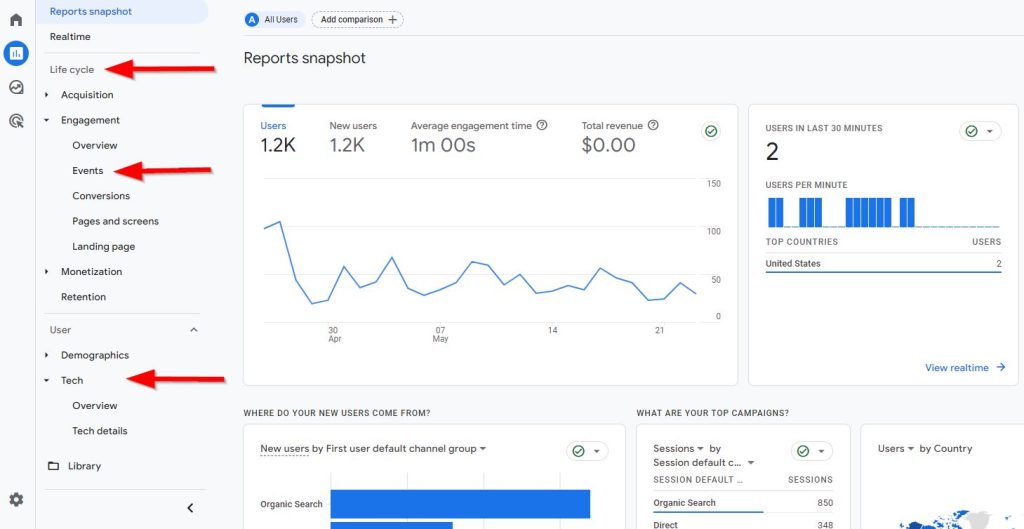
Life cycle collection – the Life cycle collection in GA4 is a predefined set of reports that helps you analyze user activity throughout their journey, from acquisition to retention. This collection includes several topics, each containing an Overview report and up to three Detail reports.

Acquisition – provides insights into where the traffic originated, with User acquisition focusing on first-touch attribution and Traffic acquisition on last-touch attribution. Attribution models chosen at the property level do not apply to these reports.

Engagement – highlights user engagement with the website or app after arrival, with reports on events, conversions, and pages, and metrics like engagement rate and user stickiness.

Monetization – includes e-commerce reporting, in-app purchases from mobile apps, and ad revenue from publisher platforms like AdMob.

Retention – currently only contains a standalone Overview report with sparkline charts that show how frequently and how long users engage with the website, with users grouped into cohorts.

User collection – is designed to provide information on the users engaging with your website or app, such as their ages, interests, and devices.

Demographics – classifies users by age, location, language, gender, and interests they express through online browsing and purchase activities.

Tech – provides details on user platforms, devices, operating systems, and browsers.

GA4 attribution: Google Analytics 4 interface (the latest updates on the transition – update on November 30, 2022)

The GA4 interface is divided into four areas for data analysis:

  1. Home: Presents relevant information based on previous behavior in GA4.
  2. Reports: Contains predefined reports for top-level insights into data.
  3. Explore: Provides advanced data analysis techniques for uncovering deeper insights.
  4. Advertising: Offers tools for multi-channel attribution modeling and conversion paths.

This update focuses on the Reports section in GA4. To access reports, click on “Reports” in the left-hand navigation of your GA4 property. You can access the Reports snapshot, Real-time reports, or sets of report collections and topics. The default report collections are Life cycle and User, and the topics are expandable report groups within these collections.

The Reports snapshot is an overview report that shows summary cards from any of your Overview reports. Real-time reports display current performance information about users on your website or app within the last 30 minutes. Overview reports typically contain summary cards that link to detailed reports in the bottom right corner. Detail reports are single reports that include a data table, graph, and one additional chart visualization.

Collections contain topics, and each topic typically includes an Overview report. Going through the Overview report may be the only way to find certain detail reports by default. Detail reports can show up to 250 rows, with secondary dimensions and comparisons applied to data tables. All reports, except for Realtime reports, are fully customizable by account administrators.

GA4 attribution: Commonly asked questions about Google Analytics 4 (the latest updates on the transition – update on November 12, 2022)

With the switch to Google Analytics 4 just under eight months away, it’s essential to know the basics of GA4 to make the transition as smooth as possible. Here are some commonly asked questions about GA4 to help you prepare:

  • What is GA4? GA4 is the newest version of Google Analytics that will replace Universal Analytics.
  • When is the switch to GA4 happening? GA4 will replace Universal Analytics on July 1, 2023, and will be required moving forward.
  • What is the scope of GA4? Scope refers to the ability to see what generated an event or session and where the user who generated the session came from. The three main types of scope in GA4 are user, session, and event scope.
  • What are attribution models in GA4? Attribution models determine how conversion credit is assigned to touchpoints. GA4 offers various types of attribution models, such as data-driven, last click, ads-preferred last click, first click, linear, position-based, and time decay. They apply to event-scoped dimensions and metrics.
  • How long are lookback windows in GA4? GA4 offers a maximum lookback window of 90 days, with additional preset options of 30 or 60 days. GA4 also introduces acquisition conversion events with preset options of 30 or 7 days, although these only apply to first_open and first_visit events.
  • How long is data retained in GA4? GA4 allows up to 14 months of data retention, with an additional 2-month option.
  • What about Universal Analytics 360? Universal Analytics 360 is the enterprise version of the platform, offering more complex and unique measurement capabilities, and up to 50 months of data retention instead of just 14. Notably, 360 properties will be migrated to GA4 on July 1, 2024, instead of 2023.

GA4 attribution: Attribution modeling, lookback windows, data retention, and the importance of scope in GA4 (the latest updates on the transition – update on October 14, 2022)

Compared to Google Universal Analytics, attribution modeling, lookback windows, data retention, and the importance of scope in GA4 are solved or changed in the following ways:

  • Attribution modeling: GA4 offers new features that allow you to choose the most appropriate attribution model for your business and view conversion data through multiple attribution lenses simultaneously. This feature helps businesses gain a better understanding of which touchpoints are most effective in driving conversions.
  • Lookback windows: Lookback windows in GA4 are shorter compared to Universal Analytics, with a maximum of 90 days. This change means that businesses need to review their data more frequently to ensure that they capture all relevant information before it expires.
  • Data retention: GA4 offers up to 14 months of data retention, with an additional 2-month option. This feature enables businesses to maximize their year-over-year data and identify trends and patterns in their data more effectively.
  • The importance of scope: In GA4, scope contextualizes metrics and pairs with attribution models to provide insightful reporting. This feature helps businesses understand where their users come from and what generates sessions or events. The three types of scope in GA4 are user, session, and event scope, each providing a different level of granularity and insights.

By understanding these changes and solving issues related to attribution modeling, lookback windows, data retention, and the importance of scope, businesses can make informed decisions and take advantage of GA4’s new features to gain better insights into their data.

GA4 attribution: 4 keys areas for setup of GA4 for success (the latest updates on the transition – update on October 2, 2022)

Imagine this: You have successfully migrated your Universal Analytics property to GA4 and set up basic year-over-year tracking. But what’s next? Taking a thoughtful approach to tracking and reporting design in GA4 can help you fully leverage all the new features GA4 offers.

To set up your GA4 property for success, it’s crucial to consider four key GA4 attribution concepts:

  1. Event tracking: For most e-commerce organizations, pageview and purchase tracking are the bare minima. However, events have changed conceptually in GA4, so it’s essential to review and map them into your new property carefully.
  2. Custom dimensions and metrics: These data points are crucial for tracking membership status, page types, and other details that Google Analytics does not provide by default. While these are still available in GA4, it’s vital to assess what is still necessary and how custom definitions have changed.
  3. Standard report customization: GA4’s standard reports and navigation structure may contain elements that aren’t directly applicable to your business. The good news is that GA4 allows for complete customization.
  4. GA4 property settings: It can be challenging to determine which property-level customization settings apply to your organization and what might cause issues down the line if left unaddressed. Hence, it’s essential to review and address these settings to avoid potential problems.

Taking these attribution concepts into account when setting up your GA4 property will enable you to maximize the benefits of GA4’s new features.

GA4 attribution: 4 keys areas for setup of GA4 for success (the latest updates on the transition – update on September 28, 2022)

In GA4, scope refers to the applicability of a metric or dimension and provides insight into what generated an event or session and where the user came from.

There are three types of scope in GA4 reporting: user, session, and event scope, each with an assigned attribution model for use in reporting.

  1. User scope: This follows the first non-direct interaction model, such as the first Google Ads campaign that brought the user to the website or app.
  2. Session scope: This follows the last non-direct interaction model, such as the Google Ads campaign that the user interacted with before their current session.
  3. Event scope: This uses the attribution model selected in the property settings for assigning credit to a specific event.

By understanding the differences in scope and lookback windows between Universal Analytics and GA4, businesses can better leverage these features to gain insights and make informed decisions based on their data.

Scope – refers to the extent to which a metric or dimension applies in GA4, allowing you to see what generated an event or session and the source of the user. There are three types of scope in GA4, each with an assigned attribution model: User Scope (first non-direct interaction), Session Scope (last non-direct interaction), and Event Scope (selected in property settings).

Lookback windows – determine how far back in time GA4 will consider an event for attribution credit and apply the attribution model within that timeframe.

Compared to Universal Analytics, GA4 introduces some changes to lookback windows:

  • The maximum lookback window is reduced from two years to 90 days.
  • Offers preset options of 30, 60, and 90 days, while Universal Analytics allows for full down-to-the-minute customization.
  • GA4 introduces the concept of acquisition conversion events, which have preset options of 30 or seven days.

Changes to the lookback window are not retroactive in GA4.

GA4 attribution: Attribution models in Google Analytics 4 (the latest updates on the transition – update on August 25, 2022)

Attribution models in Google Analytics 4 (GA4) are rules, sets of rules, or data-driven algorithms that determine how credit for conversions is assigned to touchpoints. GA4 introduces new attribution models and modifies some of the existing ones, allowing for a more data-driven approach to conversion analysis.

Please note that direct traffic is not considered for attribution credit in any model unless it comprises the entire conversion path.

Google Analytics 4 offers the following attribution models:

  • Data-driven: Fractional conversion credit is disseminated based on actual data from your account for each conversion event, using organic, paid search, email, or direct channels to determine the best attribution credit fit for each interaction.
  • Last click: 100% of the conversion value is attributed to the last channel the customer clicked through before converting.
  • Ads-preferred last click: 100% of the conversion value is attributed to the last Google Ads channel that the customer clicked through before converting.
  • First click: 100% credit for the conversion is given to the first channel that the customer clicked before converting.
  • Linear: Credit for the conversion is distributed equally across all the channels that the customer clicked before converting.
  • Position-based: 40% of credit is attributed to the first and last interaction, with the remaining 20% credit distributed evenly to the middle interactions.
  • Time decay: More credit is given to the touchpoints that happened closer in time to the conversion. The credit is distributed using a seven-day half-life, where a click eight days before a conversion gets half as much credit as a click one day before the conversion.

Sources

Google has just announced one of the most significant changes in a long time - import conversions into Google Ads

Google has just announced one of the most significant changes in a long time – import conversions into Google Ads

Google has just announced one of the most significant changes in a long time. They have shifted from their last non-direct click import from GA4 to Google Ads to a full cross-channel conversion credit import.

In this post, I will explain the difference between before and after. Let’s begin by mapping out a typical buying journey:

On Day 1, a customer makes a Google Shopping search, clicks to shop and sees the product, but doesn’t buy.

On Day 3, the customer clicks on a Facebook retargeting ad and makes a purchase.

Google Analytics 4 last non-direct click import (before):

As Google Analytics used a last non-direct click attribution model, Facebook was credited with 100% of the conversion value in this journey, as it was the last click before conversion. When importing conversions from Google Analytics into Google Ads, this conversion wouldn’t appear inside Google Ads since it wasn’t the “last non-direct click” in Google Analytics.

Google Analytics 4 full cross-channel conversion credit import (soon to be released):

With this upgrade, full cross-channel conversion credit will now be imported into Google Ads (even if the last non-direct click wasn’t Google advertising). This means that Google Ads can now get a fraction of the value and conversion attributed in Google Ads – let’s say you’re using a linear model – Google will get 0.5 conversion and 50% of the conversion value for this journey.

It’s difficult to gauge the exact impact until we see how it’s implemented in action, but I believe the new funnel cross-channel import is invaluable for reporting and will provide a more accurate representation of conversion value when including the impact of other channels. It will also make it possible to identify huge gaps in the values tracked by Google Ads vs GA4 cross-channel credit product/ads and adjust bids/changes accordingly.

That being said, GA4 tracking still has its flaws compared to Google Ads tracking:

Here are some differences:

GA4: Does not track view-throughs for networks like display or YouTube, while Google Ads tracking can.

GA4 does not have built-in cross-device identification, so you need user IDs, while Google Ads tracking uses logged-in user data to identify users across devices and also have Enhanced Conversion to track and identify users across devices with hashed first-party data.

GA4 is unable to provide full server-side tracking unless a script fires, while Google Ads offers complete server-side tracking with offline conversions click import which bypasses ad blockers and is collected on the server level.

These factors play an integral role in optimizing performance as they determine what data is received by bidding algorithms used by Google Ads – this means that Google Ads tracking will still be my preferred choice for bidding (Primary). But GA4 import will likely be my preferred choice for reporting.

Get Your Emails Flowing Again: Simple Solutions for Outlook’s Reception Issues

Are you tired of constantly refreshing your inbox, only to find that new messages are nowhere to be found? If you’re using Microsoft Outlook and are experiencing issues with receiving emails, fear not – troubleshooting may be the solution you’ve been searching for. Whether you’re using Outlook 2019, 2016, 2013, or 2010 for Windows, Outlook for Mac 2019, 2016, or 2011, or even Microsoft’s free web-based email client, Outlook.com, these instructions can help you identify and fix the problem at hand.

Common reasons behind Outlook’s email reception issues

Possible causes of not receiving new emails include:

  • Outlook might be down.
  • There is no internet connection.
  • Messages are automatically directed to the Junk Email folder.
  • A bad email rule is in place.
  • Outlook is configured to function offline.
  • An email profile may be corrupt.

How can I resolve the issue of Outlook not receiving new emails?

Whether you’re using Windows, macOS, or the online version of Outlook, the problem can arise at any time. But don’t worry, there are ways to fix it. Let’s take a look at some possible solutions to get your Outlook email back up and running.

Solution #1: Restart Outlook

Sometimes, Outlook (and other apps) can be a bit temperamental and stop working properly. If you find yourself unable to receive emails, one simple fix is to try closing Outlook and reopening it again. This often does the trick and clears up any issues that were causing the problem.

Solution #2: Ensure that the device is connected to the internet

If you notice that the Outlook status bar displays “Disconnected”, “Working Offline”, or “Trying to connect” statuses, it could indicate some network connectivity problems or that Outlook is set to work offline.

Solution #3: Make sure that the offline settings are configured correctly

If you’re facing problems with Outlook on a Mac even after disabling Work Offline, there could be a need to log in to your email account and adjust your settings.

Switching back to online mode is a straightforward process:

  • Navigate to the Send/Receive tab and select “Work Offline”.

It is shown that 'Work offline' button is located in the Send/Receive tab.

If the background of the button is shaded (as indicated in the image above), you are not connected. If, on the other hand, the colour of the button is clear, you’re connected.

Solution #4: Check if any messages have been filtered to different Outlook folders

If you’re using Outlook.com, you might find those messages in the “Other” section. Alternatively, if you can’t seem to find any new emails in your Inbox, it’s possible that they’re being redirected to the Junk Email folder.

Microsoft Outlook features a junk mail filter that divides unsolicited emails into separate folders. Occasionally valid emails are mistakenly labelled as spam. To retrieve an email from the junk folder and avoid future messages from the same sender being classified as junk, follow these instructions for Outlook versions 2019, 2016, 2013, 2010, 2007, Outlook for Microsoft 365, and Outlook Online:

  • Firstly, navigate to the “Junk Email” folder in your Outlook.

It is shown where to find 'Junk Email' folder in Outlook.

  • Highlight or open the email message that needs to be recovered.

It is shown where to find the emails that you might want to recover.

  • Go to the Home tab if the email is open in the “Reading Pane” or highlighted in the folder list. Go to the Message tab if the message is open in a separate window.
  • Select “Junk” in the “Delete” group.

It is shown where to locate the 'Junk' button in the 'Delete' group.

  • Press Ctrl+Alt+J or select “Not Junk”.

It is demonstrated that to delete chosen messages from 'Junk' folder you need to select 'Not Junk' or press Ctrl+Alt+J.

  • Choose the “Always trust e-mail checkbox” to add the sender to your safe sender’s list so that messages from their addresses are never considered as spam.

It is shown that to add a sender to the list of safe senders, you need to choose the ‘Always trust e-mail' checkbox.

  • Press the “OK” button.

To recover a message from the “Junk E-mail” folder in Outlook 2007, please follow these instructions:

  • Navigate to the “Junk E-mail” folder.
  • Find and highlight the message.
  • Either click “Not junk”, press Ctrl+Alt+J or select “Actions” > “Junk E-mail” > “Mark as not junk”.
  • To include the email sender in your list of trusted senders, choose the option of “Always trust email from”.
  • Press the “OK” button.

Solution #5: Monitor other devices you have

You may have received and saved the message on another gadget like a smartphone, tablet, or office computer. In case the Outlook POP email settings do not permit server-side storage, the email that you can’t locate might be present on the device where you initially viewed it.

Solution #6: Set up a new Outlook profile

Outlook utilizes a “profile” to save details about the email accounts you establish and the configuration settings you’ve selected to specify the location where your email messages are sent and saved, be it on the mail server or your device. When your Outlook profile becomes corrupted, it can result in the interruption of email reception. To create a new profile, follow these instructions:

  • Open Outlook and go to “File” > “Account Settings” > “Manage Profiles”.
  • Click on “Show Profiles”, then select “Add”.
  • Type a name for the profile in the “Profile Name” box and click “OK”.

Solution #7: Empty the Outlook cache

It’s possible for emails to become stuck in the incoming processing stage in Outlook and be stored in a folder called “ItemProcSearch”, which is hidden. To locate the missing email, clear the cache:

  • Close your Outlook.
  • Press Windows key+R.
  • In the Run dialogue box, type in %localappdata%\Microsoft\Outlook, and hit “Enter”.
  • Locate the “RoamCache” folder and double-click to access the cache files.

It is shown where to locate the ‘RoamCache’ folder.

  • Select all of the files by clicking on them while holding down the “Shift” key. Press the “Delete” key on your keyboard or right-click on the highlighted files and select “Delete”.

It is demonstrated how to delete the cached files in ‘RoamCache’ folder.

  • Press “Yes” to confirm the deletion.

Solution #8: Take a look at your email rules

Your emails may be getting redirected away from your Inbox, forwarded to another email account, or deleted if you have set up any rules.

Trouble Accessing Outlook? Verify Service Status on Outlook.com

In the modern age of technology, email has become a vital part of our daily lives. A reliable email service is essential for staying in touch, whether for personal or business reasons. Outlook.com, a service provided by the tech giant Microsoft, is one of the most popular email services. However, there may be occasions when consumers face problems with the service, resulting in frustration and confusion.

To help users determine whether Outlook.com is down on Microsoft’s end or if the problem lies with their local network or computer, we’ve compiled a guide on how to check the service status. It’s worth noting that the instructions in this article apply to all Microsoft Outlook, Hotmail, MSN, and Live services.

Different ways to check if Outlook.com is down

If users can’t access their email, it can be challenging to determine the root cause of the issue. However, there are a few steps users can take to determine if the problem is with their computer or local network, or if it’s a widespread issue with the email provider.

Approach #1: Check Microsoft 365 service status

To check the service status of Outlook.com, users can visit the Microsoft 365 Service Status page. If a green checkmark is displayed next to Outlook.com, it indicates that Microsoft has not detected any issues with the email service from their end.

However, if a red or yellow symbol is displayed next to Outlook.com, it indicates that Microsoft is currently experiencing an issue and is aware of the problem. In such cases, users can refer to the comments section on the service status page to get more information about the issue.

It is shown that on the Microsoft 365 Service Status page you can see what services can and cannot be accessed by users.

Approach #2: Use a third-party website

One of the easiest ways is to use a web service like “Down For Everyone Or Just Me” or “Down Detector”. By entering the web address of Outlook.com on these websites, users can check if the service is down for everyone. If the websites indicate that Outlook.com is down, it’s likely that the email service is down for a vast majority of users, and they will have to wait for Microsoft to fix the issue.

In such cases, it’s essential to stay patient and wait for the email service to be restored. By regularly checking the service status page and official social media accounts of Microsoft, users can stay informed about any updates on the issue.

It is demonstrated that the website Down For Everyone Or Just Me displays if any service is currently available to users.

Approach #3: Use Twitter

For Twitter users, searching for the hashtag #Outlookdown can help determine if the Outlook.com email service is experiencing issues. If the service is down for everyone, it’s likely that someone has already tweeted about it. It’s essential to pay attention to the timestamps of the tweets to ensure that they’re not discussing an earlier outage.

If problems are being reported on social media, users will likely need to wait until Microsoft resolves the issue. However, if no one else is reporting issues with Outlook.com, the problem may be on the user’s end, and they should investigate their local network and computer settings.

Tips for resolving Outlook.com issues

If Outlook.com is listed as fully operational on the service status page, but users still cannot access their account, it’s possible that the issue lies with their local computer, network settings or their internet service provider.

To address any problems with Outlook.com, users can try several troubleshooting steps in a specific order. These steps can help pinpoint the issue and find a resolution, ensuring that users can access their email as quickly as possible.

Approach #1: Restart your web browser

Restarting the program may resolve temporary problems, such as a memory issue or other technical glitches.

Approach #2: Delete cached data

To clear the browser cache and refresh the Outlook.com page, press and hold the Ctrl key, then press F5. This will remove the cached data, including cookies and other temporary files.

Approach #3: Restart your PC

Restarting your computer can help resolve Outlook issues that persist even after the service is restored. This is because restarting clears temporary files and cached files that may be preventing Outlook from functioning correctly, even if the service is up and running. By removing these files, Outlook can be refreshed and start working properly.

Approach #4: Clear the DNS cache

Cached DNS settings can cause your browser to continue accessing an old and incorrect IP address even after the IP address has changed. To fix this issue, you need to flush the DNS cache. To do this, start by pressing the “Start” button, typing “cmd” and selecting the “command” prompt app. Then, type “ipconfig /flushdns” and hit “Enter”.

It is shown what you should see on your scrren after following instruction on how to flush the DNS cache,

Approach #5: Contact Outlook.com support

If the steps mentioned above do not fix the problem, it is highly recommended that you reach out to Outlook.com support for further assistance. Their team of experts can provide valuable guidance and help you troubleshoot any underlying issues that may be preventing you from accessing your account.

Approach #6: Reboot the router

Disconnecting your home router for about half a minute and then plugging it back in can potentially restore your internet connection. By doing so, your router will reconnect to your Internet Service Provider (ISP), which may help to address any connectivity issues. After this, accessing your Outlook.com account may help you determine if the problem has been resolved.

Conclusion

To sum up, troubleshooting Outlook.com issues can be a tedious process. However, there are several ways to address the problem. But in the event that the problem persists even after taking all the steps that we described above, it’s possible that your internet service provider is blocking access to the website. In such a case, it may be necessary to contact your ISP to check if other users are experiencing similar issues.

How to tweak setup automatic receiving emails in Microsoft Outlook 365 or desktop version Outlook from different providers

How to tweak / setup automatic receiving emails in Microsoft Outlook 365 or desktop version Outlook from different providers?

Why isn’t your email coming automatically?

If your email doesn’t arrive automatically, check that automatic email synchronization is turned on. You can check if this is the reason why your emails are not syncing by enabling the auto-sync option in your email client. The app will then automatically check for new emails and notify you when there’s a new message. You can enable automatic syncing from the email client’s settings menu.

This article explains how to adjust when Outlook sends and receives emails. Instructions apply to Outlook for Microsoft 365, Outlook 2019, Outlook 2016, Outlook 2013 and Outlook 2010, and Outlook 2007.

Once you’ve added an account to Outlook, you can change how often Outlook checks for new emails from each account as well as how often Outlook sends outbound messages from each account.

When using Outlook as an email client you may need to adjust the send/receive settings. You will see better results when you set the auto cycle to a lower value, such as five minutes or even as low as one minute.

How to setup automatic receiving emails in Outlook for Microsoft 365, Outlook 2021-2007

This guideline is valid for Outlook for Microsoft 365, Outlook 2021, Outlook 2019, Outlook 2016, Outlook 2013, Outlook 2010, and Outlook 2007.

How to setup automatic receiving emails in Outlook for Microsoft 365

This process is very easy. You will have to go to your outlook account on the web. Here’s the link: Outlook Web

  1. Open your desired Outlook / Office 365 mail account.
  2. Click on settings.
  3. Scroll down and click on “view all outlook settings”
  4. Click on Email
  5. Click on Sync Mail
  6. Scroll down till you see “POP and IMAP”
  7. Under POP options, Click on “Yes”
  8. Click on Save
  9. Done!

You can also check the same in this video if you do not know where to find this setting.

How to setup automatic receiving emails in Outlook (newer versions – Outlook 2021, Outlook 2019, Outlook 2016, Outlook 2013)

How to Tweak When Outlook Sends and Receives Emails

  1. Select Send/Receive > Send/Receive Groups > Define Send/Receive Groups.
  2. Select the group you want to change.
  3. If you only want to send and receive mail when you press F9, clear the first Schedule an automatic send/receive every n minutes option. If you frequently work offline, and you check the second Schedule an automatic send/receive every n minutes option, Outlook tries to connect and send and receive your messages at the interval you specify.

How to Tweak When Outlook Sends and Receives Emails - schedule automatic receive every 30 minutes

Choose the accounts included in periodic Outlook mail checking

Select the accounts included in periodic, automatic mail checking.

  1. In the Send/Receive Groups dialog box, highlight All Accounts.
  2. Select Edit.
  3. To add an account to automatic checking, choose the account and select the Include the selected account in this group checkbox.
  4. Select OK.
  5. To set up a new mail-checking group that downloads and sends mail for individual accounts on a different schedule, select New.
  6. In the Send/Receive Group Name dialog box, enter a name for the sending and receiving schedule, then select OK.
  7. In the Send/Receive Settings dialog box, go to the Accounts pane and select the account you want to include in the schedule.How to Tweak When Outlook Sends and Receives Emails
  8. Select the Include the selected account in this group check box.
  9. Under Receive mail items, select Use the custom behavior defined below. Or, select Download complete items including attachments for subscribed folders.
  10. In the Account Options and Folder Options sections, choose which items to send, receive, and download.
  11. Repeat steps 7, 8, and 9 for each account you want to add to the schedule.
  12. Select OK.
  13. In the Send/Receive Groups dialog box, highlight the new send/receive group you created.
  14. Select the Schedule an automatic send/receive every check box and choose the desired mail checking interval.
  15. Select Close when you’re finished.

How to remove an account from automatic send/receive

By default, all of your accounts are included in the All Accounts group. If you want to remove just one or two accounts from the automatic send/receive cycle, edit the All Accounts group and remove those accounts. This won’t affect your ability to send and receive messages to and from these accounts manually.

  1. Select Send/Receive > Send/Receive Groups > Define Send/Receive Groups.
  2. Select All Accounts > Edit.
  3. Select the account you want to remove and uncheck the Include the selected account in the group option, then select OK.

To manually send email from an account you’ve removed from automatic send/receive, elect to Send/Receive > Send/Receive Groups, and then select the account you want to send and receive manually.

Follow these instructions to change the time to check for new messages in Outlook* 2010 or Outlook 2007.

How to setup automatic receiving emails in Outlook 2010

  1. Click File > Options.
  2. In the Options window, click Advanced, scroll down, and click the Send/Receive button.
  3. Under the Setting for group All Accounts section, select the Include this group in send/receive (F9) check box and select the Schedule an automatic send/receive every “XX” minutes check box. Use the up and down arrows to set the desired minutes.

How to setup automatic receiving emails for Outlook 2007

  1. Click Tools > Options.
  2. Click the Mail Setup tab. Select the check box Send immediately when connected, and then click Send/Receive button.
  3. Make sure the group All Accounts is selected and select the check box Schedule an automatic send/receive every. Change the value for minutes as desired.

Or if you need to do that for specific groups to send and receive emails settings from other providers for MS Outlook 2007:

  1. Select Tools > Send/Receive > Send/Receive Settings > Define Send/Receive Groups.
  2. Select the Send/Receive group that contains the e-mail account that you want to change.
  3. Under Setting for group send/receive group name, select the Schedule an automatic send/receive every n minutes check box.
  4. Enter a number between 1 and 1440. The latter will schedule an automatic send/receive once daily for all accounts in this group.
  5. If you want, you can specify a schedule for send/receive when Microsoft Outlook is offline. Under When Outlook is Offline, select the Schedule an automatic send/receive every n minutes check box.
  6. Enter a number between 1 and 1440. The latter will schedule an automatic send/to receive once daily.

How to fix Outlook when it’s not receiving emails

If you’re expecting an email but it never arrives or new messages are missing in Microsoft Outlook, troubleshooting can help you identify and fix the problem. Instructions apply to Outlook 2019, 2016, 2013, and 2010 for Windows; Outlook for Mac 2019, 2016, and 2011; and Outlook.com, Microsoft’s free web-based email client.

Why am I not receiving emails in Outlook?

There are several reasons why you may not receive new emails. Here are some possible causes:

  • No Internet connection.
  • The message goes to the Junk Mail folder.
  • Mail records are corrupted.
  • Wrong email rule.
  • Outlook is configured to work offline.
  • Outlook may not work. (Read the guideline “More info on what to do when Outlook is down?” to help determine if this is the problem.)

More info on what to do when Outlook is down?

This part is aimed at explanation how to check if Outlook.com is down on Microsoft’s side or if it’s a problem with your computer or local network, and how to fix common causes. best. The instructions in this article apply to all Microsoft Outlook, Hotmail, MSN, and Live services.

How to know Outlook.com is down?

You can’t access your email and don’t know why? Check these places first to see if Outlook is down for everyone or not.

How can you fix an error when Outlook not receiving emails?
  1. Visit the Microsoft 365 Service Status page to see the service status of Outlook.com. If a green checkmark displays next to Outlook.com, then from Microsoft’s perspective, everything is working correctly with the Outlook.com service.If the website shows a red or yellow icon next to Outlook.com, then Microsoft is currently experiencing a problem and is aware of the problem. The comments next to this icon can help you figure out what’s going on. 
  2. Another way to check if the Outlook.com website is down is to use a web service such as Down For Everyone Or Just Me or Down Detector. If those websites show that Outlook.com is down after entering the web address, chances are it’s down for everyone or for a vast majority of users. If this is the case, wait for Microsoft to fix the issue. Down Detector shows how many users reported issues over the last 24 hours or longer. Down Detector checks if Outlook.com is experiencing problems sporadically (working sometimes, but not loading other times).
  3. If you’re a Twitter fan, search it for #Outlookdown. If the site is down for everyone, somebody has probably already tweeted about it. Pay attention to the tweet timestamps to ensure that they’re not discussing an earlier time when Outlook was not working.

If problems are being reported, you’ll likely need to wait until Microsoft fixes the problem. If no one else is reporting a problem with Outlook across these services, though, the problem is almost certainly on your side.

How to Fix Outlook.com Issues

If the Outlook.com status is up and running but you can’t sign in, the problem may be with your computer, network, or service provider.

To troubleshoot Outlook.com if you see a green checkmark on the service status page but you’re having problems with your mail service, try these fixes in the order presented:

  1. Close and reopen your web browser. There could be a memory issue or some other temporary problem that gets cleared away upon restart of the program.
  2. Clear the browser cache. If you only want to clear the cache for the page you’re on, press and hold the Ctrl key, then press F5. This clears the cache and reloads the Outlook.com page.
  3. Restart your computer. This clears temporary files and other cached files that prevent the Outlook problems to resolve even though the service is backed up.
  4. Flush the DNS cache. Press the Start button, enter cmd, and select the command prompt app. Then, type ipconfig /flushdns and press Enter.DNS servers identify the IP address of domains that you connect to with a browser. When IP addresses change, cached DNS settings cause your browser to continue to access the old, incorrect IP address.
  5. Restart your router. Unplug your home router, wait 30 seconds, and then plug it back in. The router reconnects to your Internet Service Provider (ISP) and re-establishes your internet connection. Connect to Outlook.com to see if the issue is now resolved.

If Outlook.com is still down after you perform these steps, your internet service provider is likely denying access to the website. Call your ISP to check if other subscribers are having similar issues.

How do you fix errors when Outlook not receiving emails?

This issue can occur in a Windows system, macOS, and the online version of Outlook.

  1. Restart Outlook. On occasion, Outlook (and other applications) may hang up, or stop working altogether. Closing and re-opening Outlook could clear up any issues that prevent the receipt of emails.
  2. Check the internet connection. If you see DisconnectedWorking Offline, or Trying to connect statuses on the Outlook status bar, there may be some network connectivity issues, or Outlook is set to work offline. To change Outlook to work online, select Send/Receive > Preferences Work Offline.
  3. Check offline settings. If you have issues on a Mac and have disabled Work Offline, you may need to sign in to your email account and change your settings.
  4. Check other Outlook folders for messages. If you don’t see new emails in the Inbox, those messages may be going to the Junk Email folder. If you use Outlook.com, those messages may be in the Other section.
  5. Check your other devices. You may have downloaded the message to another device such as a phone, tablet, or work computer. If the POP email in Outlook is not set to save a copy on the server, your missing email may be on the device where you first checked your email.
  6. Create a new Outlook profile. Outlook uses something called a profile to store information about the email accounts you set up and the configuration settings you chose to determine where your email messages are delivered and stored (such as on the mail server or your computer). If your Outlook profile is corrupt, it can cause you to stop receiving emails.

  7. Clear the Outlook cache. Sometimes emails get stuck in the incoming processing in Outlook, which sometimes stores these emails in a hidden ItemProcSearch folder. Clearing the cache should reveal the missing email.
  8. Check your email rules. If you created any rules, it’s possible that your emails are being routed away from your Inbox, forwarded to another email account, or deleted.

FAQ for how do you fix Outlook when not receiving emails?

How do you archive emails in Outlook?

Outlook automatically archives emails by default, but if you want to archive something manually you can. Select File > Info > Tools > Clean up old items and choose the Archive this folder and all subfolders option. Select which folders you want to archive.

How do you block emails in Outlook?

To block someone in Outlook, select the messages or senders and select Junk > Block (or Spam > Block depending on your version of Outlook). To mark an email as spam, select it and choose Junk > Junk (or Spam > Spam).

How do you auto-forward emails in Outlook?

Select Settings > View All Outlook Settings > Mail > Forwarding. From here, select Start forwarding then enters the address you want to send your mail to and select Save. Select the Keep a copy of forwarded messages check the box if you want to keep copies of your forwarded emails in Outlook.

How do you search emails in Outlook?

The search bar is located on the Outlook ribbon. Use it to search for a name, subject, or phrase. Use quotation marks around a set of words to search for that exact phrase.

How do you group emails in Outlook?

To create contact groups in Outlook, go to the Navigation bar and choose People, then go to Home > New Contact Group and enter a name for the group. Next, select Contact Group > Add Members and pick from one of the offered options (Select From Outlook ContactsSelect From Address Book, or Select New E-mail Contact). Add contacts and select OK, then choose Save & Close.

How do you back up Outlook emails?

Select File > Open & Export > Import/Export > Export to a file > Next > Outlook Data File (.pst) > Next. Choose the folder you want to back up and select Next, then choose a location and name for your backup file. Select Finish to complete the backup process.

How to fix e-mail messages are not automatically sent or received at startup in Outlook

If you want to limit how often you check messages or want to manage your inbox more efficiently, set Outlook to check for new messages every few minutes or hours. You can even choose which email accounts to check and when to check them. The fact that Outlook periodically checks for new messages means that messages from the included accounts are also retrieved as soon as Outlook starts. Configure Outlook to automatically check for and retrieve new messages on a schedule.

Symptoms

When you start Microsoft Outlook, Outlook does not automatically perform a send-and-receive operation to download messages from the server.

Cause

This behavior can occur because of a damaged Send/Receive group within Outlook.

Resolution for Outlook 2007 and earlier versions

To resolve this behavior, create a new Send/Receive group in Outlook:

  1. On the Tools menu, point to Send/Receive Settings, and then select Define Send/Receive Groups.
  2. Under Group Name, select the group, and then select Copy.
  3. Under Send/Receive Group Name, type the new group name, and then select OK.
  4. Under Group Name, select the old group name.
  5. Under both When Outlook is Online and When Outlook is Offline, clear the check box for Include this group in Send/Receive (F9).
  6. Select Close.
  7. Quit Outlook, and then restart Outlook.

Resolution for Outlook 2010 and later versions

To resolve this behavior, create a new Send/Receive group in Outlook:

  1. Select File, and then select Options.
  2. Select the Advanced tab.
  3. In the Find Send and Receive section, select Send/Receive.
  4. Under Group Name, select the group, and then select Copy.
  5. Under Send/Receive Group Name, type the new group name, and then select OK.
  6. Under Group Name, select the old group name.
  7. Under both When Outlook is Online and When Outlook is Offline, clear the check box for Include this group in Send/Receive (F9).
  8. Select Close.
  9. Quit Outlook, and then restart Outlook.

Summary: The sync Issues folder and messages in its subfolders can’t be ignored as they can quickly fill up your mailbox and lead to a mailbox full error if the causes behind the sync issues are not fixed. In this post, we have discussed the Sync Issues folder, shared the reasons behind the Sync Issues, and how to safely resolve them and avoid exceeding your mailbox quota.

The Sync Issues folder is a special mail folder in MS Outlook that stores messages containing information on synchronization issues and error logs experienced by the client. These messages are sent by the mailbox server, such as Microsoft Exchange, to inform users about the problems encountered while synchronizing the emails or other mail items in Outlook to or from the mailbox server.

By default, Sync Issues folder and its subfolders are not visible in Outlook. To view the folder and its subfolders, click the three dots at the bottom navigation pane and choose ‘Folders.’

It contains three subfolders, which are as follows:

Local Failures

This Sync Issues subfolder stores information on mail items that could not be sent to the mailbox server from the local Outlook data file.

Conflicts

This Sync Issues subfolder stores multiple copies of conflicting mail items in the mailbox that can significantly inflate the mailbox size as Outlook tries to sync the mail items again and again.

Server Failures

This Sync Issues subfolder stores mail items that Outlook could not synchronize with the mailbox server.

If you open the email in Sync Issues or any of its subfolders, you may come across error messages, such as:

09:18:17 Synchronizer Version 15.0.5267
09:18:17 Synchronizing Mailbox 'Michal Krcmar'
09:18:17 Synchronizing Hierarchy
09:18:17 Synchronizing server changes in folder “Folder Name’
09:18:17 Downloading from server ‘BA34D64HGS-CE2B-4EB2-4D64HGE2@krcmic.com’
09:18:17 Syncmonitor triggered for ;Folder Name’ (0x80004005)
09:18:17 Error synchronizing folder
09:18:17          [80004005-501-4B9-560]
09:18:17          The client operation failed.
09:18:17          Microsoft Exchange Information Store
09:18:17          For more information on this failure, click the
URL below:
09:18:17          http://www.microsoft.com/support/prodredirect/outlook2000_us.asp?err=80004005-501-4b9-130
09:18:17 Done
09:18:17 Microsoft Exchange offline address book
09:18:17 Download successful

Reasons for Sync Issues

Sync issues in the Outlook client may occur due to one or more of the following reasons:

  • Oversized or large OST file
  • Faulty or incompatible Add-ins
  • Network connection/firewall issues
  • Corrupt or damaged Outlook profile
  • Hardware or software issues

Further, it may also occur when,

  • The email or mail items deleted or changed no longer exist in your mailbox or the item was already deleted from the mailbox.
  • The Exchange Server cannot delete or perform the requested changes to the item.

Solutions to Fix Sync Issues in Outlook

Although the Sync Issues folder can be safely ignored in most cases, it can quickly increase the mailbox size and fill up the default Outlook mailbox quota in some cases which can lead to sending/receiving errors, new synchronization errors, and failed message deliveries.

When the mailbox is full, the synchronization stops between the Outlook client and mailbox server, leading to further problems, such as:

  • Failure in sending or receiving new emails
  • Outdated mailbox or mismatch in the number of emails between Outlook and Outlook Webmail (OWA).
  • Error codes, such as “Mailbox size exceeds error 0x8404060c” while manually syncing the mail items in Outlook.

Thus, fixing the Sync Issues is critical. Follow these solutions to fix the problem.

Note: It’s critical to read the messages received in the Sync Issues folder to specifically address the problem and permanently fix it for further issues.

Check Network Connection

Synchronization requires an active network connection with the mailbox server. An unreliable and poor network connection or firewall settings can obstruct Outlook from synchronizing the mail items stored in the IMAP OST file to the mailbox server. Similarly, if the mailbox server is down, it can prevent Outlook from synchronizing the mail items.

To troubleshoot the issue, try reconnecting the network cable or WLAN. Then check the internet connection and firewall settings. You may also contact your IT support to ensure a network firewall isn’t blocking the mail server. Also, log in to your email account using a web browser to ensure your account is active and the server is available.

Repair OST File

You can use the OST integrity check tool (SCANOST.exe) in Outlook 2003 and 2007 or the Inbox Repair tool (ScanPST.exe) in Outlook 2010 and later versions to try fixing the errors or repair the corrupted OST file. This may help resolve the Sync Issues problem in your Outlook client.

The steps are as follows:

In Outlook 2003 or 2007

  • Run the ScanOST.exe.
  • Select the profile name where you are experiencing the issues from the list and click Connect (if prompted).
  • Select the desired option and let the tool find the issues.
  • Click the Repair Errors checkbox.
  • Click begin Scan.

In Outlook 2010 and later versions

  • Launch the ScanPST.exe tool. Refer to our article on how to find ScanPST location.
  • Click Browse and select the OST file associated with your email profile.
  • Click Start.
  • After the scan, click Repair.
  • The tool will try to fix the inconsistencies and errors found in the OST file. Once finished, start Outlook.

This may fix the Sync Issues in your Outlook if caused by an inconsistent OST file.

Setup a new Outlook profile

By setting up your email account under a new Outlook profile, you can replace the corrupt one and may fix the Outlook Sync Issues.

The steps to set up a new profile in Outlook are as follows:

  • Open Control Panel, search, and click on Mail.
  • Click Show Profiles > Add.
  • Enter your new profile name (type any name) and click OK.
  • Configure your IMAP, Exchange, or Office 365 email account, and then click Next > Finish.
  • Select ‘Always use this profile’ and then choose the newly set up Outlook profile from the dropdown.
  • Click OK and then restart Outlook.

Change the root folder path

When Outlook fails to detect the default root folder path, it may lead to sync issues in Outlook. However, you can manually set the root folder path by following these steps and resolving the problem.

  • In Outlook, navigate to File > Account Settings > Account Settings and double-click on your email account.
  • Click More Options… Advanced.
  • Check if the root folder path is set to Inbox. If not, choose Inbox and click Save.
  • Exit and restart Outlook.
  • After restarting, go to the Send/Receive tab and click Update Folder.
  • This will start the synchronization. Wait for it to finish and then check if there’re new messages in the Sync Issues folder.

Resync the mail folders

If the messages in the Sync Issues folder indicate a problem with a specific folder, you can try to resync the folder in Outlook by following these steps:

  • Right-click on the folder and choose Properties.
  • Click Clear Offline Items > OK.
  • After clearing the offline items, click the Update Folder option under the Send/Receive tab.

Rebuild Outlook data file (OST)

If the sync issues are caused by a faulty OST file, you can fix the problem by recreating or rebuilding the OST file.

The steps are as follows:

  • In Outlook, navigate to File > Account Settings > Account Settings and click on the Data File tab.
  • Choose the email account and click ‘Open file location….’ Alternatively, you can right-click on your email profile in Outlook (left pane) and choose Open File Location to open the folder location where the default OST is stored.
  • Close Outlook and copy the default OST file to a safe location for backup.
  • After the backup, delete the OST.
  • Start Outlook. This will recreate a new OST file.

After rebuilding the new OST file, Outlook will start synchronizing the mail items. This should fix the Outlook Sync Issues.

Conclusion for how to fix e-mail messages are not automatically sent or received at startup in Outlook

By following the solutions discussed in this guide, you can fix the Sync Issues and avoid messages in the Sync Issues folder from filling up your mailbox and leading to a mailbox full or a synchronization error. When nothing works to fix the problem, you can switch to the online mode or recreate the OST file.

After the OST file is recreated and synchronization is finished, you will see ‘All folders are up to date in the Outlook status bar. Make sure to check all mail folders to ensure all mail items are synchronized from the server. However, if you don’t find your recent or newer mail items after synchronization is finished, you can use an OST to PST converter tool, such as Stellar Converter for OST to convert the backup OST file into PST format and import the converted PST file into your Outlook to restore the missing mail items. Besides, the software can also extract mail items from an orphaned, inaccessible, or encrypted Outlook OST file and directly export the items to an existing Outlook profile, Office 365, or live Exchange mailbox with complete integrity.

FAQ for how to fix e-mail messages are not automatically sent or received at startup in Outlook

How do I fix slow Outlook IMAP folder synchronization issues?

You can try to fix slow Outlook IMAP folder synchronization issues by going to File > Info > Account Settings > Account Settings > More Options > Advanced Settings and ensuring that the Root folder path says Inbox.

How do you sync Outlook emails?

You can manually sync Outlook emails via Send/Receive > Update Folders in Outlook.

Is it safe to delete the Sync Issues folder in Outlook?

Yes, it’s completely safe to delete the Sync Issues folder. However, deleting the folder won’t resolve the problem and the folder will appear again with new messages.

Where is the Sync Issues folder in OWA?

The Sync Issues folder is hidden by default. You can click on the three dots at the bottom of the left pane and click the Folders option to view the Sync Issues folder.

5 Best Editors for Developers and Programmers

Each year, many code editors are released or upgraded, making it difficult for developers to pick one. Choosing the right code editor is necessary for your work efficiency and creativity, making this decision even trickier. Many of us might be sticking to the same old code editor one of our bosses or seniors suggested.

But, code editors evolve quickly with new features and upgrades. Therefore, you should always look for the best code editors in the market and adapt to change. The main aspects to look out for in a code editor are speed, flexibility, and user interface.

If you don’t know much about code editors, you might end up with a terrible editor that might cause problems in the long run.

Look at this in-depth guide about the 5 best code editors for programmers and developers to make a wise decision. There’s a bonus for you in the end!

What is a Code Editor?

As a key tool for programmers, a code editor serves as a coding interface for compiling and storing computer code as it is written. In essence, all computer programs are software created using source codes. This source code is inserted into a computer with the help of a source code editor application.

All code editors have various features and cater to a particular programming language. It includes instructions, functions, loops, declarations, and other statements that support developers in curating codes. Formatting checks and copy-paste functions are also part of most code editors.

In this way, the code can be written according to the particularities of the programming language. Programmers may even use a plain text editor to write, edit, and compile source code, especially if they are beginners.

Plain text editors have a simple interface with basic copy-and-paste capabilities and can be used to edit all kinds of programming codes. Programmers that prefer non-standard platforms generally utilize this tool.

Pros

  • Highly customizable
  • Massive plugins support
  • Can support syntax folding and syntax highlighting
  • Supports auto-correction and auto-completion of words and functions
  • The majority of them are open-source and available for free
  • Contain excellent UI and UX
  • Easy to install and use
  • Support split editing
  • Suitable for many programming languages

Cons

  • Code isn’t easy to navigate
  • Debugging the code is difficult
  • Many code editors don’t show hints for syntax errors

What is a WYSIWYG Editor?

WYSIWYG stands for “What you see is what you get.”  It usually refers to a platform where you can drag and drop visuals and web components to design a website’s front and back end. WYSIWYG editors have made it extremely easy to design and edit the website if you want to bring some upgrades during or after the completion of the designing process.

To be more precise, WYSIWYG editors provide you with the same website at the end, which you can see while dragging and dropping visuals. These days, more than 60% of websites are being designed by drag and drop layouts in WYSIWYG editors.

Moreover, the post editor of WordPress also works on the WYSIWYG mechanism because the final layout of the website is the same as the layout you saw while editing the website. The majority of the WYSIWYG editor is free and open-source. However, you will have to pay some amount to use heavy-duty WYSIWYG editors.

Moreover, you can directly validate the code into the console in WYSIWYG editors instead of manually copy-pasting the files to validate.

Microsoft Frontpage was one of the first WYSIWYG editor with a rich interface, it was released in the mid 90’s. After that Dreamweaver came into being in the late 90’s with massive upgrades over the MS Frontpage.

Pros

  • Easy to install
  • Lightweight and quick
  • Suitable for beginners
  • You can design a site with only basic coding skills
  • It helps you learn HTML
  • It helps to make changes in the context
  • It can run on an outdated PC
  • Easy to use
  • It helps you to web publish quickly

Cons

  • The file size produced is large
  • It helps with document structure, not document design
  • It doesn’t help with the SEO of web pages
  • Not suitable for heavy HTML projects

Why Code Editors Were Created? — A Little Background

To understand the modern code editors properly and why they were created, it is necessary to look at their history and where they come from. All earlier codes and programs were written into punched cards, which were made by a mechanism that had a keyboard and punched holes in empty sheets of thin cardboard for the 1’s (and no punch meant 0).

Here is an IBM punch card machine from the early 1970s:

However, this method of writing and editing code was too time-consuming and challenging. Therefore, researchers kept looking for an easy way to write and edit code directly into the computer, and this is why code editors were created.

One of the first code editors was released in 1998 when Macromedia came up with the famous Dreamweaver 1.0 code editor for the first time.

This code editor was mainly developed for front-end development, and the users could toggle between text and WYSIWYG mode in the editor. The Dreamweaver editor was initially launched for Mac OS, but a Windows edition was released in March 1998.

Then came some other code editors like TextMate, Text Wrangler and VIM to transform the coding world and bring us to where we stand today with some of the most advanced code editors.

#1 Visual Studio Code — Best Code Editor for both Beginners and Experts

Visual studio code is an open-source and free code editor made by Microsoft. VSC is robust and lightweight, and it can run even on lower-end Windows, Mac, and Linux devices. It was introduced with integrated support for front-end programming languages, including Javascript, typescript, and Node.js.

Moreover, VSC also has a suitable development environment for other programming languages, including Java, Python, C++, C#, PHP, and Go. It also supports several runtimes, including .NET and Unity.

Installation link: Download

History

Microsoft unveiled Visual Studio Code at the 2015 Build conference on April 29, 2015. Soon afterward, a beta version was launched. This beta version was just for trial, and it wasn’t so effective in compilation and debugging.

Visual Studio Code’s source code was published under the License Agreement, and programmers were given access on GitHub on November 18, 2015. After passing the beta testing, the full version of Visual Studio Code was launched on the internet on April 14, 2016.

The whole of Visual Studio Code’s program code is available on GitHub under the open MIT License, but Microsoft’s versions are proprietary free software.

Reasons to Use

Easy Editing, Building, and Debugging

Visual studio code is a fast source code editor perfect for everyday use. Syntax marking, bracket-matching, auto-indentation, box-selection, variable assignment, snippets, and sorting are all available in VS Code. Moreover, it supports dozens of programming languages. Thanks to its simple shortcut keys and configuration, you can quickly build, edit, and browse your code.

Massive Plugins Support

VSC is an open-source program where you can personalize every function as per your preference and add as many third-party plugins. The plugin support helps you add functions of your choice to meet your end needs.

Suitable for Both Front-End and Back-End Development

VS Code has enhanced built-in functionality for Node.js coding, including JavaScript and TypeScript, and is driven by the same core tech as Visual Studio. More tools and languages like JSX/React, HTML, CSS, SCSS, Less, and JSON are all well-represented in VS Code. This is why VS Code is one of the favorite editors of both front-end and back-end developers.

Easy to Use and Robust Architecture

Visual Studio Code blends the greatest of internet, native, and language-specific solutions in its robust architecture. VS Code uses Electron to mix web tools like JavaScript and Node.js with native app performance and overall efficiency. Moreover, the easy-to-use interface, compilation, and debugging methods of VS code are also helpful for programmers and developers.

Open-Source and Free of Cost

Visual studio code is an open-source code e, and this means that you can help the owners to make this editor better. Moreover, it is also free of cost, unlike some other code editors with the same plugins and features.

Reasons to Avoid

  • Heavy Memory Consumption: Being an electron application, Visual studio code uses more memory in both RAM and CPU, causing the CPU and processor to die a slow death and become weak over time.
  • Hard to Disable plugins: Some of the plugins like telemetry are very hard to disable and might cause the VS code to crash.

Supported Plugins

Bracket Pair Colorizer

This VS code plugin matches similar lines and brackets in your code with the same color. When dealing with nested and stacked components, classes, or methods, they all contain brackets and parentheses. This helps to edit and debug the code efficiently and quickly.

Settings Sync

This plugin helps you save all your VS code settings, extensions, and preferences on Github. This helps you to keep your settings safe even if there are some issues with your code editor

SVG Viewer

This plugin helps you view SVG files as images in the code editor instead of just text.

Better Comments

Better comments help you write human-understandable comments in different parts of the code. This plugin comes in handy when multiple people work on the same code and need to collaborate.

Double slash (//) is used to add comments in the code. The compiler and debugger can not read these comments, so they don’t affect the compiling speed and efficiency of the code.

Import Costs

The import costs plugin comes in handy when working on a powerful front-end or node project. When you have to call a node module, this extension will show the size of the module to help you determine which one is better.

To-Do Highlight

This plugin highlights any to-do style comments so they will be easy to navigate during the final review.

Icons

You may use Icons to add helpful icons to distinguish between files and directories. This makes your code more accessible, making it easy to collaborate in groups, return to coding after a break, or make the coding more enjoyable.

Import Cost

As its name suggests, import cost lets you see the size of an import package. As a result, you can import less space-consuming packages in the code and make the overall size of the code small.

Peacock

Peacock is quite a little plugin that helps you change the colors of your VS code environment. It enables you to identify each application window if you are working on different windows spontaneously. Moreover, changing colors can help you bring something new to your application and doesn’t let you feel bored during long coding sessions.

Shortcuts of Visual Studio Code

  • Quick Fix

Button: Ctrl + .

Result: VS code has the built-in function to rectify small mistakes in the code. For example, if you forgot to close the parentheses or put a semicolon (;), this shortcut will automatically fix the mistake.

  • Show a Function’s Signature

Button: Ctrl + Shift + Space

Result: Programmers and developers usually forget the signatures of even the most used functions. Therefore, this shortcut helps them see parameter hints for a function’s signature.

  • Open a File

Button: Ctrl + P

Result: Opens a specific file from a massive project that contains multiple files.

  • Change the Names

Button: Ctrl + Shift + L 

Result: This shortcut helps you to change the name

  • Toggle Sidebar

Button: Ctrl + B

Result: This shortcut helps you hide the sidebar when you aren’t using it and show it when you need it.

  • Cut White Spaces

Button: Ctrl + K + X

Result: This shortcut lets you cut the white spaces at the end of lines to make the code easy to understand.

  • Add Cursors to All Matching Selections

Button: Ctrl + Shift + L

Result: Select a text and use this shortcut key to add the cursor to all the matching selections. Then, you can change the selection command once, and the whole matching selection commands in the files will be changed.

  • Go to a Specific Line

Button: Ctrl + G

Result: This command can be used to navigate to a specific line. Just type this command and enter the line number, and the cursor will directly jump to that line.

  • Shutdown All Running Editor Tabs

Button: Ctrl + K+ W

Result: If you have run several editor tabs while writing or editing your code, this command will help you clear all the running editor tabs.

  • Detect Programming Language

Button: Ctrl + K and then M

Result: The VS code detects the language of the code by checking the extension. However, it can sometimes detect bad language due to unsupported extensions. You can use this shortcut to let the editor detect the correct programming language.

  • Fold Code Block

Button: Ctrl + Shift + [

Result: If you want to focus on a specific code block while writing, editing, or debugging, this command will help you fold all the other code blocks to keep your senses in a particular block.

#2 NotePad ++ — Best for Light-Weight Coding Projects

The code editor Notepad++ is quite famous. One of the reasons for its popularity is that it is open-source software that is free and GPL-licensed. However, due to its simple and easy-to-use interface, it is one of the favorite editors of most programmers and developers. It doesn’t try to replicate VS Code or any other code editor.

Those who aren’t much familiar with coding will find everything they want in this editor. Not only for newbies but developers of all levels, Notepad++ is a fantastic, easy-to-use solution. Moreover, due to its lightweight, it can smoothly run on many lower-end devices, making it unique.

Installation Link: Download

History

Notepad++ was first introduced back in September 2003 by Don Ho. Ho used an old-school Java editor for programming, but due to his poor experience, he started to build a text editor written in C++.

Notepad++ was initially launched as a Windows-only software on SourceForge on November 25, 2003.

It’s modeled on the Scintilla editor element, and it’s built-in C++ with just Win32 API calls and the STL to improve efficiency and minimize program size.

US-based open-source initiative hosts were needed in January 2010 to prohibit entry to Cuba, Iran, North Korea, Sudan, and Syria to meet the US regulations.

In June 2010, Notepad++ stepped out of US legal boundaries by publishing a copy on TuxFamily, in France, protesting what the creator saw as a breach of the available and open-source software (FOSS) concept. Until 2015, several Notepad++ community services (such as the forums and bug tracker) were hosted on SourceForge. 

Reasons to Use

Editor for Everyone

Notepad++ is one of the lightest code editors on the internet. In 2022, it can run on a Pentium 4. Moreover, other hardware and software requirements are even lower than today’s standard RAM, ROM, and storage sizes. It is available for free, and the file is a mere 51 MB.

Customizable GUI

The graphical user interface of Notepad++ is entirely customizable. You can set up the whole GUI according to you and make coding more accessible and fun.

Huge Plugin Support

Despite being so lightweight and space-efficient, Notepad++ has a big room for plugins. You can add multiple plugin options to your editor and increase its functionality. However, keep in mind that adding a plugin will make the editor heavier.

Syntax Highlighting

The syntax highlighting feature of Notepad++ makes it the favorite editor for newbies. As a beginner, every developer and programmer faces issues with correct syntax. However, Notepad++ highlights incorrect syntax and makes it easier for you to rectify your mistakes.

Multi-Language Support

Along with multi-language support, this editor also gives a multi-view option to let you see through different windows. It makes coding even easier.

Reasons to Avoid

  • The written code may look confusing at the first sight
  • There is no option to compile code

Supported Plugins

Auto Indent

This plugin helps the coder make the code readable for other people. The indented code is often easy to read and understand for somebody who hasn’t written the code. On the other hand, jangled code is hard to read and not neat.

Autosave

This plugin can be a life-saver at times. Just in case you are coding,  you haven’t saved your code in the source file, and your PC turns off, this plugin can help you retrieve your code back. Moreover, you can also select the autosave time interval, e.g., 5-minutes or 10-minutes.

Compare

This simple plugin lets you see the difference between two code files by comparing them.

X-Brackets Lite

This plugin lets you complete an open bracket character. Not completing the bracket can cause problems during the compiling of code, and this plugin automatically completes and closes the open bracket.

Snippet Plugin

The snippet plugin comes in handy to add multiple most-used snippets to make their coding experience easier and more fun. If you use this plugin, you won’t need to memorize complex code structures and syntaxes.

Shortcuts of Notepad++

  • Switching

Button: Ctrl + T

Result: If you want to switch lines with one another to make the code look more manageable and efficient, you can use this shortcut.

  • Block Comment

Button: Ctrl + Shift + K

Result: This shortcut helps you block a comment so that it won’t cause problems during the compilation.

  • Launch CallTip ListBox

Button: Ctrl + Space

Result: If you have forgotten the signature of a function or method while writing the code, this shortcut can help you launch the CallTip ListBox to solve this problem.

  • Launch Function Completion Listbox

Button: Ctrl + Shift + Space

Result: You can use this shortcut key to launch the function completion Listbox when the function has ended.

  • Incremental Search

Button: Ctrl + Shift + l

Result: Using this shortcut key, you can progressively search for and filter through text. Incremental search saves a lot of time and effort.

  • Trim Trailing

Button: Alt + Shift + S

Result: If you add two terms to a function and the terms have trailing spaces, this shortcut will trim that trailing space and also save it.

  • Hide the Lines

Button: Alt + H

Result: The line hiding shortcut comes in handy when you don’t want your code to get copied or stolen. Moreover, hiding lines won’t affect the final results; the compiler can still read the hidden lines.

  • PHP Help

Button: Alt + F1

Result: If you are stuck somewhere in the code and don’t know the algorithm to apply or the way forward, this shortcut can help you find the way out with PHP.

#3 PSPad – Best for Quick Code Editing

PSPad is a code editor that is available for free. PSPad is available for only Windows. This code text editor is suitable for those who deal with text format. It also includes a grammar checker and a variety of customization features.

Build websites – as a web publishing assistant, PSPad offers a variety of time-saving features. PSPad collects and decodes compiler results, incorporates external help files, checks editions, and more for those who want an excellent code editor.

PSPad does not require any modification after downloading, and it is ready to use right away. With syntax highlighting, the editor covers various file formats and languages. Macros, clip files, and templates are also available to manage repetitive processes.

Installation Link: Download

History

PSPad first came out in 2001. It was made by Czech developer Jan Fiala, especially for Windows. Since its release, it has had many useful features such as syntax highlighting and Hex editing.

The developer of this editor made it highly portable because it does not need any installation. You can just download this editor, run it and start coding.

Reasons to Use

Supports Many Programming Languages

Despite being a lightweight editor, PSPad can support several programming languages. You can write codes in both front-end and back-end development languages. Other common supported languages include Fortron, Cobol, C++, C, Java, Javascript, PHP, Python, etc.

Built-in Templates

The PSPad editor includes templates and layouts for many programming languages. These layouts don’t need to be added remotely. These templates can assist you in creating an application. You can have immediate access to a programming language’s methods and syntax. This feature is only available for commercial editors, but PSPad provides it free.

Spell Check

We ignore the spelling of things when writing since we know predictive text and auto-correct will spot and fix our errors. Likewise, the spelling check feature in the PSPad editor allows you to find and underline your misspelled words.

However, you must first acquire a relevant language dictionary from the PSPad text editor’s official site and add it to your installer.

Color Codes

If you’re creating a UI from a program using computer languages, you’ll need to add color codes to the program to use various shades. Every shade has its code. Coders often look up the color names on Google and then look for the corresponding codes for seeing color codes.

However, this procedure is eased with the integrated color code inserting functionality in the PSPad editor.

Built-in Command Line Execution Function

The PSPad editor has a built-in command-line execution feature. You don’t have to launch the command prompt directly if you want to run any command or program with it. You may run your code using the built-in command prompt.

Reasons to Avoid

Crashing Error: The editor sometimes crashes without any warning.

Not Many Modification Options: In part, the modification options provided by modules are not as extensive as those provided by other editors.

Supported Plugins

Any Tag Close

This extension can help you automatically close HTML, XML, XSL, and some other arbitrary pair tags.

ASCII Set Generator

This extension helps you to generate printable sets of ASCII characters. Moreover, it can generate characters from 32 to 255 used for font design and testing. You won’t have to go through a long list of ASCII codes.

Insert SQL Statement

It connects to a database and puts a code block (ASP/VBScript syntax) into the current content depending on the column names of the specified table. This is an easy method to insert SQL statements with less time and effort.

Count Words

Counts the number of words in the current document or code’s chosen text. Moreover, this plugin doesn’t work with old builds of the PSPad. Therefore, make sure you have the latest version of this code editor.

Create Tag

Using this plugin, the term to the left of the pointer is converted to a tag, and the pointer is moved between both. There is no ending tag inserted if the term finishes with a space. An XML/XHTML styled non-closing tag is inserted if the term ends with a “.”

Shortcuts of PSPad

  • Select-String

Button: Ctrl + Shift + ‘

Result: This keyboard shortcut only selects the strings in ordered sequences from the whole code. After the selection, you can edit or remove the strings.

  • SelMatchBracket

Button: Ctrl + Shift + M

Result: This shortcut enables the bracket matching feature of the PSPad. This syntax highlighting feature highlights the same sets of brackets or parentheses in languages like Java, JavaScript, and C++.

  • Open in Hex Editor

Button: Shift + Ctrl + O

Result: This shortcut opens the code in the hex editor. While in the hex editor, you can manipulate, add or remove any fundamental binary data.

  • Indent Block

Button: Shift + Ctrl + L

Result: This shortcut can help you insert the block indent at a suitable place in the code. Block indent is a dependent clause or loop in a code indented to make it simpler to understand and execute.

  • Matching Bracket

Button: Ctrl + M

Result: This shortcut can help you find the matching bracket. Place the cursor on a bracket and then press Ctrl + M to see all the matching brackets and edit or remove them.

  • Code Explorer Window

Button: Shift + Ctrl + E

Result: Hit this shortcut to open the code explorer window and see all the objects in your code, including their procedures, methods, and properties.

  • Word Wrap Lines

Button: Ctrl + W

Result: The use of this shortcut allows you to start a new line when the last line is complete such that each line fills inside the viewing window, enabling text to be viewed from top to bottom without having to scroll horizontally.

  • Clipboard Monitor Window

Button: Alt + M

Result: This shortcut can help you open the clipboard monitor window. This window has a copy of every single bit of data in the code, and you can access it for easy editing and making the code more efficient.

#4 Eclipse – Best for Java Developers

Eclipse is a free and open-source editor that both newbies and experienced coders can use. The Eclipse began as a specialist Java editor, but it now provides several features due to many plugins and add-ons.

Eclipse’s basic version includes Java and Plugin Developer Tooling, developer and debugging tools, and GIT/CVS compatibility. Moreover, several additional packages are available, including tools for graphing, modeling, analyzing, testing, and creating graphical user interfaces.

The Eclipse Enterprise Client provides users with access to a vast collection of modules and information created by a growing group of developers and programmers.

Installation Link: Download

History

To support the creation of Eclipse as an open-source code editor, a collaboration with a panel of stewards was founded in November 2001. At that time, IBM was expected to invest roughly $40 million in making the Eclipse code editor.

Borland, IBM, and some other big names were the founding members. In the last quarter of 2003, the number of stewards had risen to about 80. The Eclipse Foundation was founded in January 2004.

The OSGi Service Platform requirements were chosen as the execution framework in Eclipse 3.0 (launched on June 21, 2004).

On April 26, the Association for Computing Machinery awarded Eclipse with the 2011 ACM Software Award.

Reasons to Use

Tons of Plugins

There are several plugins available for Eclipse. Moreover, the users may create their unique Plugin Development Environment (PDE) with Eclipse. With time, the launch of new and advanced plugins has made Eclipse extremely powerful.

You can customize the whole editor according to your needs with different plugins. However, make sure to check the specs of the plugin because they can make the Eclipse run slow if you don’t have an advanced PC.

Supports Modeling

The best part about the Eclipse is that it supports modeling and makes the whole programming experience easy and less time-consuming. With modeling, you can make the classes, packages, and associations and represent them with their graphics. If you have to work on a lengthy code, modeling can substantially bring down the effort and consumption of time.

Good for Heavy Coding

The interface and architecture of Eclipse are designed to facilitate heavy coding and massive projects. So, if you or your team are handling a massive project, it would be easier to work on Eclipse than on any other code editor.

Moreover, a wide choice of plugins is why this code editor is ideal for heavy coding and large projects.

Supports JDK

JDK (Java Development Kit) is made and distributed by Java. It includes the Java and java machine specifications and helps code a Java application by suggestions and debugging. Eclipse is the ideal code editor to integrate JDK and make your Java coding journey easier.

Automatic Error Reporting

The eclipse editor has a built-in feature that enables automatic error reporting. It highlights the syntax, class, or any other error in the code even before compiling so you can fix it right away and save your time. This feature comes in handy during long coding sessions where a single mistake can cost you time.

Reasons to Avoid

Slow Performance: Due to a lot of plugins and insufficient memory allocation, the performance and speed of the editor are compromised.

Supported Plugins

Spot Bugs

As its name suggests, it is an open-source plugin that finds out bugs in Java code. The coder’s community maintains this plugin, and it scans your code through a pattern of 400 different bugs. Along with scanning for multiple bugs, this plugin also suggests solutions to these bugs.

Maven

Apache Maven is a project object model (POM)-based computer program management and analysis tool. The plugin allows you to manage any Java-based program’s development, debugging, and reporting from a single location.

Tabnine

Tabnine is an AI auto-completion tool that assists programmers in writing better and quicker code. Tabnine combines millions of open source applications with the backdrop of your code to provide code recommendations as you write.

CodeMix 3

If you’re seeking to make web applications and layouts, CodeMix is an excellent place to start. It introduces several VS Code functions to Eclipse, allowing you to build in multiple frameworks from within Eclipse. Additional features, like e-learning programs, are also accessible right in your IDE.

Groovy Development Tools (GDK)

The Groovy software program is much more complex than just an Eclipse plugin, but it’s worth knowing as a program in developing comprehensive testing in your code editor. GDT has heavy code editor capabilities with operators, tools, material assistance, testing, restructuring, and indexing.

Shortcuts of Eclipse

  • Search Class in the Code

Button: Ctrl + Shift + T

Result: This plugin can help you find out and distinguish classes even in a complex Java code. This plugin can find classes from both Jar and the application.

  • Find Resource File Including Config XML Files

Button: Ctrl + Shift + R

Result: It works the same as the search class in the code plugin. However, the functionality of this plugin isn’t limited to Java only. But you can find other files, including XML, configs, and many others.

  • Quick Fix

Button: Ctrl + 1

Result: This shortcut can help you fix minor errors like missing semicolons or any import errors in the blink of an eye.

  • Organize Imports

Button: Ctrl + Shift + O

Result: Another Eclipse keyboard shortcut for repairing lost imports is this one. This is especially useful if you’re copying and pasting code from some other file and need to import all variables.

  • Toggle Between Supertype and Subtype

Button: Ctrl + T

Result: To toggle between supertype and subtype, it is always better to use this direct shortcut and save your time.

  • Search for References

Button: Ctrl + Shift + G

Result: This shortcut looks for references to the particular procedure or variable in the whole code.

  • To Add Javadoc

Button: Alt + Shift + J

Result: Instead of manually adding Javadoc in the Java source file, you can use this shortcut and save time.

  • Auto-Formatting

Button: Ctrl + Shift + F

Result: Formatting is one of the least favorite parts for every coder. However, you can use this plugin to avoid the hassle and auto-format.

#5 TextWrangler – Best Code Editor for Beginners

TextWrangler is one of the most popular Macintosh freeware text and code editors. This program was started primarily for the requirements of Web editors and computer programmers, and it includes several high-performance functions for word processing, finding, and modification.

TextWrangler’s best-in-class features, such as grep pattern recognition, browse and replace throughout multiple documents, feature navigation, and syntax coloring for a variety of open source languages, including code folding, FTP, and SFTP open and save, AppleScript, and much more, are all accessible through an interactive design.

Installation Link: Download

History

In 2003, Bare Bones released TextWrangler, a professional text editor with an upgraded version of BBEdit Lite, but it was never updated. Later, TextWrangler 2.0 was launched free of cost. In 2016, BBEdit 11.6 included a free version that mirrored TextWrangler’s features, and Bare Bones discontinued TextWrangler support and assistance in 2017.

TextWrangler, like BBEdit, is a simple text editor with the limited format and styling choices.

Reasons to Use

Syntax Highlighting

The syntax is one of the most challenging things to remember for any coder. However, the text wrangler makes it easier for you with its built-in syntax highlighting feature. Moreover, it will also suggest the correct syntax against the highlighted one.

Easy to Use and Install

Text wrangler is a free-to-use code editor that can easily download from the official website. Moreover, it is incredibly lightweight, and you won’t have to wait too long to install it. Other than that, the whole editing experience with this editor is like a walk in a park.

Lightweight

This code editor is extremely lightweight if you use it without any heavy plugins. It can even run on outdated Mac PCs and laptops. However, it is recommended to use it on an average specs PC for smooth operation.

 Auto-Completion

Auto-completion is a very useful feature coder always crave. Auto-completion lets you insert functions and classes in a blink while minimizing typing or syntax errors. This feature comes in handy when working on a massive project where a single second of delay can be costly.

Reasons to Avoid

  • Lack Of Features: The TextWrangler isn’t well-equipped like some of its rivals
  • No Plugins Support: TextWrangler does not support any plugin

TextWrangler Shortcuts

  • Cycle through Windows

Button: CMD + ‘

Result: If you are coding on multiple windows spontaneously, this shortcut will quickly help you cycle through them.

  • Find Misspelled Words

Button: CMD + ;

Result: Misspelled words can disturb your code editing process. Therefore, it is better to find and correct them with this shortcut.

  • Hard Wrap

Button: CMD + \

Result: This shortcut is used to Hard Wrap, the code text in the editor.

  • Open Counterpart

Button: CMD + Opt-Up-Arrow

This shortcut is used to open the counterpart of the selected class or function

  • Set Breakpoint

Button: CMD + Shift + L

Result: Setting a breakpoint is one of the experts’ most popular debugging techniques. Breakpoint means the point where you want to stop the debugger execution.

  • Increase or Decrease Paragraph Indent

Button: CMD + Ctrl + Right-Arrow (For Increase)

CMD + Ctrl + Left-Arrow (For Decrease)

Result: These shortcuts increase or decrease the paragraph indent of the code lines.

Some Bonus Code Editors

We did intense background research while compiling our list of the five best code editors for developers and programmers. We evaluated every editor against specific benchmarks and only chose the top 5. However, we had to leave some editors out with a heavy heart due to the limitation of choices.

You can say that the below-mentioned code editors are the runner-ups that almost made it to our list. Here are those options:

#1 Sublime Text

The sublime text almost made it to our list, but due to its limited support of languages. This code editor is designed to handle massive coding files and projects. You can run a 7 MB file or 200,000 lines.

Installation link: Download 

Supported Languages: Python, C#, C++, and more

Supported OS: Windows, Mac, Linux

Price: Free

Best For: People with heavy coding tasks

#2 Atom

Atom is a powerful text editor with real-time collaborative capabilities. Teletype, which is still in beta, allows developers to collaborate on code.

This code editor also supports cross-platform input, allowing employees to navigate several computer systems.

Installation Link: Download

Supported Languages: PHP, Java, C language, C++, HTML, COBOL, and more

Supported OS: Linux, MacOS, Windows

Price: Free

Best For: People who like to use shortcuts during coding

#3 Text Mate

TextMate is a simple and easy-to-use text editor. This code editor creates a simple text file by default when you make a new file. Users then choose what sort of document they want to create.

If you frequently deal with a specific language, you may set the default file format to your most commonly used document format to save effort and time.

Installation Link: Download

Supported Languages: Applescript, Python, Java, CSS, PHP, and more

Supported OS: MacOS

Price: Free

Best For MacOS users

How are Code Editors Different from IDE And Text Editors?

Simple text editors have fewer features than code editors. Syntax highlighting and auto indentations aren’t available in simple text editors.

Also, there is a difference between code editors and IDE. For example, debugging features, sample code, and other technical features are included in IDEs to assist programmers, while code editors assist programmers in coding only. It identifies keywords and syntax problems as per computer and programming languages.

How to Choose the Best Code Editor?

Choosing the best coding editor is essential for your whole coding journey. Different coding editors have distinct features, all of which are useful in one way or another. However, some coding editors do not provide much ease of coding, and you should avoid any such coding editor.

To help you make a wise decision, here are all the features you should look for in the best coding editor:

Primary Features

  • Syntax highlighting
  • Auto-indentation
  • Auto-completion
  • Brace matching
  • Showing line numbers

User Experience: Helps to make the process faster and more efficient

Speed: A code editor should process and compile code faster

Extensibility: A coding editor should be able to add plugins to increase its utility

OS: Consider a code editor which you can use on all OS, including Windows, Mac, and Linux

Language Support: Consider the editor which supports more languages

Price: Some code editors are free. However, others have a price with more features. Have a look at the features beforehand to decide if the price is worth it.

Shortcuts: More keyboard shortcuts mean quicker and easy coding

Error Marks: Choose the editor which marks errors while coding

Conclusion

Choosing a code editor is one of the most important steps before starting your coding journey. A good code editor will improve the efficiency, size, and speed of your coding. Moreover, there are various coding editors, each for a particular target audience.

Overall, Visual studio code is one of the best code editors with powerful plugins. This code editor runs on Windows, Mac, and Linux too.

On the other hand, Notepad++ also gives a tough competition to its rivals. The top 5 best code editors on our list are all worthy of the top position. You just have to assess your needs and then choose the best code editor for you to start your coding journey.

How to use AI for rating and getting recommendations for your created content

SEO hacks and tips: How to use AI for rating and getting recommendations for your created content

SEO hack – use AI like a human Google quality rater. Use this script to perform an E-E-A-T / YMYL check on your content.

Go to Google Sheets, select EXTENSIONS > Apps Script and follow the instructions below – see comments below for where to get your API key for openAI.

GOOGLE APPS SCRIPT HERE >

const SECRET _KEY = “PUT-YOUR-API-KEY-HERE”;
const MAX _TOKENS = 1000 const GPT_MODEL = “text-davinci-003”

function generateOpenAIRequest(prompt, temperature = 0.7, model = GPT_MODEL) { const url = “https://api[.]openai[.]com/v1/completions”; const payload = { model: model, prompt: prompt, temperature: temperature, max_tokens: MAX _TOKENS, }; const options = { contentType: “application/json”, headers: { Authorization: “Bearer ” + SECRET _KEY }, payload: JSON.stringify(payload), }; const res = JSON.parse(UrlFetchApp.fetch(url, options).getContentText()); return res.choices [0].text.trim();
}

To use it, proceed it as follows:

  • Open a new Google sheet, select EXTENSIONS > APP SCRIPTS – copy the above script, paste it and save it.
  • Get a free API key for chatGPT and replace PUT-YOUR-API-KEY-HERE in the script, from the script – remove the brackets around the api[.]openai[.]com part of the script
  • Save
  • In cell A1, insert the following text: – PLEASE NOTE You need to remove the brackets from the URL (linkedin URL shortening)
  • I want you to review content for me based on a URL I have provided below. I want you to review content like a Google quality rater according to the rules set by Google (which you can view here https://developers[.]google.[]com/search/blog/2022/12/google-raters-guidelines-e-a-t) in terms of E-E-A-T (experience, expertise, authority and trust) – I also want you to consider YMYL (your money your life, where applicable) and Google medic factors depending on the nature and character of the content. I want you to rate the quality of the content on a scale of 1 to 10, with 10 being the best and 0 being the worst. You should consider how well the content is written, how well it conforms to Google’s E-E-A-T guidelines for human quality raters, how well the content is structured, whether it makes clear what is being offered, whether it is grammatically correct and well written, and whether it matches the end user’s intent when you compare the main H1 tag to the main body of the content. You should provide clear, actionable recommendations for any areas where the content has a problem, as well as guidance to build expertise and confidence where possible. They should not refer to themselves or make assumptions. The content to be reviewed can be found here:
  • In cell B1, enter the URL to be checked
  • Enter in cell C1 = CONCATENATE (A1,B1)
  • In cell A3 call the function =generateOpenAIRequest(C1)
GA4 ecommerce purchase value / revenue bug

GA4 ecommerce purchase value / revenue bug

Are you sending ecommerce purchase value to GA4 in string format? This was the recommended way in the old Enhanced Ecommerce dataLayer documentation.

Since February 2023, GA4 has been experiencing issues in converting numbers sent in string format to number format. The issue applies to purchase events’ value, tax, and shipping parameters. If the conversion fails, the data will be missing from the GA4 purchase metrics.

You can investigate this in BigQuery. If the value of the “value” param is stored in the string_value field, it means that it hasn’t been successfully converted into a number. In that case, the purchase_revenue field will be null and the purchase-level revenue will be missing in GA4.

In GA4, you could see the missing revenue when comparing purchase revenue against item revenue. The fix? Send the value, tax, and shipping parameters in number format instead of as strings.