Zoom is an online communication platform that currently has millions of users around the world. Many excellent features can be found on this application, such as HD video, high-quality audio, and more. More than 100 people can collaborate with each other simultaneously. However, there is one feature that is a favorite of many users: the addition of virtual backgrounds in the video calls.
This zoom’s virtual background feature is famous because it hides the actual background, which guarantees the user’s privacy. Moreover, it acts as the purpose of promoting the company by adding a customized image. In case you’re confused about how to use the zoom virtual background feature, I have provided an easy guide in this article. No matter what problems you might be experiencing with your virtual background, my helpful guide can assist you. So, let’s dive in!
Update the Zoom application on your device
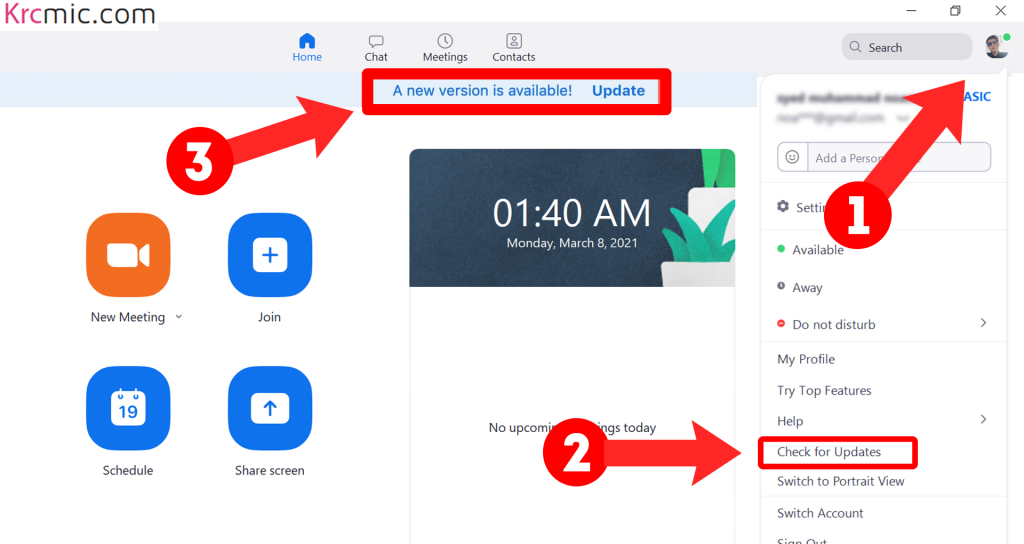
The first step in fixing your virtual background for Zoom is to update the app. Whether you are using Zoom on mobile or laptop, check to see if any latest updates are available. If your zoom virtual background is causing issues on the mobile app, just go to the play store or app store (depending on whether you have an Android or iPhone) and see if there are any updates.
You can also check Zoom updates here.
If there’s a pending update, click on the “update” button to have the latest version of the app. In case you have Zoom on the desktop, you can check the updates on Zoom by the following guidelines.
- Open the Zoom desktop client and go to the top right corner of the screen which has your profile picture.
- Click the “check for updates” button, which will make Zoom check for any pending updates. The time for this step depends on the quantity of free RAM you have and the speed of your internet.
- If Zoom has no pending updates, you will see the sign “You are up to date”. But if it’s the opposite case, just follow the guidelines to update the Zoom app.
At this point, your Zoom desktop client has the latest version. This means that if your zoom virtual background was causing issues due to the app not being updated, it’s solved now.
Enable the virtual background

If you cannot see the option for setting the Zoom virtual background on your device, it probably means that it has been disabled by default. In order to fix this, you need to manually enable the virtual background for Zoom again. You can follow the instructions below to enable the virtual background on the Zoom desktop client.
Step 1:
Click on the link in your desktop browser to login to your Zoom account.
Step 2:
After logging in, click the “settings” button which is on the left side of the browser. Now choose the “meeting” tab located at the top right corner.
Step 3:
Keep going down until you see the button “virtual background“. In order to enable your virtual background, enable the toggle near the option. This setting will be saved on its own.
Step 4:
Go to the Zoom desktop client and click on the profile picture. Now click on the “sign out” button. After logging out, sign back in using your Zoom details. You should start a Zoom meeting to make sure that you have the option to add the virtual background now.
You can verify it yourself by clicking on the “up arrow” which is at the bottom left corner. There should be a button of “choose virtual background“.
Does your system meet the hardware requirements?
Your system requires fast processing speed for adding a virtual background for zoom. So, if your PC is underpowered, you might not have the option to add a virtual background. In order to know the hardware requirements of Zoom, check out this link.
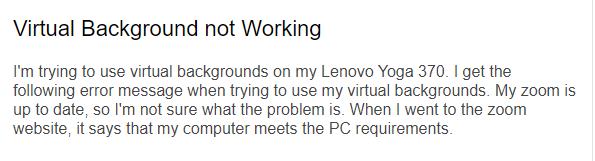
You can also go to the desktop client, click on the profile picture and choose the settings. Afterward, click on the button “virtual background” situated at the left side. If you see a sign saying “computer doesn’t meet requirements“, it means your PC is underpowered to add a virtual background to your Zoom video call. You can see the following message, which this user has faced.
Background flipped? Try this fix!
If the Zoom background is on the horizontal side and the outer edges are very rough, then turn off the mirroring choice. You can disable the mirroring option by the following guidelines.
Step 1:
If you’re in a Zoom meeting, click the “video” button at the left corner and choose “video settings“. If you’re not in a Zoom meeting, open the Zoom desktop client and click on the profile picture at the upper right corner. From there, choose “settings“. Click on the “Video” at the left side of the Settings to go to the video settings for Zoom.
Step 2:
After coming to the right side of the Settings option, disable the “mirror my video” checkbox. This checkbox is available at the second top option. These changes will be saved on their own. If you’re in a Zoom meeting, you should sign out and login again for the new changes to be effective. If you’re not in a Zoom meeting, you can just conduct a test to see if the changes are in effect.
How to fix the blending problem?
This issue occurs when the virtual background blends with the real background and causes malfunctioning. This problem happens because there is not enough light in your surroundings. Zoom is unable to differentiate between the two backgrounds.
You can turn on more lights or open another window for having sufficient light. If there’s another room with better lighting, you can have the meeting there.
What should you do if the custom video isn’t working?
If you cannot add a custom video background, it either means that the video is too compressed or there are encoding problems. It might also be because of using a different format. Remember that Zoom is only compatible with the MP4 format.
If any of these causes are true, you should convert your video to MP4. This format will have the best results and improved encoding. You can convert the format by using any video conversion apps which are available for free.
We suggest you to use the “Handbrake” transcoder. It offers customization and is free to use.
What if the organization admin disables virtual background!
When it comes to using a Zoom account given by your school or organization, they usually disable the option of adding a virtual background. Organizations usually do this to guarantee the privacy of everyone. If you want to add your virtual background, you can talk to the administrator. But if the school or company forbids the use of virtual background, you can’t have it.
How should the real background be like?
If you want to have a perfect virtual background, your actual background should have a solid color. Moreover, it should not be moving with less shadows. With a solid color background, Zoom can easily trace your outline and face. You will be helping Zoom to have accuracy with the solid color. The cleaner the actual background will be, the lesser shadows will appear. Your face, body, and surroundings should be completely visible with bright lighting. The support team of Zoom advised using a 3-point lighting system for the best results. One more important instruction is that the actual background should be stationery without any moving objects. If anything is moving behind, the texture of the background will be disturbed. The moving objects such as pets, children, curtains, or fans will be seen in the video session. Your virtual background will mistake these objects as a part of you. It will then display it in the front of the virtual picture, just like your face.
Correct your clothing for the best effects
It is common sense that you should wear formal attire at a Zoom meeting. If you want to add a virtual background, make sure that your clothes are not the same color as the virtual background. In case it does, your clothes will be modified into the virtual background. This will make it difficult for people to see you because your face will appear without the body. A useful tip is not to wear green and blue clothing with a virtual background. This is because the new background will be applied to the clothes and not the background.
Check the video format or image
If you want to insert a picture or video format as the background, it doesn’t work by uploading the file. The Zoom app will not be able to use the file as the virtual background. If you want to know the formats and sizes of files that Zoom is compatible with, see the below information.
- For the videos: MP4 or MOV format. The resolution between 480 by 360 pixels and 1920 by 1080 pixels is supported.
- For pictures: JPG, JPEG, GIF, and 24-, bit PNG. The resolution between 1920 by 1080 pixels and the size of the 5MB file are compatible.
Functioning of the webcam
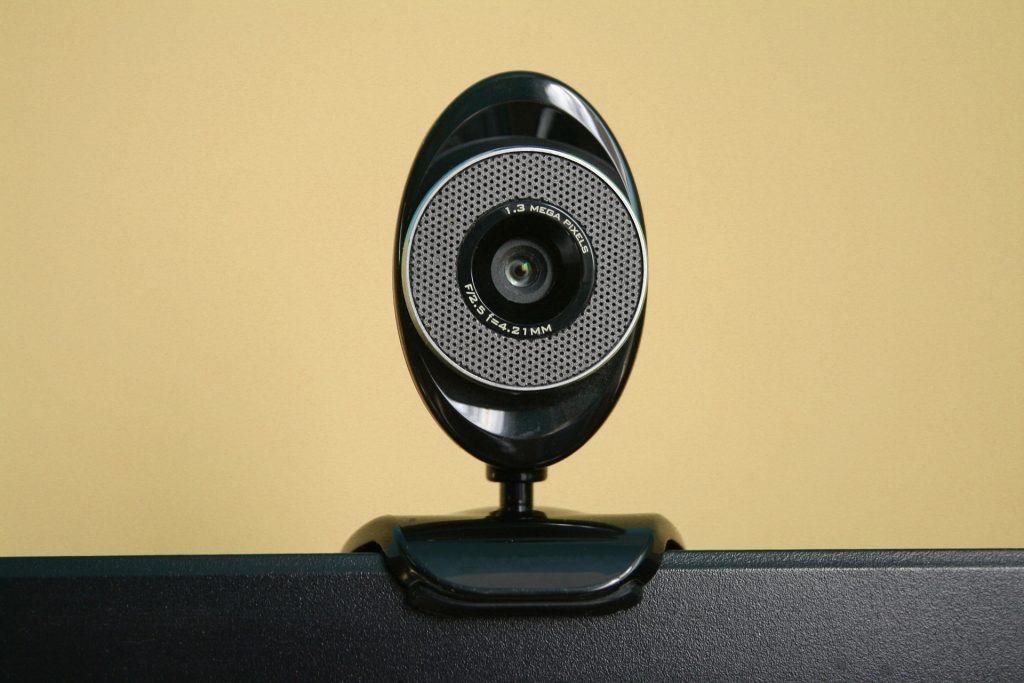
After all these steps, if your virtual background is still glitching, you should have a look at your webcam. First of all, make sure that your default webcam has been permitted Zoom. Any other software should not be using the webcam. Second of all, check if the webcam is working properly when you’re using the web client. You should give the browser permission to the webcam before starting the Zoom meeting. Finally, check the driver software of the webcam to see it’s updated. Your webcam should focus on your face and surroundings if you want the virtual background to work.
Alternatives to Zoom
If none of these steps have worked in your favor, you should switch to another video calling app. You should choose the one which lets you change the background to something different. Below are the apps and programs which allow the users to blur or change the background.
To conclude, I hope this article was helpful for you to fix problems occurring with the Zoom virtual backgrounds. If you have any questions, you can ask me in the comments section below.