Author Archives: krcmic.com

3G – what is it?

What is a 3g network?

The 3G family of third-generation cellular data technologies is altogether referred to as 3G. The first-generation cellular data technologies (also known as 1G) were initially implemented in 1982, while the second-generation cellular data technologies (also known as 2G) were standard in the early 1990s. Early as 2001, 3G technologies began to be used, although they did not achieve broad usage until after 2007.

The cellular data transfer standard defined by the International Telecommunications Union, known as IMT-2000, must be met to be described as 3G. Because, like in the above example, all 3G standards must guarantee a peak data transmission rate with a speed of at least 2 Mbps. 3G standards almost all allow faster transfer speeds, which range from 14.4 Mbps to 38.4 Mbps.

While there is no universal 3G standard, several cell phone providers still use the term 3G in their advertisements. Instead, corporations implement their data transfer technology to accomplish identical results. The service offered by AT&T utilizes a 3G technology that is based on GSM, whereas Verizon employs a CDMA-based technology. IMT-2000 compliant standards are also employed by cellular networks outside the United States, but to transfer data at 3G rates, those standards use other IMT-2000 specifications.

The fourth generation of cellular data technologies, 4G, follows the initial launch of the third generation, 3G.

What does 3g stand for?

3G refers to the third generation of mobile phone technology (mobile communication technology).

What feature collects company-specific data such as Member Status?

Below is the answer and explanation for what feature collects company-specific data such as member status?

What feature collects company-specific data such as member status?

  • Custom Filter
  • Event Tracking
  • Custom Dimension ✅
  • Custom Metric

Correct Answer

Custom Dimension ✅

Explanation

In many cases, you’ll have the option to use events, screen views, and/or a custom metric to track your most important metrics. However, custom metrics can produce more flexible and more readable custom reports and as such are a convenient way to track your most important metrics.

The above answer and explanation are related to Google Analytics individual qualification exam. You can find all the updated questions and answers related to Google Analytics individual qualification exam on the “Google Analytics individual qualification exam” page. If you find any error or update in question or answers, do comment below and let us know. We will update the answers as soon as possible.

Learn more about Google Analytics individual qualification exam: Google Analytics individual qualification exam at Skillshop

How to type/write double quotation mark symbol/emoji on keyboard- Alt+34

What are double quotation marks?

Double quotation marks, also known as quotes, quote marks, inverted commas, speech marks, or talking marks, are punctuation marks used in pairs in various writing systems to set off a double quotation, phrase, or direct speech. The pair consists of an opening double quotation mark and a closing double quotation mark, which may or may not be the same character.

Double quotation marks have many forms in different languages and in different media.

Other Names for Quotation Mark

  • Double quotes
  • Quotation mark
  • Speech marks
  • Straight quotes

Use of quotation mark

Unlike curly quotes, neutral double quotation mark has single representation for opening and closing mark.

  • He said, “Please stop it”.
  • Straight double quote is used in many programming languages to accommodate the value of the variable like A = “test”.

Typing the Double quotation mark symbol/emoji (“)

This is a detailed guide with several methods you can use to type or insert the double quotation mark symbol text anywhere on your PC keyboard, like in Microsoft Word/Excel/PowerPoint or somewhere in your browser like Google Docs.

You’ll learn all the easy methods to get the double quotation mark symbol shortcut and alt code.

Let’s get to work without wasting much time.

Quick Guide for typing the Double quotation mark symbol (“)

To make a double quotation mark symbol anywhere on your PC or laptop keyboard (like in Microsoft Word or Excel), simply press down the alt key and type 34 using the numeric keypad on the left side of your keyboard.

The table below contains everything you need to know to be able to make a double quotation mark symbol on Windows.

Name of symbol/emoji Double quotation mark or speech mark symbol
Symbol Text
Symbol Alt Code 34
Shortcut for Windows

Shortcut for Mac

Alt + 34

Option + 0022

If you are using Windows, the above information is enough for you to make the double quotation mark symbol into your Word/Excel document.

However, if you are not satisfied with this quick help, keep reading below as I will explain in detail, how to get the double quotation mark symbol text or any other similar double quotation mark symbol anywhere on your Windows or Mac PC.

As you may already know, there are several dual-purpose keys on the Windows keyboard. That is to say that there are symbols readily available as second keys on the keyboard. Just by pressing two or more keys simultaneously, you can easily insert such a symbol into your document. For example, pressing shift + 2 keys give you the @ sign.

However, other symbols aren’t printed on the keyboard as second keys. This makes it difficult to type. One of these symbols is the double quotation mark symbol text (“)

Typing becomes very difficult for you if you need to add some of these symbols regularly into your document. But it doesn’t have to be difficult. Especially now that you are reading this detailed step-by-step guide to type double quotation mark symbol.

Quick Keyboard Shortcuts for Double quotation Mark symbol/emoji

Symbol Name Neutral Double quotation Mark
Main Category Alphanumeric
Sub Category Punctuation & Symbols
Alt Code Shortcut (Windows) Alt + 34
Alt + X (Word Document) 0022 + Alt X
Option Code Shortcut (Mac) Option + 0022
HTML Entity Decimal "
HTML Entity Hexadecimal "
HTML Entity Name & quot ;
CSS Value \0022
JS Value \u0022
Decimal 34
Hexadecimal 0022
Unicode Point U+0022

Shortcuts for similar double quotation mark symbols on keyboard

Description Symbol Mac Windows
Apostrophe 0027 Alt 39
Left Single Double quotation Mark 2018 Alt 8216
Right Single Double quotation Mark 2019 Alt 8217
Left Double Double quotation Mark 201C Alt 8220
Right Double Double quotation Mark 201D Alt 8221
Single Low-9 Double quotation Mark 201A Alt 8218
Single High Reversed-9 Double quotation Mark 201B Alt 8219
Double Low-9 Double quotation Mark 201E Alt 8222
Double High Reversed-9 Double quotation Mark 201F Alt 8223
Heavy Single Turned Comma Double quotation Mark 275B Alt 10075
Heavy Single Comma Double quotation Mark Ornament 275C Alt 10076
Heavy Double Turned Comma Double quotation Mark 275D Alt 10077
Heavy Double Comma Double quotation Mark Ornament 275E Alt 10078
Reversed Double Prime Double quotation Mark 301D Alt 12317
Double Prime Double quotation Mark 301E Alt 12318
Low Double Double quotation Mark 301F Alt 12319
Fullwidth Double quotation Mark FF02 Alt 65282

How to Make Double quotation mark symbol/emoji on your keyboard?

Now, I will show you all the easy ways to type or insert double quotation mark symbol anywhere on your Windows (such as Word or Excel or PowerPoint) or Mac.

Without any further delay, below are the methods explained in detail.

Method #1: Typing a Double quotation mark symbol/emoji on keyboard

Using Alt code Shortcut for Double quotation mark symbol for windows

Windows has several shortcuts for symbols, some of which work only in Microsoft Word. However, there’s a Windows shortcut for the double quotation mark symbol that works across all applications. It is the alt code shortcut which is Alt+34.

Now, I’ll further explain the alt code shortcut for the double quotation mark symbol.

Method #2: Typing a Double quotation mark symbol/emoji on keyboard

How to type Double quotation mark symbol on Windows Keyboard?

The keyboard shortcut for the double quotation mark symbol is shift + first key on the left side of ENTER. For windows, the double quotation mark sign alt code is 34. Every symbol in Word has a unique code that you can use to insert the symbol into your document. This code is known as “alt code”.

Below are the steps to type double quotation mark symbol on your keyboard by using the alt code mentioned above:

  • Press the num lock key to enable the numeric keypad. Use Fn key + NumLk keys to turn on Num Lock on laptops without the numeric keypad.
  • Press and hold the alt key and type 34 using the numeric keypad.
  • After typing the alt code (i.e., 34), release the [Alt] key.

Once you’ll release the alt key, the double quotation mark sign will appear in your document.

How to type Double quotation mark symbol on Mac Keyboard?

Press-and-hold down the option key and then press the curly parentheses { key found near the return key for the opening double quotation mark.

Press-and-hold the option and shift key and then press the curly parentheses { key found near the return key for the closing double double quotation mark.

Type Double quotation mark symbol on Mac Keyboard through character viewer

If you work on an Apple Mac like us, then you can access the character menu via the Keyboard menu shortcut…

Then select the punctuation option to locate the special prime and double prime characters.

Method #3: Typing a double quotation mark symbol/emoji on keyboard

Using insert symbol dialog

This approach isn’t as straightforward as the shortcut methods. But it’s fairly simple. And once you get the symbol into your document, you can always copy and paste it again when you need it into your document.

Below are the steps to insert the double quotation mark symbol in Word using the insert symbol dialog.

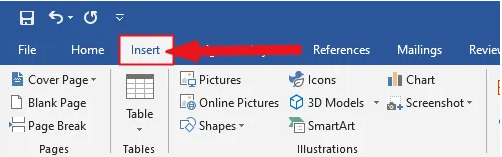
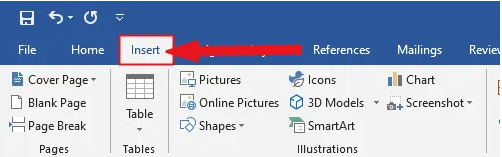
  • Go to the Insert tab.

Insert tab in Word

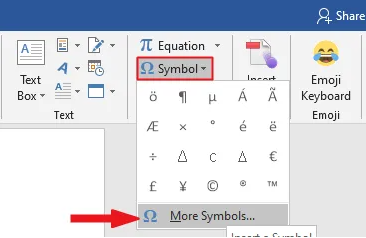
  • On the insert tab, click the symbol button and choose more symbol…

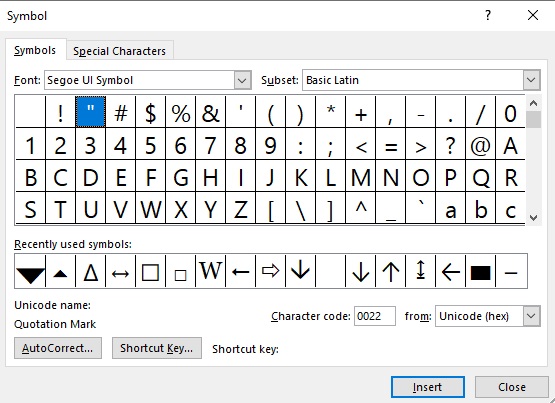
These few clicks will bring up the symbol dialog box.

  • Under the symbol’s tab, in the subset drop-down list, type and select Basic Latin. Now, type 0022 in the character code field. Once you’ll type the character code, you’ll get the double quotation mark sign selected.

  • Click on the insert button.
  • Alternatively, double-clicking on the double quotation mark symbol will also insert the symbol into your document.
  • Click the close button.

This is how you may insert a double quotation mark symbol text in Word using the insert symbol dialog.

Method #4: Typing a double quotation mark symbol/emoji on keyboard

Word’s AutoCorrect for the Double quotation mark symbol Text

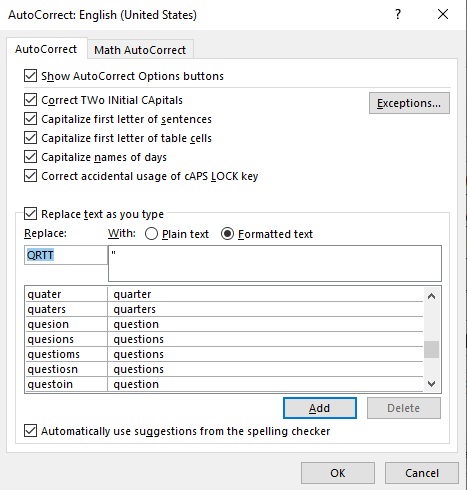
You can also type the double quotation mark symbol text using the autocorrect feature in Word. It is a feature in MS Word designed for correcting spelling mistakes like thsi to this.

Using this autocorrect feature, you can assign a shortcode to the double quotation mark sign (such as QRTT). This way, whenever you type the text QRTT, Word will think that you actually wanted to type (“) and will convert it into the double quotation mark symbol for you automatically.

  • Click add, and then hit the OK button.

Now, word will automatically insert the double quotation mark symbol into your document whenever you type QRTT.

Things you should remember before using the autocorrect feature in Word

Below are some things to take into consideration when you are using the autocorrect method to insert the double quotation mark sign.

  • Autocorrect is case-sensitive. Meaning if you type qrtt (in lowercase), Word will not convert it into the double quotation mark unless you type QRTT (in uppercase).
  • If there is any text before or after the autocorrect text, Word will consider the autocorrect text as part of the text and hence will not convert it to the down-pointing symbol. For example, GetQRTT (without space) will not get converted, but Get QRTT (with space) will get converted to Get “.

Method #5: Typing a Double quotation mark symbol/emoji on keyboard

Copy and paste the double quotation mark symbol text

You can simply copy the double quotation mark symbol text given below and paste it into your document.

My favorite method for inserting symbol which I can’t easily type is copy and paste.

With this method, all you need to do is google the symbol you need to type, then copy it from one of the search results provided. Once you get the symbol into your document, you can always recopy and paste it as and when the need arises.

There is another way to copy this and any other symbol on Windows. It involves using the Windows character map.

Obey the steps below to copy and paste any symbol using the character map.

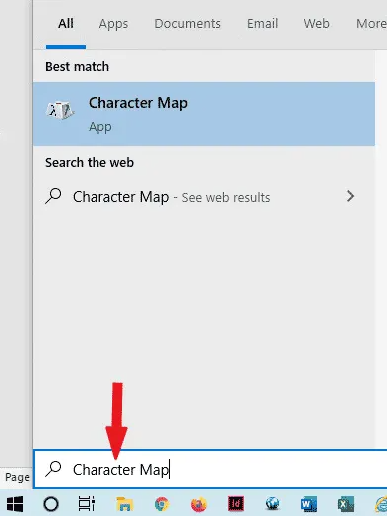
  • Search for the character map app by clicking on the start button.

  • The character map app will show up in the search results. Click on it to launch.
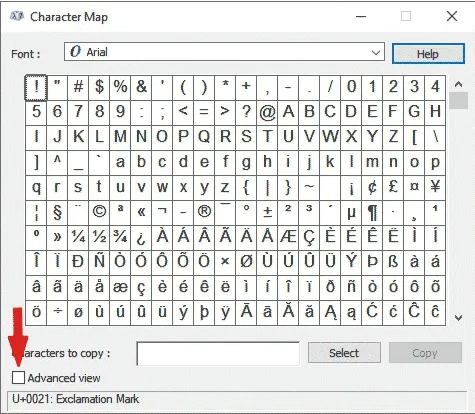
  • After the character map window opens up, click to check the advance view checkbox to expand the window for more advanced options.

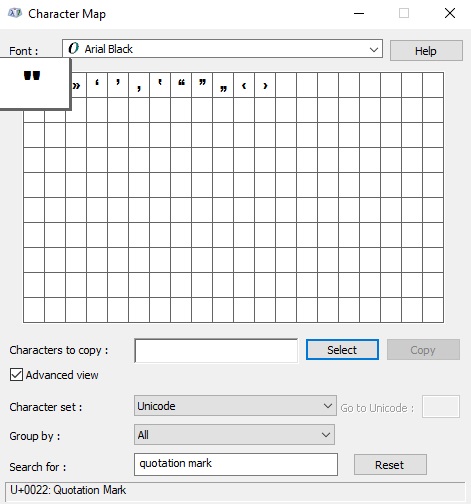
  • On the advanced view section, type double quotation mark in the search box.

  • The symbol you searched for (i.e., the double quotation mark) will now appear on the character map. Double click on it to select it. You’ll see that the symbol appears in the characters to copy text box. This allows you to select and copy several symbols at the same time.
  • After selecting the symbol, you wish to copy, click on the copy button.
  • Switch over to wherever you need the symbol, whether in MS Word, Excel, or PowerPoint, and press Ctrl + V to paste.

This is how you may copy and paste the double quotation mark symbol using the character map on Windows.

Method #6: Typing a Double quotation mark symbol/emoji on keyboard

HOW TO ADD DOUBLE QUOTATION MARK symbol/emoji IN HTML?

To add the double quotation mark symbol in HTML, you can use an HTML entity, an HTML code (decimal), and a Hex code. Use the shortcode section to copy the various shortcodes for the double quotation mark sign. Here is the example:

<span>&#34;</span>

HOW TO ADD DOUBLE QUOTATION MARK symbol /emoji IN CSS?

To add the double quotation mark sign in CSS, you can use a CSS entity or CSS shortcode. Use the shortcode section to copy the CSS code for the double quotation mark symbol.

Here is the example:

span {
  content: "\0022";
}

Conclusion

As you can see, these are the various ways you can use to type the double quotation mark symbol text in Word/Excel with or without using the keyboard.

My favorite method is using the copy and paste method followed by the double quotation mark symbol shortcut in Word. The alt code method also comes handy.

For any comments or questions about this double quotation mark symbol guide, please let me know in the comments section below.

How to write/type exclamation mark symbols/emojis on keyboard- Alt +33

What is the exclamation mark?

Alternatively referred to as an exclamation point or bang, an exclamation mark “!” is a punctuation mark found on the 1 key on a standard United States QWERTY keyboard.

Exclamation mark use in computer

The image below is an example of exclamation marks in Microsoft Windows. As shown, there are 5 exclamation marks signs on five devices listed in the Windows device manager. These exclamation marks indicate errors with these hardware devices.

Typing the Exclamation mark symbol/emoji (!)

This is a detailed guide with several methods you can use to type or insert the exclamation mark symbol text anywhere on your PC keyboard, like in Microsoft Word/Excel/PowerPoint or somewhere in your browser like Google Docs.

You’ll learn all the easy methods to get the exclamation mark symbol shortcut and alt code.

Let’s get to work without wasting much time.

Quick Guide for typing the Exclamation mark symbol (!)

To make an exclamation mark symbol anywhere on your PC or laptop keyboard (like in Microsoft Word or Excel), simply press down the alt key and type 33 using the numeric keypad on the left side of your keyboard.

The table below contains everything you need to know to be able to make exclamation mark symbol on Windows.

Name of Symbol/emoji exclamation mark symbol
Symbol Text !
Symbol Alt Code 33
Shortcut for Windows

Shortcut for Mac

Alt + 33

Shift + 1

If you are using Windows, the above information is enough for you to make the exclamation mark symbol into your Word/Excel document.

However, if you are not satisfied with this quick help, keep reading below as I will explain in detail, how to get the exclamation mark symbol text or any other similar exclamation mark symbol anywhere on your Windows PC like in MS Word/Excel/PowerPoint.

As you may already know, there are several dual-purpose keys on the Windows keyboard. That is to say that there are symbols readily available as second keys on the keyboard. Just by pressing two or more keys simultaneously, you can easily insert such symbol into your document. For example, pressing shift + 2 keys give you the @ sign.

However, other symbols aren’t printed on the keyboard as second keys. This makes it difficult to type. One of these symbols is the exclamation mark symbol text (!)

Typing becomes very difficult for you if you need to add some of these symbols regularly into your document. But it doesn’t have to be difficult. Especially now that you are reading this detailed step-by-step guide.

Shortcuts for similar exclamation mark symbols on keyboard

Symbol Description Symbol Alt Code
Inverted Exclamation Mark ¡ Alt 161
Latin Letter Retroflex Click ǃ Alt 451
Double Exclamation Mark Alt 8252
Question Exclamation Mark Alt 8264
Exclamation Question Mark Alt 8265
White Exclamation Mark Ornament Alt 10069
Heavy Exclamation Mark Symbol Alt 10071
Modifier Letter Raised Exclamation Mark Alt 42781
Modifier Letter Raised Inverted Exclamation Mark Alt 42782
Modifier Letter Low Inverted Exclamation Mark Alt 42783
Presentation Form For Vertical Exclamation Mark Alt 65045
Small Exclamation Mark Alt 65111
Fullwidth Exclamation Mark Alt 65281

How to Make Exclamation mark symbol/emoji on your keyboard?

Now, I will show you all the easy ways to type or insert exclamation mark symbol anywhere on your Windows (such as Word or Excel or PowerPoint) or Mac.

Without any further delay, below are the methods explained in detail.

Method #1: Typing an Exclamation mark symbol/emoji on keyboard

Using Alt code Shortcut for Exclamation mark symbol for windows

Windows has several shortcuts for symbols, some of which work only in Microsoft Word. However, there’s a Windows shortcut for the exclamation mark symbol that works across all applications. It is the alt code shortcut which is Alt+33.

Now, I’ll further explain the alt code shortcut for the exclamation mark symbol.

Method #2: Typing an Exclamation mark symbol/emoji on keyboard

Exclamation mark symbol Alt Code (For Windows and Mac)

The keyboard shortcut for the exclamation mark symbol is Shift + 1 for both Windows and Mac. For windows, the exclamation mark sign alt code is 33. Every symbol in Word has a unique code that you can use to insert the symbol into your document. This code is known as “alt code”.

Below are the steps to type exclamation mark symbol on your keyboard by using the alt code mentioned above:

  • Press the num lock key to enable the numeric keypad. Use Fn key + NumLk keys to turn on Num Lock on laptops without the numeric keypad.
  • Press and hold the alt key and type 33 using the numeric keypad.
  • After typing the alt code (i.e., 33), release the [Alt] key.

Once you’ll release the alt key, the exclamation mark sign will appear in your document.

Method #3: Typing an exclamation mark symbol/emoji on keyboard

Using insert symbol dialog

This approach isn’t as straightforward as the shortcut methods. But it’s fairly simple. And once you get the symbol into your document, you can always copy and paste it again when you need it into your document.

Below are the steps to insert the exclamation mark symbol in Word using the insert symbol dialog.

  • Go to the Insert tab.

  • On the insert tab, click the symbol button and choose more symbol…

These few clicks will bring up the symbol dialog box.

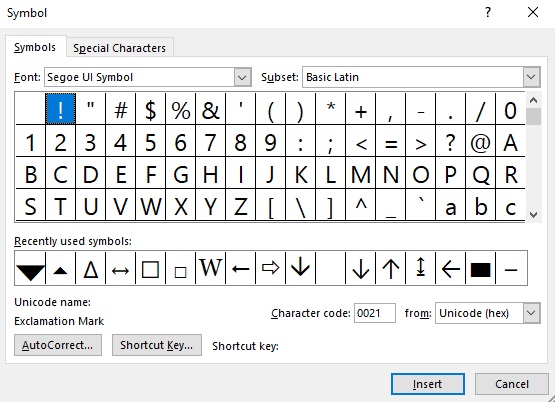
  • Under the symbol’s tab, in the subset drop-down list, type and select Basic Latin. Now, type 0021 in the character code field. Once you’ll type the character code, you’ll get the exclamation mark symbol selected.

  • Click on the insert button.
  • Alternatively, double-clicking on the exclamation mark symbol will also insert the symbol into your document.
  • Click the close button.

This is how you may insert an exclamation mark symbol text in Word using the insert symbol dialog.

Method #4: Typing an exclamation mark symbol/emoji on keyboard

Word’s AutoCorrect for the Exclamation mark symbol Text

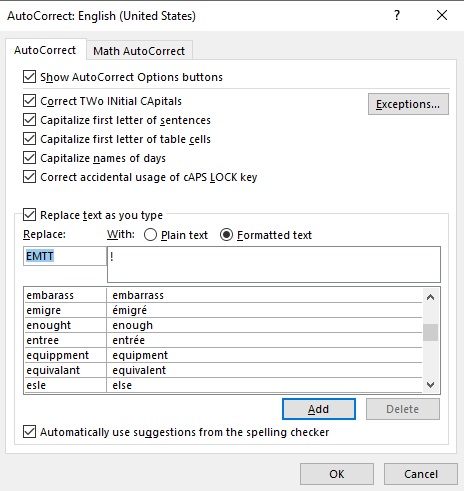
You can also type the exclamation mark symbol text using the autocorrect feature in Word. It is a feature in MS Word designed for correcting spelling mistakes like thsi to this. Using this autocorrect feature, you can assign a shortcode to the exclamation mark sign (such as EMTT).

This way, whenever you type the text EMTT, Word will think that you actually wanted to type (!) and will convert it into the exclamation mark symbol for you automatically.

  • Click add, and then hit the OK button.

Now, word will automatically insert the exclamation mark symbol into your document whenever you type EMTT.

Things you should remember before using the autocorrect feature in Word

Below are some things to take into consideration when you are using the autocorrect method to insert the exclamation mark sign.

  • Autocorrect is case-sensitive. Meaning if you type emtt (in lowercase), Word will not convert it into the exclamation mark unless you type EMTT (in uppercase).
  • If there is any text before or after the autocorrect text, Word will consider the autocorrect text as part of the text and hence will not convert it to the down-pointing symbol. For example, GetEMTT (without space) will not get converted, but Get EMTT (with space) will get converted to Get !.

Method #5: Typing an Exclamation mark symbol/emoji on keyboard

Copy and paste the exclamation mark symbol text

You can simply copy the exclamation mark symbol text given below and paste it into your document.

!

My favorite method for inserting symbol which I can’t easily type is copy and paste.

With this method, all you need to do is google the symbol you need to type, then copy it from one of the search results provided. Once you get the symbol into your document, you can always recopy and paste it as and when the need arises.

There is another way to copy this and any other symbol on Windows. It involves using the Windows character map.

Obey the steps below to copy and paste any symbol using the character map.

  • Search for the character map app by clicking on the start button.

  • The character map app will show up in the search results. Click on it to launch.
  • After the character map window opens up, click to check the advance view checkbox to expand the window for more advanced options.

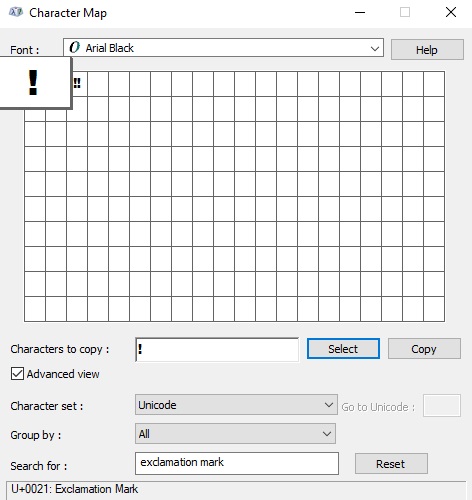
  • On the advanced view section, type an exclamation mark in the search box.

  • The symbol you searched for (i.e., the exclamation mark) will now appear on the character map. Double click on it to select it. You’ll see that the symbol appears in the characters to copy the text box. This allows you to select and copy several symbols at the same time.
  • After selecting the symbol, you wish to copy, click on the copy button.
  • Switch over to wherever you need the symbol, whether in MS Word, Excel, or PowerPoint, and press Ctrl + V to paste.

This is how you may copy and paste the exclamation mark symbol using the character map on Windows.

Method #6: Typing an Exclamation mark symbol/emoji on keyboard

HOW TO ADD EXCLAMATION MARK symbol/emoji IN HTML?

To add the exclamation mark symbol in HTML, you can use an HTML entity, an HTML code (decimal), and a Hex code. Use the shortcode section to copy the various shortcodes for the exclamation mark sign. Here is the example:

<span>&#33;</span>

HOW TO ADD EXCLAMATION MARK symbol /emoji IN CSS?

To add the exclamation mark sign in CSS, you can use a CSS entity or CSS shortcode. Use the shortcode section to copy the CSS code for the exclamation mark symbol.

Here is the example:

span {
  content: "\0021";
}

Conclusion

As you can see, these are the various ways you can use to type the exclamation mark symbol text in Word/Excel with or without using the keyboard.

My favorite method is using the copy and paste method followed by the exclamation mark symbol shortcut in Word. The alt code method also comes handy.

For any comments or questions about this exclamation mark symbol guide, please let me know in the comments section below.

How to write/type down pointing triangle symbols/emojis on keyboard- Alt + 31

Typing the Down-pointing triangle symbol/emoji (▼)

This is a detailed guide with several methods you can use to type or insert the down-pointing triangle symbol text anywhere on your PC keyboard, like in Microsoft Word/Excel/PowerPoint or somewhere in your browser like Google Docs.

You’ll learn all the easy methods to get the down-pointing triangle symbol shortcut and alt code.

Let’s get to work without wasting much time.

Quick Guide for typing the Down-pointing triangle symbol (▼)

To make a down-pointing triangle symbol anywhere on your PC or laptop keyboard (like in Microsoft Word or Excel), simply press down the alt key and type 31 using the numeric keypad on the left side of your keyboard.

The table below contains everything you need to know to be able to make a down-pointing triangle symbol on Windows.

Name of Symbol/emoji down-pointing triangle symbol
Symbol Text
Symbol Alt Code 31
Shortcut for Windows Alt + 31

If you are using Windows, the above information is enough for you to make the down-pointing triangle symbol into your Word/Excel document.

However, if you are not satisfied with this quick help, keep reading below as I will explain in detail, how to get the down-pointing triangle symbol text or any other triangle symbol anywhere on your Windows PC like in MS Word/Excel/PowerPoint.

Symbol Description Symbol Alt Code Alt X Code
Triangular Bullet Alt + 8227 2023
Delta Or Increment Alt + 8710 2206
Normal Subgroup Of Alt + 8882 22B2
Contains As Normal Subgroup Alt + 8883 22B3
Right Triangle Alt + 8895 22BF
Bowtie Alt + 8904 22C8
Left Normal Factor Semidirect Product Alt + 8905 22C9
Right Normal Factor Semidirect Product Alt + 8906 22CA
Conical Taper Alt + 9010 2332
Black Down-pointing triangle Alt + 9650 25B2
White Down-pointing triangle Alt + 9651 25B3
Black Up-Pointing Small Triangle Alt + 9652 25B4
White Up-Pointing Small Triangle Alt + 9653 25B5
Black Left Pointing Small Triangle Alt + 9654 25B6
White Right-Pointing Triangle Alt + 9655 25B7
Black Right-Pointing Small Triangle Alt + 9656 25B8
White Right-Pointing Small Triangle Alt + 9657 25B9
Black Right Pointing Triangle Alt + 9658 25BA
White Right-Pointing Pointer Alt + 9659 25BB
Black Down-Pointing Triangle Alt + 9660 25BC
White Down-Pointing Triangle Alt + 9661 25BD
Black Down-Pointing Small Triangle Alt + 9662 25BE
White Down-Pointing Small Triangle Alt + 9663 25BF
Black Right Pointing Small Triangle Alt + 9664 25C0
White Left-Pointing Triangle Alt + 9665 25C1
Black Left-Pointing Small Triangle Alt + 9666 25C2
White Left-Pointing Small Triangle Alt + 9667 25C3
Black Left Pointing Triangle Alt + 9668 25C4
White Left-Pointing Pointer Alt + 9669 25C5
Black Lower Right Triangle Alt + 9698 25E2
Black Lower Left Triangle Alt + 9699 25E3
Black Upper Left Triangle Alt + 9700 25E4
Black Upper Right Triangle Alt + 9701 25E5
White Down-pointing triangle with Dot Alt + 9708 25EC
Down-pointing triangle with Left Half Black Alt + 9709 25ED
Down-pointing triangle with Right Half Black Alt + 9710 25EE
Triangle With Dot Above Alt + 10698 29CA
Triangle With Underbar Alt + 10699 29CB
S In Triangle Alt + 10700 29CC
Triangle With Serifs at Bottom Alt + 10701 29CD
Right Triangle Above Left Triangle Alt + 10702 29CE
Left Triangle Beside Vertical Bar Alt + 10703 29CF
Vertical Bar Beside Right Triangle Alt + 10704 29D0
Bowtie With Left Half Black Alt + 10705 29D1
Bowtie With Right Half Black Alt + 10706 29D2
Black Bowtie Alt + 10707 29D3
Times With Left Half Black Alt + 10708 29D4
Times With Right Half Black Alt + 10709 29D5
White Hourglass Alt + 10710 29D6
Black Hourglass Alt + 10711 29D7
Down-Pointing Triangle with Left Half Black Alt + 10728 29E8
Down-Pointing Triangle with Right Half Black Alt + 10729 29E9
Join Alt + 10781 2A1D
Large Left Triangle Operator Alt + 10782 2A1E
Plus, Sign in Triangle Alt + 10809 2A39
Minus Sign in Triangle Alt + 10810 2A3A
Multiplication Sign in Triangle Alt + 10811 2A3B
Z Notation Domain Antirestriction Alt + 10852 2A64
Z Notation Range Antirestriction Alt + 10853 2A65

As you may already know, there are several dual-purpose keys on the Windows keyboard. That is to say that there are symbols readily available as second keys on the keyboard. Just by pressing two or more keys simultaneously, you can easily insert such symbol into your document. For example, pressing shift + 1 keys give you the exclamation (!) mark.

However, other symbols aren’t printed on the keyboard as second keys. This makes it difficult to type. One of these symbols is the down-pointing triangle symbol text (▼).

Typing becomes very difficult for you if you need to add some of these symbols regularly into your document. But it doesn’t have to be difficult. Especially now that you are reading this detailed step-by-step guide.

How to Make Down-pointing triangle symbol/emoji on your keyboard?

Now, I will show you all the easy ways to type or insert down-pointing triangle symbol anywhere on your Windows PC (such as Word or Excel or PowerPoint).

Without any further delay, below are the methods explained in detail.

Method #1: Typing a Down-pointing triangle symbol/emoji on keyboard

Using Alt code Shortcut for Down-pointing triangle symbol for windows

Windows has several shortcuts for symbols, some of which work only in Microsoft Word. However, there’s a Windows shortcut for the down-pointing triangle symbol that works across all applications. It is the alt code shortcut which is Alt+31.

Now, I’ll further explain the alt code shortcut for the down-pointing triangle symbol.

Method #2: Typing a Down-pointing triangle symbol/emoji on keyboard

Down-pointing triangle symbol Alt Code (Windows)

The Down-pointing triangle sign alt code is 31.

Every symbol in Word has a unique code that you can use to insert the symbol into your document. This code is known as “alt code”.

Below are the steps to type down-pointing triangle symbol on your keyboard by using the alt code mentioned above:

  • Press the num lock key to enable the numeric keypad. Use Fn key + NumLk keys to turn on Num Lock on laptops without the numeric keypad.
  • Press and hold the alt key and type 31 using the numeric keypad.
  • After typing the alt code (i.e., 31), release the [Alt] key.

Once you’ll release the alt key, the down-pointing triangle sign will appear in your document.

Method #3: Typing a down-pointing triangle symbol/emoji on keyboard

Using insert symbol dialog

This approach isn’t as straightforward as the shortcut methods. But it’s fairly simple.

And once you get the symbol into your document, you can always copy and paste it again when you need it into your document.

Below are the steps to insert the down-pointing triangle symbol in Word using the insert symbol dialog.

  • Go to the Insert tab.

Insert tab in Word

  • On the insert tab, click the symbol button and choose more symbol…

These few clicks will bring up the symbol dialog box.

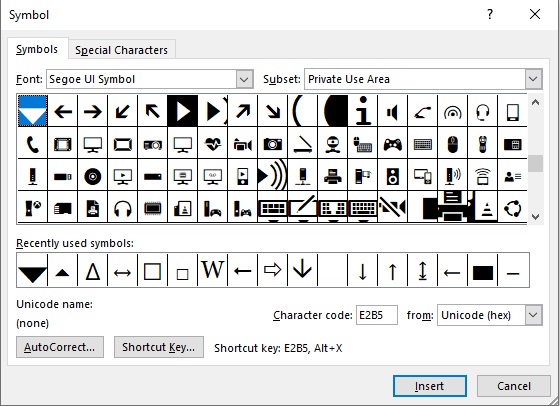
  • Under the symbol’s tab, in the subset drop-down list, type and select private use area. Now, type E2B5 in the character code field. Once you’ll type the character code, you’ll get the down-pointing triangle sign selected.

  • Click on the insert button.
  • Alternatively, double-clicking on the down-pointing triangle sign will also insert the symbol into your document.
  • Click the close button.

This is how you may insert a down-pointing triangle symbol text in Word using the insert symbol dialog.

Method #4: Typing a down-pointing triangle symbol/emoji on keyboard

Word’s AutoCorrect for the Down-pointing triangle symbol Text

You can also type the down-pointing triangle symbol text using the autocorrect feature in Word. It is a feature in MS Word designed for correcting spelling mistakes like thsi to this.

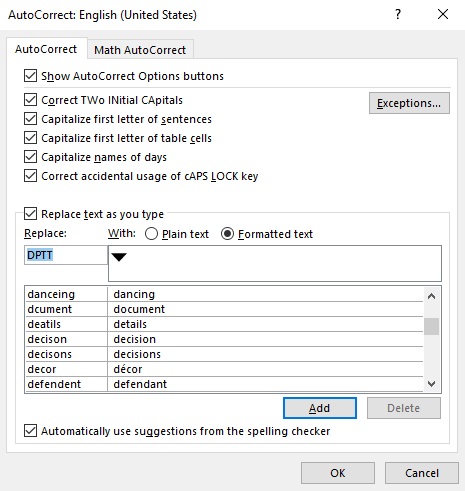
Using this autocorrect feature, you can assign a shortcode to the down-pointing triangle sign (such as DPTT). This way, whenever you type the text DPTT, Word will think that you actually wanted to type ▼ and will convert it into the down-pointing triangle symbol for you automatically.

  • Click add, and then hit the OK button.

Now, word will automatically insert the down-pointing triangle symbol into your document whenever you type DPTT.

Things you should remember before using the autocorrect feature in Word

Below are some things to take into consideration when you are using the autocorrect method to insert the down-pointing triangle sign.

  • Autocorrect is case-sensitive. Meaning if you type dptt (in lowercase), Word will not convert it into the down-pointing triangle unless you type DPTT (in uppercase).
  • If there is any text before or after the autocorrect text, Word will consider the autocorrect text as part of the text and hence will not convert it to the down-pointing symbol. For example, GetDPTT (without space) will not get converted, but Get DPTT (with space) will get converted to Get ▼.

Method #5: Typing a down-pointing triangle symbol/emoji on keyboard

Copy and paste the down-pointing triangle symbol text

You can simply copy the down-pointing triangle sign given below and paste it into your document.

My favorite method for inserting symbol which I can’t easily type is copy and paste.

With this method, all you need to do is google the symbol you need to type, then copy it from one of the search results provided. Once you get the symbol into your document, you can always recopy and paste it as and when the need arises.

There is another way to copy this and any other symbol on Windows. It involves using the Windows character map.

Obey the steps below to copy and paste any symbol using the character map.

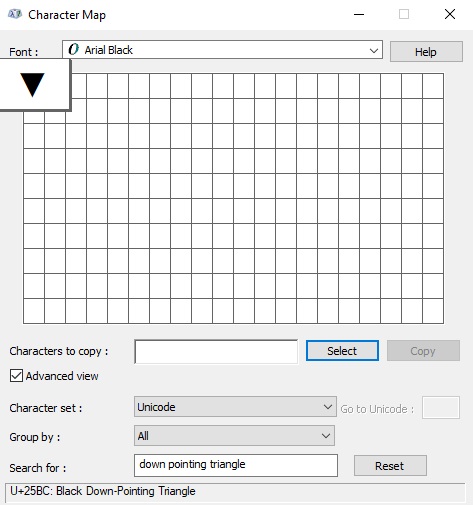
  • Search for the character map app by clicking on the start button.

  • The character map app will show up in the search results. Click on it to launch.
  • After the character map window opens up, click to check the advance view checkbox to expand the window for more advanced options.

  • On the advanced view section, type down-pointing triangle in the search box.

  • The symbol you searched for (i.e., the down-pointing triangle) will now appear on the character map. Double click on it to select it. You’ll see that the symbol appears in the characters to copy the text box. This allows you to select and copy several symbols at the same time.
  • After selecting the symbol, you wish to copy, click on the copy button.
  • Switch over to wherever you need the symbol, whether in MS Word, Excel, or PowerPoint, and press Ctrl + V to paste.

This is how you may copy and paste the down-pointing triangle symbol using the character map on Windows.

Method #6: Typing a Down-pointing triangle symbol/emoji on keyboard

HOW TO ADD DOWN-POINTING TRIANGLE symbol/emoji IN HTML?

To add the down-pointing triangle symbol in HTML, you can use an HTML entity, an HTML code (decimal), and a Hex code. Use the shortcode section to copy the various shortcodes for the down-pointing triangle sign. Here is the example:

<span>&#9660;</span>

HOW TO ADD DOWN-POINTING TRIANGLE symbol /emoji IN CSS?

To add the down-pointing triangle sign in CSS, you can use a CSS entity or CSS shortcode. Use the shortcode section to copy the CSS code for the down-pointing triangle symbol.

Here is the example:

span {
  content: "\25BC";
}

Conclusion

As you can see, these are the various ways you can use to type the down-pointing triangle symbol text in Word/Excel with or without using the keyboard.

My favorite method is using the copy and paste method followed by the down-pointing triangle symbol shortcut in Word. The alt code method also comes handy.

For any comments or questions about this down-pointing triangle symbol guide, please let me know in the comments section below.

how to write/type up-pointing triangle symbol/emoji on keyboard- Alt+30

Typing the Up-pointing triangle symbol/emoji (▲)

This is a detailed guide with several methods you can use to type or insert the up-pointing triangle sign/symbol text anywhere on your Mac or PC keyboard, like in Microsoft Word/Excel/PowerPoint or somewhere in your browser like Google Docs.

You’ll learn all the easy methods to get this symbol/emoji including the Up-pointing triangle sign shortcut and alt code.

Let’s get to work without wasting much time.

Quick Guide for typing the Up-pointing triangle symbol (▲)

To make an up-pointing triangle sign/symbol anywhere on your PC or laptop keyboard (like in Microsoft Word or Excel), simply press down the alt key and type 30 using the numeric keypad on the left side of your keyboard.

The table below contains everything you need to know to be able to make an up-pointing triangle symbol on Windows.

Name of Symbol up-pointing triangle symbol
Symbol Text
Symbol Alt Code 30
Shortcut for Windows Alt + 30
Shortcut for Mac Option + J

If you are using Windows or Mac, the above information is enough for you to make the up-pointing triangle symbol into your Word/Excel document.

However, if you are not satisfied with this quick help, keep reading below as I will explain in detail, how to get the up-triangle symbol text or any other triangle symbol anywhere on your Windows PC like in MS Word/Excel/PowerPoint.

All triangle symbols/emojis keyboard shortcuts (Alt code for windows)

Symbol Description Symbol Alt Code Alt X Code
Triangular Bullet Alt + 8227 2023
Delta Or Increment Alt + 8710 2206
Normal Subgroup Of Alt + 8882 22B2
Contains As Normal Subgroup Alt + 8883 22B3
Right Triangle Alt + 8895 22BF
Bowtie Alt + 8904 22C8
Left Normal Factor Semidirect Product Alt + 8905 22C9
Right Normal Factor Semidirect Product Alt + 8906 22CA
Conical Taper Alt + 9010 2332
Black Up-Pointing Triangle Alt + 9650 25B2
White Up-Pointing Triangle Alt + 9651 25B3
Black Up-Pointing Small Triangle Alt + 9652 25B4
White Up-Pointing Small Triangle Alt + 9653 25B5
White Right-Pointing Triangle Alt + 9655 25B7
Black Right-Pointing Small Triangle Alt + 9656 25B8
White Right-Pointing Small Triangle Alt + 9657 25B9
Black Right Pointing Triangle Alt + 9658 25BA
White Right-Pointing Pointer Alt + 9659 25BB
Black Down-Pointing Triangle Alt + 9660 25BC
White Down-Pointing Triangle Alt + 9661 25BD
Black Down-Pointing Small Triangle Alt + 9662 25BE
White Down-Pointing Small Triangle Alt + 9663 25BF
White Left-Pointing Triangle Alt + 9665 25C1
Black Left-Pointing Small Triangle Alt + 9666 25C2
White Left-Pointing Small Triangle Alt + 9667 25C3
Black Left Pointing Triangle Alt + 9668 25C4
White Left-Pointing Pointer Alt + 9669 25C5
Black Lower Right Triangle Alt + 9698 25E2
Black Lower Left Triangle Alt + 9699 25E3
Black Upper Left Triangle Alt + 9700 25E4
Black Upper Right Triangle Alt + 9701 25E5
White Up-Pointing Triangle with Dot Alt + 9708 25EC
Up-Pointing Triangle with Left Half Black Alt + 9709 25ED
Up-Pointing Triangle with Right Half Black Alt + 9710 25EE
Triangle With Dot Above Alt + 10698 29CA
Triangle With Underbar Alt + 10699 29CB
S In Triangle Alt + 10700 29CC
Triangle With Serifs at Bottom Alt + 10701 29CD
Right Triangle Above Left Triangle Alt + 10702 29CE
Left Triangle Beside Vertical Bar Alt + 10703 29CF
Vertical Bar Beside Right Triangle Alt + 10704 29D0
Bowtie With Left Half Black Alt + 10705 29D1
Bowtie With Right Half Black Alt + 10706 29D2
Black Bowtie Alt + 10707 29D3
Times With Left Half Black Alt + 10708 29D4
Times With Right Half Black Alt + 10709 29D5
White Hourglass Alt + 10710 29D6
Black Hourglass Alt + 10711 29D7
Down-Pointing Triangle with Left Half Black Alt + 10728 29E8
Down-Pointing Triangle with Right Half Black Alt + 10729 29E9
Join Alt + 10781 2A1D
Large Left Triangle Operator Alt + 10782 2A1E
Plus, Sign in Triangle Alt + 10809 2A39
Minus Sign in Triangle Alt + 10810 2A3A
Multiplication Sign in Triangle Alt + 10811 2A3B
Z Notation Domain Antirestriction Alt + 10852 2A64
Z Notation Range Antirestriction Alt + 10853 2A65

As you may already know, there are several dual-purpose keys on the Windows keyboard. That is to say that there are symbols readily available as second keys on the keyboard. Just by pressing two or more keys simultaneously, you can easily insert such a symbol into your document. For example, pressing shift + 1 keys give you the exclamation (!) mark.

However, other symbols aren’t printed on the keyboard as second keys. This makes it difficult to type. One of these symbols is the up-pointing triangle symbol text (▲).

Typing becomes very difficult for you if you need to add some of these symbols regularly into your document. But it doesn’t have to be difficult. Especially now that you are reading this detailed step-by-step guide.

How to Make Up-pointing triangle symbol/emoji on your keyboard?

Now, I will show you all the easy ways to type or insert up-pointing triangle symbol anywhere on your Windows PC (such as Word or Excel, or PowerPoint).

Without any further delay, below are the methods explained in detail.

Method #1: Typing an Up-pointing triangle symbol/emoji on keyboard

Using Alt code Shortcut for Up-pointing triangle symbol for Windows

Windows has several shortcuts for symbols, some of which work only in Microsoft Word. However, there’s a Windows shortcut for the up-pointing triangle symbol that works across all applications. It is the alt code shortcut which is Alt+30.

Now, I’ll further explain the alt code shortcut for the up-pointing triangle symbol.

Method #2: Typing an Up-pointing triangle symbol/emoji on keyboard

Up-pointing triangle symbol Alt Code (Windows)

The Up-pointing triangle sign alt code is 30.

Every symbol in Word has a unique code that you can use to insert the symbol into your document. This code is known as “alt code”.

Below are the steps to type the Up-pointing triangle symbol on your keyboard by using the alt code mentioned above:

  • Press the num lock key to enable the numeric keypad. Use Fn key + NumLk keys to turn on Num Lock on laptops without the numeric keypad.
  • Press and hold the alt key and type 30 using the numeric keypad.
  • After typing the alt code (i.e., 30), release the [Alt] key.

Once you’ll release the alt key, the up-pointing triangle sign will appear in your document.

Method #3: Typing an Up-pointing triangle symbol/emoji on keyboard

How to add triangle symbol in word using insert symbol dialog?

This approach isn’t as straightforward as the shortcut methods. But it’s fairly simple. And once you get the symbol into your document, you can always copy and paste it again when you need it into your document.

Below are the steps to insert the up-pointing triangle symbol in Word using the insert symbol dialog.

  • Go to the Insert tab.

  • On the insert tab, click the symbol button and choose more symbol…

These few clicks will bring up the symbol dialog box.

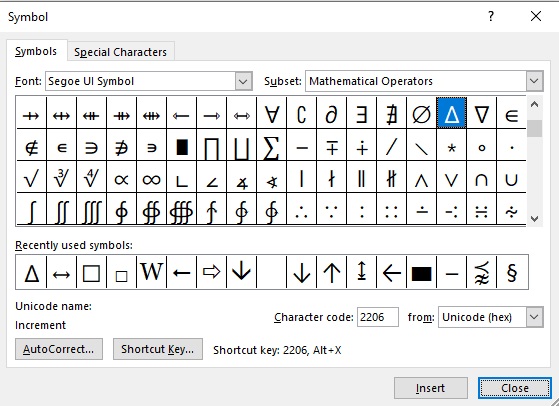
  • Under the symbol’s tab, in the subset drop-down list, type and select mathematical operators. Now, type 2206 in the character code field. Once you’ll type the character code, you’ll get the up-pointing triangle sign selected.

  • Click on the insert button.
  • Alternatively, double-clicking on the up-pointing triangle sign will also insert the symbol into your document.
  • Click the close button.

This is how you may insert an Up-pointing triangle sign symbol text in Word using the insert symbol dialog.

Method #4: Typing an Up-pointing triangle symbol/emoji on keyboard

Word’s AutoCorrect for the Up-pointing triangle sign/Symbol Text

You can also type the up-pointing triangle symbol text using the autocorrect feature in Word. It is a feature in MS Word designed for correcting spelling mistakes like thsi to this.

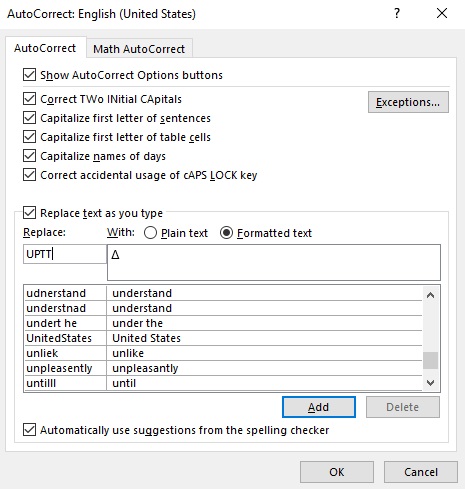
Using this autocorrect feature, you can assign a shortcode to the up-pointing triangle sign (such as UPTT). This way, whenever you type the text UPTT, Word will think that you actually wanted to type ▲ and will convert it into the up-pointing triangle sign for you automatically.

  • Click add, and then hit the OK button.

Now, word will automatically insert the up-pointing triangle symbol into your document whenever you type UPTT.

Things you should remember before using the autocorrect feature in Word

Below are some things to take into consideration when you are using the autocorrect method to insert the Up-pointing triangle sign.

  • Autocorrect is case-sensitive. Meaning if you type uptt (in lowercase), Word will not convert it into the Up-pointing triangle sign unless you type UPTT (in uppercase).
  • If there is any text before or after the autocorrect text, Word will consider the autocorrect text as part of the text and hence will not convert it to the right-angle sign. For example, GetUPTT (without space) will not get converted, but Get UPTT (with space) will get converted to Get ▲.

Method #5: Typing an Up-pointing triangle symbol/emoji on keyboard

Copy and paste the up-pointing triangle symbol text

You can simply copy the up-pointing triangle sign given below and paste it into your document.

My favorite method for inserting symbols that I can’t easily type is copy and paste.

With this method, all you need to do is google the symbol you need to type, then copy it from one of the search results provided. Once you get the symbol into your document, you can always recopy and paste it as and when the need arises.

There is another way to copy this and any other symbol on Windows. It involves using the Windows character map.

Obey the steps below to copy and paste any symbol using the character map.

  • Search for the character map app by clicking on the start button.

  • The character map app will show up in the search results. Click on it to launch.
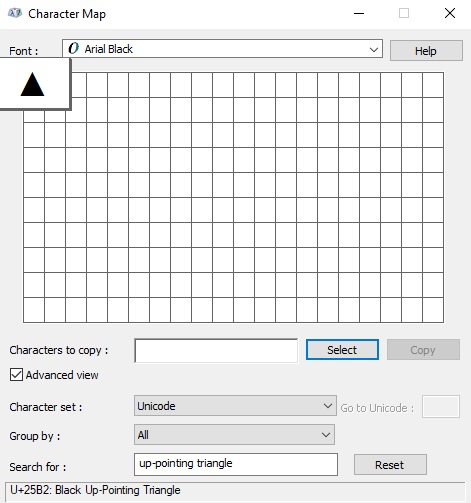
  • After the character map window opens up, click to check the advance view checkbox to expand the window for more advanced options.

  • On the advanced view section, type an up-pointing triangle in the search box.

  • The symbol you searched for (i.e., the up-pointing triangle) will now appear on the character map. Double click on it to select it. You’ll see that the symbol appears in the characters to copy text box. This allows you to select and copy several symbols at the same time.
  • After selecting the symbol, you wish to copy, click on the copy button.
  • Switch over to wherever you need the symbol, whether in MS Word, Excel, or PowerPoint, and press Ctrl + V to paste.

This is how you may copy and paste the up-pointing triangle symbol using the character map on Windows.

Method #6: Typing an Up-pointing triangle symbol/emoji on keyboard

HOW TO ADD UP-POINTING TRIANGLE symbol/emoji IN HTML?

To add the up-pointing triangle symbol in HTML, you can use an HTML entity, an HTML code (decimal), and a Hex code. Use the shortcode section to copy the various shortcodes for the up-pointing triangle sign. Here is the example:

<span>&#9650;</span>

HOW TO ADD UP-POINTING TRIANGLE symbol /SYMBOL IN CSS?

To add the up-pointing triangle sign in CSS, you can use a CSS entity or CSS shortcode. Use the shortcode section to copy the CSS code for the up-pointing triangle symbol.

Here is the example:

span {
  content: "\25B2";
}

Conclusion

As you can see, these are the various ways you can use to type the up-pointing triangle symbol text in Word/Excel with or without using the keyboard.

My favorite method is using the copy and paste method followed by the up-pointing triangl symbol shortcut in Word. The alt code method also comes handy.

For any comments or questions about this up-pointing triangle symbol guide, please let me know in the comments section below.

How to write/type left right arrow sign/symbol on keyboard- Alt + 29

What is the left-right arrow sign used for?

An arrow pointing at both left and right points would most likely be used when giving someone directions or to explain that someone feels divided or impartial in regards to an issue.

This icon depicts an arrow pointing at both left and right point. Left-right arrow emoji would most likely be used if giving someone directions, or to explain that someone feels divided or impartial in regards to an issue.

Typing the Left-right arrow sign /symbol (↔)

This is a detailed guide with several methods you can use to type or insert the left-right arrow sign/symbol text anywhere on your PC keyboard, like in Microsoft Word/Excel/PowerPoint or somewhere in your browser like Google Docs.

You’ll learn all the easy methods to get this symbol/emoji including the left-right arrow sign shortcut and alt code.

Let’s get to work without wasting much time.

Quick Guide for typing the Left-right arrow sign /symbol (↔)

To make a left-right arrow sign/symbol anywhere on your PC or laptop keyboard (like in Microsoft Word or Excel), simply press down the alt key and type 29 using the numeric keypad on the left side of your keyboard.

The table below contains everything you need to know to be able to make left-right arrow sign/symbol on Windows.

Name of Symbol/emoji Left-right arrow sign
Symbol/emoji Text
Symbol/emoji Alt Code 29
Shortcut for Windows Alt + 29

If you are using Windows, the above information is enough for you to make the left-right arrow sign/symbol into your Word/Excel document.

However, if you are not satisfied with this quick help, keep reading below as I will explain in detail, how to get the left-right arrow sign /symbol or any other angle symbol anywhere on your Windows PC like in MS Word/Excel/PowerPoint.

As you may already know, there are several dual-purpose keys on the Windows keyboard. That is to say that there are symbols readily available as second keys on the keyboard. Just by pressing two or more keys simultaneously, you can easily insert such symbol into your document. For example, pressing shift + 1 keys give you the exclamation (!) mark.

However, other symbols aren’t printed on the keyboard as second keys. This makes it difficult to type. One of these symbols is the left-right arrow sign/symbol text (↔).

Typing becomes very difficult for you if you need to add some of these symbols regularly into your document. But it doesn’t have to be difficult. Especially now that you are reading this detailed step-by-step guide.

How to Make Left-right arrow sign/symbol?

Now, I will show you all the easy ways to type or insert left-right arrow sign anywhere on your Windows PC (such as Word or Excel, or PowerPoint).

Without any further delay, below are the methods explained in detail.

Method #1: Typing a Left-right arrow sign/symbol on keyboard

Using Alt code Shortcut for Left-right arrow sign /symbol for windows

Windows has several shortcuts for symbols, some of which work only in Microsoft Word. However, there’s a Windows shortcut for the left-right arrow sign that works across all applications. It is the alt code shortcut which is Alt+29.

Now, I’ll further explain the alt code shortcut for the left-right arrow sign/symbol.

Method #2: Typing a Left-right arrow sign/symbol on keyboard

Left-right arrow sign Alt Code (Windows)

The left-right arrow sign symbol alt code is 29.

Every symbol in Word has a unique code that you can use to insert the symbol into your document. This code is known as “alt code”.

Below are the steps to type the left-right arrow symbol on your keyboard by using the alt code mentioned above:

  • Press the num lock key to enable the numeric keypad. Use Fn key + NumLk keys to turn on Num Lock on laptops without the numeric keypad.
  • Press and hold the alt key and type 29 using the numeric keypad.
  • After typing the alt code (i.e., 29), release the [Alt] key.

Once you’ll release the alt key, the left-right arrow sign will appear in your document.

Method #3: Typing a Left-right arrow sign/symbol on keyboard

Using insert symbol dialog

This approach isn’t as straightforward as the shortcut methods. But it’s fairly simple.

And once you get the symbol into your document, you can always copy and paste it again when you need it into your document.

Below are the steps to insert the left-right arrow sign/symbol in Word using the insert symbol dialog.

  • Go to the Insert tab.

Insert tab in Word

  • On the insert tab, click the symbol button and choose more symbol…

These few clicks will bring up the symbol dialog box.

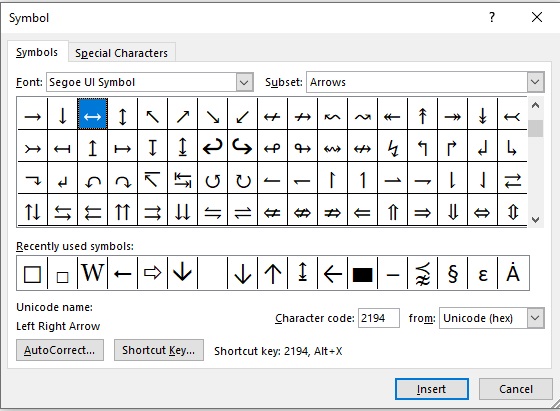
  • Under the symbol’s tab, in the font drop-down list, type and select Segoe UI Symbol. Now, type 2194 in the character code field. Once you’ll the character code, you’ll get the left-right arrow sign selected.
  • Click on the insert button.

  • Alternatively, double-clicking on the left-right arrow sign will also insert the symbol into your document.
  • Click the close button.

This is how you may insert a left-right arrow sign text in Word using the insert symbol dialog.

Method #4: Typing a Left-right arrow sign/symbol on keyboard

Word’s AutoCorrect for the Left-right arrow sign/Symbol Text

You can also type the left-right arrow sign/symbol text using the autocorrect feature in Word. It is a feature in MS Word designed for correcting spelling mistakes like thsi to this.

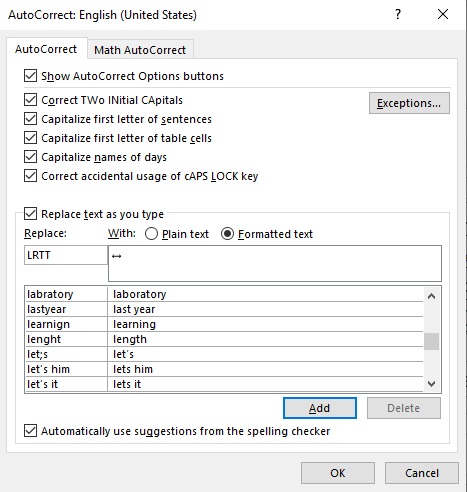
Using this autocorrect feature, you can assign a shortcode to the left-right arrow sign (such as LRTT). This way, whenever you type the text LRTT, Word will think that you actually wanted to type ↔ and will convert it into the left-right arrow sign for you automatically.

  • Click add, and then hit the OK button.

Now, word will automatically insert the left-right arrow sign into your document whenever you type LRTT.

Things you should remember before using the autocorrect feature in Word

Below are some things to take into consideration when you are using the autocorrect method to insert the left-right arrow sign.

  • Autocorrect is case-sensitive. Meaning if you type lrtt (in lowercase), Word will not convert it into the left-right arrow sign unless you type LRTT (in uppercase).
  • If there is any text before or after the autocorrect text, Word will consider the autocorrect text as part of the text and hence will not convert it to the right-angle sign. For example, GetLRTT (without space) will not get converted, but Get RGTT (with space) will get converted to Get ↔.

Method #5: Typing a Left-right arrow sign/symbol on keyboard

Copy and paste the Left-right arrow symbol text

You can simply copy the left-right arrow sign given below and paste it into your document.

My favorite method for inserting symbol which I can’t easily type is copy and paste.

With this method, all you need to do is google the symbol you need to type, then copy it from one of the search results provided. Once you get the symbol into your document, you can always recopy and paste it as and when the need arises.

There is another way to copy this and any other symbol on Windows. It involves using the Windows character map.

Obey the steps below to copy and paste any symbol using the character map.

  • Search for the character map app by clicking on the start button.

  • The character map app will show up in the search results. Click on it to launch.
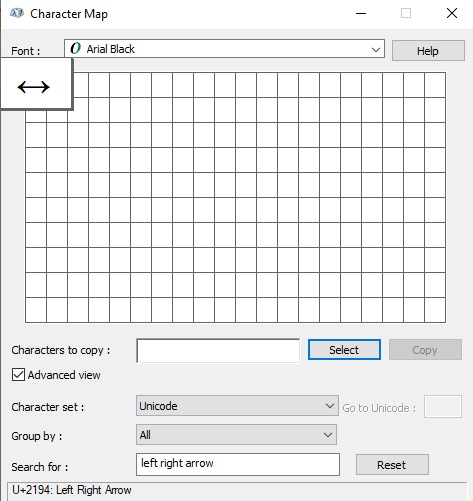
  • After the character map window opens up, click to check the advance view checkbox to expand the window for more advanced options.

  • On the advanced view section, type the left-right arrow in the search box.
  • The symbol you searched for (i.e., the left-right arrow) will now appear on the character map. Double click on it to select it. You’ll see that the symbol appears in the characters to copy text box. This allows you to select and copy several symbols at the same time.

  • After selecting the symbol, you wish to copy, click on the copy button.
  • Switch over to wherever you need the symbol, whether in MS Word, Excel, or PowerPoint, and press Ctrl + V to paste.

This is how you may copy and paste the left-right arrow sign using the character map on Windows.

Method #6: Typing a Left-right arrow sign/symbol on keyboard

HOW TO ADD THE LEFT-RIGHT ARROW SIGN IN HTML?

To add the left-right arrow sign in HTML, you can use an HTML entity, an HTML code (decimal), and a Hex code. Use the shortcode section to copy the various shortcodes for the left-right arrow sign. Here is the example:

<span>&#8596;</span>

HOW TO ADD LEFT-RIGHT ARROW SIGN /SYMBOL IN CSS?

To add the left-right arrow sign in CSS, you can use a CSS entity or CSS shortcode. Use the shortcode section to copy the CSS code for the left-right arrow sign.

Here is the example:

span {
  content: "\2194";
}

Conclusion

As you can see, these are the various ways you can use to type the left-right arrow sign text in Word/Excel with or without using the keyboard.

My favorite method is using the copy and paste method followed by the left-right arrow sign shortcut in Word. The alt code method also comes handy.

For any comments or questions about this left-right arrow sign guide, please let me know in the comments section below.

How to make/type right angle/90 degree angle symbol on keyboard- Alt + 28

What is right angle/90-degree angle?

When two straight lines intersect each other at 90˚ or are perpendicular to each other at the intersection, they form the right angle. A right angle is represented by the symbol ∟.

Typing the Right angle/90-degree angle symbol/emoji (∟)

This is a detailed guide with several methods you can use to type or insert the right angle/90-degree angle symbol/emoji text anywhere on your PC keyboard, like in Microsoft Word/Excel/PowerPoint or somewhere in your browser like Google Docs.

Whether you are using Mac or Windows keyboard, you’ll learn all the easy methods to get this symbol/emoji including the right angle/90-degree angle shortcut and alt code.

Before moving forward, if you’re having difficulty with double angle calculation, then you can use this double angle calculator to get the accurate results.

Quick Guide for typing the Right angle/90-degree angle symbol/emoji (∟)

To make a right angle/90-degree angle symbol/emoji anywhere on your PC or laptop keyboard (like in Microsoft Word or Excel), simply press down the alt key and type 28 using the numeric keypad on the left side of your keyboard.

The table below contains everything you need to know to be able to make right angle/90-degree angle symbol/emoji on Windows.

Name of Symbol/emoji Right angle symbol
Symbol Text
Symbol Alt Code 28
Shortcut for Windows Alt + 28

If you are using Windows, the above information is enough for you to make the right angle/90-degree angle symbol/emoji into your Word/Excel document.

However, if you are not satisfied with this quick help, keep reading below as I will explain in detail, how to get the right angle/90-degree angle symbol/emoji or any other angle symbol anywhere on your Windows PC like in MS Word/Excel/PowerPoint.

As you may already know, there are several dual-purpose keys on the Windows keyboard. That is to say that there are symbols readily available as second keys on the keyboard. Just by pressing two or more keys simultaneously, you can easily insert such symbol into your document. For example, pressing Shift + 1 keys give you the exclamation (!) mark.

However, other symbols aren’t printed on the keyboard as second keys. This makes it difficult to type. One of these symbols is the right angle/90-degree angle symbol/emoji text ().

Typing becomes very difficult for you if you need to add some of these symbols regularly into your document. But it doesn’t have to be difficult. Especially now that you are reading this detailed step-by-step guide.

How to Make Right angle/90-degree angle symbol/emoji?

Now, I will show you all the easy ways to type or insert right angle/90-degree angle symbol (∟) anywhere on your Windows PC (such as Word or Excel, or PowerPoint).

Without any further delay, below are the methods explained in detail.

Method #1: Typing a Right angle/90-degree angle symbol/emoji

Using Alt code Shortcut for Right angle/90-degree angle symbol/emoji for windows

Windows has several shortcuts for symbols, some of which work only in Microsoft Word. However, there’s a Windows shortcut for the right angle/90-degree angle sign that works across all applications. It is the alt code shortcut which is Alt+28.

Now, I’ll further explain the alt code shortcut for the right angle/90-degree angle symbol/emoji.

Method #2: Typing Right angle/90-degree angle symbol/emoji

Right angle/90-degree angle sign Alt Code (Windows)

The right angle/90-degree angle symbol alt code is 28.

Every symbol in Word has a unique code that you can use to insert the symbol into your document. This code is known as “alt code”.

Below are the steps to type right angle symbol on your keyboard by using the alt code mentioned above:

  • Press the num lock key to enable the numeric keypad. Use Fn key + NumLk keys to turn on Num Lock on laptops without the numeric keypad.
  • Press and hold the alt key and type 28 using the numeric keypad.
  • After typing the alt code (i.e., 28), release the [Alt] key.

Once you’ll release the alt key, the right angle/90-degree angle symbol will appear in your document.

Method #3: Typing Right angle/90-degree angle symbol/emoji

Using insert symbol dialog

This approach isn’t as straightforward as the shortcut methods. But it’s fairly simple.

And once you get the symbol into your document, you can always copy and paste it again as and when you need it into your document.

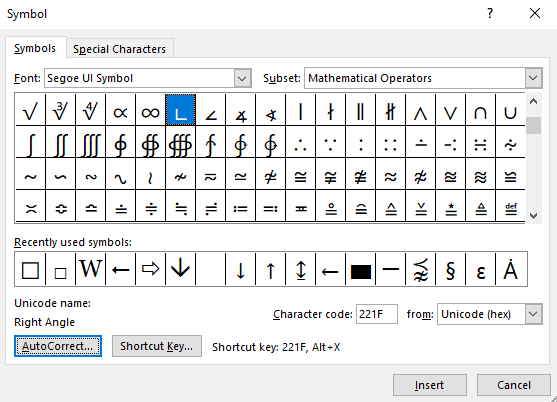
Below are the steps to insert the right angle/90-degree angle symbol in Word using the insert symbol dialog.

  • Go to the Insert tab.

Insert tab in Word

  • On the insert tab, click the symbol/emoji button and choose more symbol…

These few clicks will bring up the symbol dialog box.

  • Under the symbol’s tab, in the font drop-down list, type and select Segoe UI Symbol. Now, type 221F in the character code field. Once you’ll the character code, you’ll get the right-angle symbol selected.

  • Click on the insert button.
  • Alternatively, double-clicking on the right angle/90-degree angle symbol will also insert the symbol/emoji into your document.
  • Click the close button.

This is how you may insert a right angle/90-degree angle symbol text in Word using the insert symbol dialog.

Method #4: Typing Right angle/90-degree angle symbol/emoji

Word’s AutoCorrect for the Right angle/90-degree angle Symbol Text

You can also type the Right angle/90-degree angle symbol/emoji text using the autocorrect feature in Word.

It is a feature in MS Word designed for correcting spelling mistakes like thsi to this.

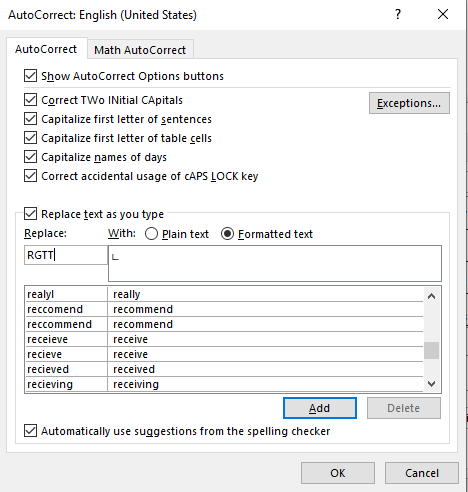
Using this autocorrect feature, you can assign a shortcode to the right angle/90-degree angle symbol/ (such as RGTT).

This way, whenever you type the text RGTT, Word will think that you actually wanted to type ∟ and will convert it into the right angle/90-degree angle symbol for you automatically.

  • Click add, and then hit the OK button.

Now, word will automatically insert the 90-degree angle symbol into your document whenever you type RGTT.

Things you should remember before using the autocorrect feature in Word

Below are some things to take into consideration when you are using the autocorrect method to insert the right angle/90-degree angle symbol.

  • Autocorrect is case-sensitive. Meaning if you type rgtt (in lowercase), Word will not convert it into the right-angle angle symbol unless you type RGTT (in uppercase).
  • If there is any text before or after the autocorrect text, Word will consider the autocorrect text as part of the text and hence will not convert it to the right-angle symbol. For example, GetRGTT (without space) will not get converted, but Get RGTT (with space) will get converted to Get ∟.

Method #5: Typing Right angle/90-degree angle symbol

Copy and paste the right-angle symbol text

You can simply copy the right angle/90-degree angle sign given below and paste it into your document.

My favorite method for inserting symbols that I can’t easily type is copy and paste.

With this method, all you need to do is google the symbol you need to type, then copy it from one of the search results provided. Once you get the symbol into your document, you can always recopy and paste it as and when the need arises.

There is another way to copy this and any other symbol on Windows. It involves using the Windows character map.

Obey the steps below to copy and paste any symbol using the character map.

  • Search for the character map app by clicking on the start button.
  • The character map app will show up in the search results. Click on it to launch.

  • After the character map window opens up, click to check the advance view checkbox to expand the window for more advanced options.

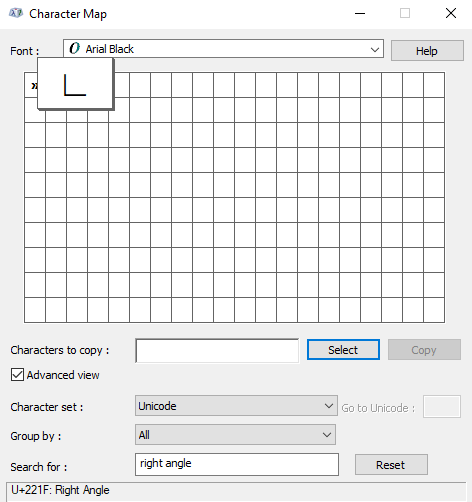
  • On the advanced view section, type right angle in the search box.
  • The symbol you searched for (i.e., the right angle) will now appear on the character map. Double click on it to select it. You’ll see that the symbol appears in the characters to copy text box. This allows you to select and copy several symbols at the same time.

  • After selecting the symbol, you wish to copy, click on the copy button.
  • Switch over to wherever you need the symbol, whether in MS Word, Excel, or PowerPoint, and press Ctrl + V to paste.

This is how you may copy and paste the right angle/90-degree angle symbol using the character map on Windows.

Method #6: Typing Right angle/90-degree angle symbol/emoji

HOW TO ADD RIGHT-ANGLE/90-DEGREE ANGLE SYMBOL IN HTML?

To add the right angle/90-degree angle symbol in HTML, you can use an HTML entity, an HTML code (decimal), and a Hex code. Use the shortcode section to copy the various shortcodes for the right-angle symbol. Here is the example:

<span>&#8735;</span>

HOW TO ADD RIGHT-ANGLE/90-DEGREE ANGLE SYMBOL/sign IN CSS?

To add the right angle/90-degree angle symbol/sign in CSS, you can use a CSS entity or CSS shortcode. Use the shortcode section to copy the CSS entity code for the right-angle symbol.

Here is the example:

span {
  content: "\221F";
}

Conclusion

As you can see, these are the various ways you can use to type the right angle/90-degree angle symbol text in Word/Excel with or without using the keyboard.

My favorite method is using the copy and paste method followed by the right angle/90-degree angle symbol shortcut in Word. The alt code method also comes handy.

For any comments or questions about this right angle/90-degree angle symbol guide, please let me know in the comments section below.

How to type Left/Leftward arrow symbol/emoji on Keyboard – Alt + 27

What is the Left arrow symbol/emoji is used for?

The left arrow symbol/emoji is one of the most generic and simple emojis. It shows a minimalistic arrow pointing left. Since it is a very simple emoji it can be used in almost any context; for example, to indicate a direction or an object that is on the left. Sometimes left arrow symbol/emoji can also mean the next thing, stop, or person in a group.

Typing the leftward arrow symbol/emoji (←)

This is a detailed guide with several methods you can use to type or insert the left arrow symbol/emoji text anywhere on your PC keyboard, like in Microsoft Word/Excel/PowerPoint or somewhere in your browser like Google Docs.

Whether you are using Mac or Windows keyboard, you’ll learn all the easy methods to get this symbol/emoji including the left arrow shortcut and alt code.

Let’s get to work without wasting much time.

Quick Guide for typing the Leftward Arrow symbol/emoji (←)

To make a leftward arrow symbol/emoji anywhere on your PC or laptop keyboard (like in Microsoft Word or Excel), simply press down the alt key and type 27 using the numeric keypad on the left side of your keyboard.

For Mac users, to get the left arrow symbol/emoji, first press Control + Command + Spacebar to bring up the character viewer. Using the search bar near the top of the character viewer, search for ‘arrows’ and double click on the left arrow symbol/emoji to insert it into your work.

The table below contains everything you need to know to be able to type the left arrow symbol/emoji on both Mac and Windows.

Name of Symbol/emoji Leftwards Arrow
Symbol/Emoji Text
Symbol/emoji Alt Code 27
Shortcut for Windows Alt + 27

Whether you are using Windows or Mac, the above information is enough for you to make the left arrow symbol/emoji into your Word/Excel document.

However, if you are not satisfied with this quick help, keep reading below as I will explain in detail, how to get the left arrow symbol/emoji or any other arrow symbol/emoji anywhere on your Mac or Windows PC like in MS Word/Excel/PowerPoint.

As you may already know, there are several dual-purpose keys on the keyboard for both Windows and Mac. That is to say that there are symbols/emojis readily available as second keys on the keyboard. Just by pressing two or more keys simultaneously, you can easily insert such symbols/emojis into your document. For example, pressing Shift + 1 keys give you the exclamation (!) mark.

However, other symbols/emojis aren’t printed on the keyboard as second keys. This makes it difficult to type. One of these symbols/emojis is the left arrow symbol/emoji text ().

Typing becomes very difficult for you if you need to add some of these symbols/emojis regularly into your document. But it doesn’t have to be difficult. Especially now that you are reading this detailed step-by-step guide.

How to Make Leftward Arrow symbol/emoji?

Now, I will show you all the easy ways to type or insert left arrow symbol/emoji () anywhere on your Windows or Mac PC (such as Word or Excel, or PowerPoint).

Without any further delay, below are the methods explained in detail.

Method #1: Typing a left arrow symbol/emoji

Using Alt code Shortcut for left arrow symbol/emoji for windows

Windows has several shortcuts for symbols/emojis, some of which work only in Microsoft Word. However, there’s a Windows shortcut for the left arrow symbol/emoji that works across all applications. It is the alt code shortcut which is Alt+27.

Now, I’ll further explain the alt code shortcut for the left arrow symbol/emoji.

Method #2: Typing Left Arrow Symbol/emoji on Mac

Inserting Left Arrow Symbol/emoji on Mac

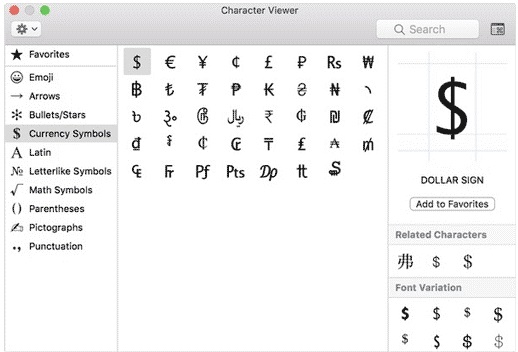
Using the character viewer on Mac, below are the steps to insert the left arrow symbol/emoji text on Mac:

  • Click to place the insertion pointer where you want to add the symbol/emoji.
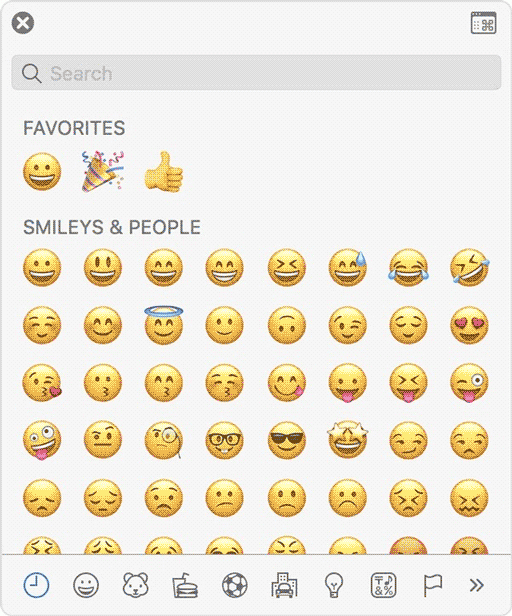
  • Press Control Command Spacebar on your keyboard. This brings up the character viewer, which looks like the picture below:

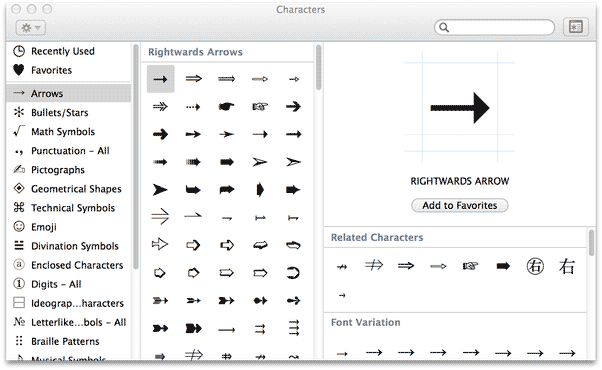
  • Using the search bar at the top of the character viewer, search for “arrows”. Alternatively, click on the expand icon in the top left corner that looks like the screenshot below.

After you click on this icon, the expanded view of the character viewer will look like the screenshot below.

  • You should now see “arrows” in the left-hand menu, just under the “emoji” group. Browse through these arrows and double-click on the left arrow symbol/emoji or any other arrow symbol/emoji you wish to insert.

This is how you can easily insert the Left arrow symbol/emoji on Mac.

Method #3: Typing left arrow symbol/emoji

Left Arrow Symbol/emoji Alt Code (Windows)

The left arrow symbol/emoji alt code is 27.

Every symbol/emoji in Word has a unique code that you can use to insert the symbol/emoji into your document. This code is known as “alt code”.

Below are the steps to type this symbol/emoji on your keyboard by using the alt code mentioned above:

  • Press the num lock key to enable the numeric keypad. Use Fn key + NumLk keys to turn on Num Lock on laptops without the numeric keypad.
  • Press and hold the alt key and type 27 using the numeric keypad.
  • After typing the alt code (i.e., 27), release the [Alt] key.

Once you’ll release the alt key, the left arrow symbol/emoji will appear in your document.

Method #4: Typing left arrow symbol/emoji

Using Insert Symbol Dialog

This approach isn’t as straightforward as the shortcut methods. But it’s fairly simple.

And once you get the symbol/emoji into your document, you can always copy and paste it again as and when you need it into your document. This method works on both Windows and Mac.

Below are the steps to insert the left arrow symbol/emoji /emoji in Word using the insert symbol/emoji dialog.

  • Go to the Insert tab.

  • On the insert tab, click the symbol/emoji button and choose more symbols…

These few clicks will bring up the symbol/emoji dialog box.

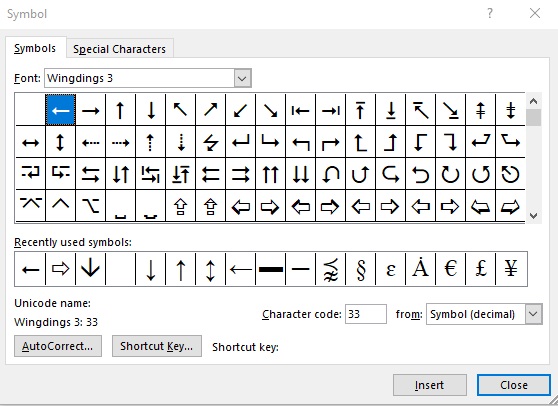
  • Under the symbol tab, in the font drop-down list, type, and select wingdings. This should filter out all the windings’ symbol texts including the left arrow symbol/emoji.
  • Select the symbol/emoji, and then click on the insert button.

  • Alternatively, double-clicking on the left arrow symbol/emoji will also insert the symbol/emoji into your document.
  • Click the close button.

This is how you may insert a left arrow symbol/emoji text in Word using the insert symbol/emoji dialog.

Method #5: Typing left arrow symbol/emoji

Word’s AutoCorrect for the Left Arrow Symbol/emoji Text

You can also type the left arrow symbol/emoji text using the autocorrect feature in Word.

It is a feature in MS Word designed for correcting spelling mistakes like thsi to this.

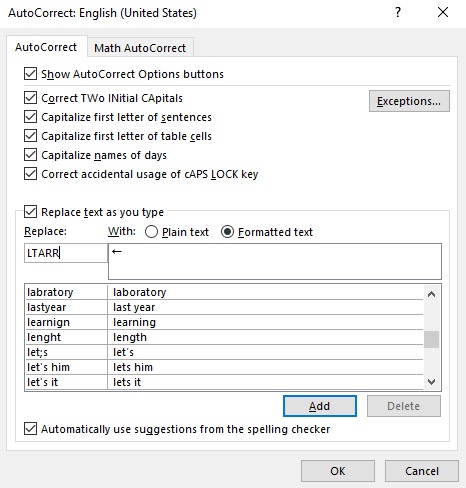
Using this autocorrect feature, you can assign a shortcode to the left arrow symbol/emoji (such as LTARR).

This way, whenever you type the text LTARR, Word will think that you actually wanted to type ← and will convert it into the left arrow symbol/emoji for you automatically.

  • Click add, and then hit the OK button.

Now, word will automatically insert the left arrow symbol/emoji into your document whenever you type LTARR.

Things you should remember before using the autocorrect feature in Word

Below are some things to take into consideration when you are using the autocorrect method to insert the left arrow symbol/emoji.

  • Autocorrect is case-sensitive. Meaning if you type ltarr (in lowercase), Word will not convert it into the left arrow symbol/emoji unless you type LTARR (in uppercase).
  • If there is any text before or after the autocorrect text, Word will consider the autocorrect text as part of the text and hence will not convert it to the left arrow symbol/emoji. For example, GetLTARR (without space) will not get converted, but Get LTARR (with space) will get converted to Get →.

Method #6: Typing left arrow symbol/emoji

Copy and paste the Arrow symbol/emoji text

You can simply copy the left arrow symbol/emoji given below and paste it into your document.

My favorite method for inserting symbols is to copy and paste.

With this method, all you need to do is google the symbol/emoji you need to type, then copy it from one of the search results provided. Once you get the symbol/emoji into your document, you can always recopy and paste it as and when the need arises.

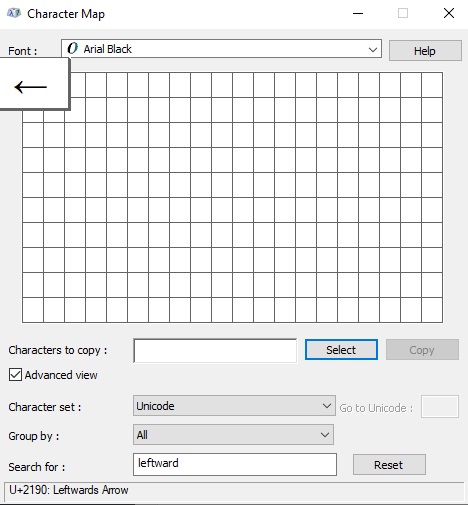
There is another way to copy this and any other symbol/emoji on Windows. It involves using the Windows character map.

Obey the steps below to copy and paste any symbol/emoji using the character map.

  • Search for the character map app by clicking on the start button.
  • The character map app will show up in the search results. Click on it to launch.

  • After the character map window opens up, click to check the advance view checkbox to expand the window for more advanced options.

  • On the advanced view section, type arrow or leftward arrow in the search box.
  • The symbol/emoji you searched for (i.e., the leftward arrow) will now appear on the character map. Double click on it to select it. You’ll see that the symbol/emoji appears in the characters to copy text box. This allows you to select and copy several symbols/emojis at the same time.

  • After selecting the symbol/emoji, you wish to copy, click on the copy button.
  • Switch over to wherever you need the symbol/emoji, whether in MS Word, Excel, or PowerPoint and press Ctrl + V to paste.

This is how you may copy and paste the left arrow symbol/emoji using the character map on Windows.

Method #7: Typing left arrow symbol/emoji

HOW TO ADD LEFT ARROW SYMBOL/EMOJI IN HTML?

To add the left arrow symbol/emoji in HTML, you can use an HTML entity, an HTML code (decimal), and a Hex code. Use the shortcode section to copy the various shortcodes for the left arrow symbol. Here is the example:

<span>&#8592;</span>

HOW TO ADD LEFT ARROW SYMBOL/EMOJI IN CSS?

To add the left arrow symbol/emoji in CSS, you can use a CSS entity or CSS shortcode. Use the shortcode section to copy the CSS entity code for the left arrow symbol/emoji.

Here is the example:

span {
  content: "\2190";
}

Conclusion

As you can see, these are the various ways you can use to type the left arrow symbol/emoji text in Word/Excel with or without using the keyboard.

My favorite method is using the copy and paste method followed by the left arrow symbol/emoji /emoji shortcut in Word for both Windows and Mac. The alt code method also comes handy.

For any comments or questions about this left arrow symbol/emoji guide, please let me know in the comments section below.

Blue Monday -Most Depressing Day of the Year

Blue Monday – Most Depressing Day of the Year (17th January, 2022)

You’re not alone if you’re feeling down now that the holiday season is over, another few months of winter are on the horizon, and your New Year’s resolutions are fading away.

Blue Monday, the most depressing and gloomy day of the year, falls in January. Due to a mix of post-Christmas blues, chilly dark evenings, and the delivery of unpaid credit card bills, the third Monday of January has been dubbed as Blue Monday- the most depressing day of the year.

When is Blue Day 2022?

Due to a mix of post-Christmas blues, chilly dark evenings, and the delivery of unpaid credit card bills, the third Monday of January has been dubbed as blue Day. This year’s date is January 17th, 2022.

Is Blue Monday Real?

The month of January is frequently regarded as the most dismal year. In fact, according to iReach Insights study, 56 percent of Irish people believe January is the saddest month, and 51 percent of those under the age of 34 feel depressed and deflated after Christmas.

It’s easy to see why January is regarded as the most dismal month of the year. The days are becoming shorter, the weather is becoming colder and wetter, and many of us have already abandoned our New Year’s resolutions. There are, however, compelling objections against the concept of Blue Monday.

Many experts have dismissed the concept of Blue Monday and labeled it as pseudoscience. They argue that while the original formula for the notion had value, it took on a new life as a marketing and public relations tool for travel companies to sell summer vacations during the slow winter months.

History of  Blue Monday

According to claims from multiple websites, the concept of Blue Monday was created by psychologist Cliff Arnall in 2005 as part of a marketing campaign for the now-defunct company Sky Travel.

Arnall constructed a sophisticated algorithm to identify which day in January would be Blue Monday each year, factoring in weather, debt level, monthly pay, time since Christmas, how long a person has failed to follow their New Year’s resolutions, motivational stories, and the urge to take action.

While all of these criteria may appear to be relevant elements in determining the worst day of the year, many other experts have repeatedly pointed out that they are impossible to decide on, rendering the equation entirely unscientific.

There’s no way to know how long it’s been since someone failed to maintain a New Year’s resolution for everyone on the earth since January weather varies significantly between countries and continents.

Arnall’s View

Arnall told a reporter at a newspaper in 2018 that his goal was to “inspire people to take action and make significant life decisions,” rather than “to make the day sound unpleasant.” He was also said to be working with Virgin Atlantic and Virgin Holidays, having “made it his mission to fight some of the terrible news connected with January and to disprove the melancholy mindset of Blue Monday, according to reports.

The paper made news, and advertising agency Porter Novelli decided to capitalize on the theory’s media attention by launching a series of viral and successful marketing campaigns for the Blue Monday brand.

Since then, the third Monday of the year has been designated as Blue Monday, the day on which we formally return to our usual routine after the Christmas vacations have ended.

Blue Monday Equation

After being approached by Sky Travel to develop a “formula” for the January blues, Arnall came up with one equation. Sky Travel subsequently used the phrase to market their winter offers in a news release.

The equation considered several elements that may lead to low mood, and the results were as follows:

W = weather, D = debt, d = monthly salary, T = time since Christmas, Q = time since failing our new year’s resolutions, M = low motivational levels, Na = the feeling of a need to take action.

Weather conditions, debt level (the difference between accrued debt and our ability to pay), time since Christmas, time since breaking our new year’s resolutions, low motivational stories, and a sense of urgency were allegedly used to determine the date. However, not everything appears to be as it looks, as it comes out that this was merely a publicity stunt by Sky Travel.

Marketing for Mental Health

Even though the hypothesis associated with Blue Monday was refuted within a year after it was conceived, it is still alive and well. And some people still believe in the formula, which has been published in several renowned newspapers and has traveled throughout the world.

The myth of Blue Monday persists despite the phrase coming from an advertising campaign, and there is no solid proof that one day, in particular, increases the chance of people being depressed. Several circumstances, such as post-Christmas financial difficulties, broken New Year’s resolutions, terrible weather, and short daylight hours, may make people feel unhappy at this time of year.

On the other hand, low mood is not the same as depression. Depression is incredibly debilitating, and those who are depressed may feel hopeless, see no reason to live, feel cut off from friends and family, and consider suicide as the only option left.

Depression is not a seasonal occurrence; it can strike at any time of the year. By indicating that the symptoms of such a terrible illness may be experienced in a single day, it trivializes the experiences of those who suffer from symptoms year-round.”

“Days like Blue Monday have, at times, functioned as pegs for our campaigns to raise awareness of the support we offer,” said Simon Gunning, CEO of the campaign against living miserably.

The myth of Blue Monday arose from a greater understanding of actual disorders like Seasonal Affective Disorder (SAD) and what might be viewed as more challenging times in the calendar, such as the aftermath of Christmas and the end of vacations.

Should We Move on?

As businesses prepare to sell their wares on Blue Monday, one marketing guru believes it’s time to rethink the formula.” As marketing professionals, we must also evaluate and ask ourselves whether news hooks like these serve the best interests of our clients and their expectations,” said Chris Daly, CEO of the Chartered Institute of Marketing.

“We know that customers are becoming more interested in firms that do good – and while timely discounts and offers may increase reputation in the near term, consumers are getting concerned that the day trivializes mental health issues.” Marketers should avoid upsetting their customers by anchoring promotions or social content to Blue Monday.” Otherwise, more thought is required.

Why is Blue Monday Necessary?

Blue Monday may have intensified the sense of sadness surrounding January, particularly those suffering from depression and anxiety. They may feel under pressure to get through this particularly depressing holiday. There are seven techniques to improve morale and motivation on Blue Monday.

Reconnect with your loved ones

Keeping in touch with family and friends is one of the simplest methods to improve your mood. Speak to your loved ones this Blue Monday, whether it’s a one-on-one conversation on the phone or FaceTime or a Zoom call with all of your favorite people.

Give flowers to someone

Because putting a smile on someone else’s face is the purpose of life. Someone may be in a worse mood than you. Therefore buying flowers is something you can do to make both of your faces smile.

Get out of the house

Being in nature is the best way to lift one’s spirits when in a bad mood. Get outside and spend some time in the fresh air. There has been a growing interest in investigating the psychological impact of our environment in recent years, and it has been discovered that spending time in green settings can actually improve your mood and even reduce depression symptoms.

Get sunlight

Natural light aids in stabilizing serotonin and releasing endorphins, both of which are mood-enhancing substances. To improve your well-being, try to be outside as often as possible during the day.

Get away for a day

A day trip can help you avoid the harsh reality of bad weather and mounting debt. By Blue Monday, it’s easy to believe that the nights, cold, and general gloom of the post-Christmas winter will never end. So, to think more positively and optimistically about the future, plan a short getaway that you can look forward to and see coming up on the horizon,’

Evaluate yourself

Congratulate yourself on what you’ve accomplished in the last few weeks, and attempt to learn from where things went wrong.

Set goals

Focusing on the goals you can achieve is the best policy for avoiding failure.

Rather than assuming that everything has gone wrong, You should set more realistic goals for the coming months that are easier to apply and integrate into your daily life. Remember that real change comes from being willing to adapt your goals and get back on track when you do fail.

Be sociable

Isolating oneself from the rest of the world until February is the worst error one can make. Although financial considerations may drive the desire to hibernate, being sociable does not have to be costly. You may invite your buddies over for gaming and movie nights.

Get good sleep

One of the most prevalent causes of a negative mood is a lack of sleep, so get a good night’s sleep on Sunday. If you’re experiencing trouble sleeping regularly, try some changes and get help.

While the validity of Blue Monday is often questioned at this time of year, there is no denying that the winter months harm mental health. As a result, you must make an effort to safeguard your health.

Frequently Asked Question (FAQs)

Why is Blue Monday the Saddest Day of the Year?

Blue Monday, which falls on the third Monday of January each year, is said to be the saddest day of the year due to a mix of bad weather, long evenings, and the lingering effects of the holiday glut.

Is the Blue Day Equation Reliable?

According to mental health professionals, there is no formula for calculating depression, and it can strike at any time of year. They also claim that the concept of Blue Monday isn’t entirely incorrect. During certain times of the year, your surroundings can significantly impact your mental health.

Shorter days and colder temperatures can decrease your mood and cause Seasonal Affective Disorder (SAD), a type of sadness. According to Mental Health America, ten million Americans suffer from the condition.

What is the Meaning of a Blue Monday?

The term “Blue Monday” refers to a melancholy or brutal Monday, mainly due to returning to work and routine after a weekend away. It is also known as the saddest day of the year.

Is There Such a Thing as Blue Monday?

Blue Monday is a public relations stunt created to promote holiday sales. It’s a myth, based on factors such as dreary weather, post-Christmas debt, disappointment from failing to keep new year’s resolutions, unhappiness with returning to work, and general doom and gloom.

Since then, it has evolved into a somewhat annual public relations event to promote items that are ostensibly related to increasing our well-being. More often, the things about Blue Monday are based on a complete lack of evidence. Actual scientific studies have never backed up any claims regarding Blue Monday.

Conclusion

Over 13 years, what began as a simple marketing effort has grown in popularity and become ingrained in online culture. Blue Monday currently straddles the line between making January a more depressing month and providing a reason to talk about mental health more freely.

The infamous day is simply another opportunity to boost sales during one of the year’s slowest months for several businesses. So don’t be concerned about what Blue Monday may bring. Ignore the hype, try your best to enjoy the day, and if you haven’t kept your New Year’s resolutions thus far, use today to get back on track at your own pace.

The ‘good’ and ‘poor’ days of mental health are unique. It’s meaningless to try to pinpoint the year’s most sad day because it would be different for every one of us. Each person’s situation is as unique as they are. It’s also crucial to distinguish between feeling low for a short period, which we all experience from time to time, and suffering depression or a mental health problem, which may be pretty disruptive to our daily lives.

This year, perhaps more than any other year in recent memory, the need for us all to take care of our mental health and support one another is plain and essential. The Coronavirus epidemic destroyed many things that ordinarily protect our mental health from social connectivity to financial security and optimism for the future.